Photo Captures
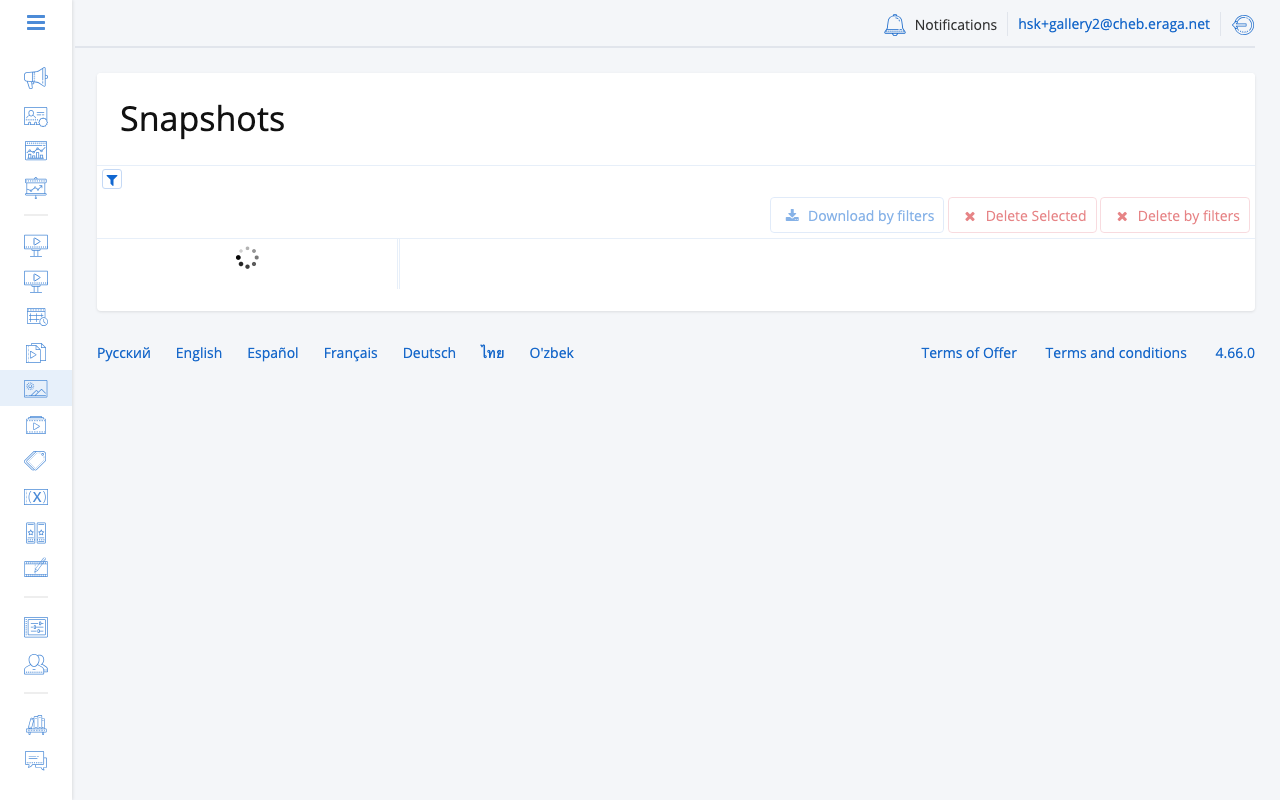
Photo Captures is a gallery of photos taken by CamGrabber camera devices — real photographs of the physical screens captured while ads play. Use photo captures to verify that content is playing correctly, that screens are operational, and that they are visible and unobstructed.
To view photo captures, go to Photo Captures in the left menu.
Where a Capture Goes
A CamGrabber photographs the screen while an advertisement is playing. What happens to that photograph afterwards is worth knowing before the first camera is added.
It belongs to one ad play
A capture is not a photograph of a screen. It is a photograph of one advertisement, on one frame, at one moment, and it is filed against that single play. That is the reason the same photo can be reached from two directions: through the gallery, and from that play’s own row on the Ad Play Statistics page.
Where it is stored
Nothing stays on the player. The photo is uploaded to the platform and filed against the play it documents. The gallery’s folder tree — campaign, then advertisement, then captures — shows that filing.
A capture appears once the player has uploaded it, so it can show up a little after the play it documents rather than at the same instant.
How long it is kept
Until somebody deletes it. Captures are not removed for being old. Your organisation has a photo capture quota on total size, made up of a base allowance plus a further allowance for every paid CamGrabber licence. See Storage quota.
Removing photos is therefore something you do deliberately: Delete Selected for individual photos, Delete by filters for everything matching the current filters. Both are permanent.
Where to find it again
- Photo captures gallery (this page)
-
The whole store, as a campaign/advertisement/capture tree, with filters, bulk download and delete.
- The campaign’s Photo Captures tab
-
The same gallery pre-filtered to that one campaign — the short path when you are preparing a report for a client.
- Proof of play
-
On Ad Play Statistics, a row that has captures shows a camera icon which opens them. See Proof of Play.
| The on-demand screenshot button in the players list is a different mechanism entirely: it makes the player software render its current output once, for immediate viewing only. Nothing is stored, and it never appears in any of the three places above. |
Gallery View
The gallery organizes photo captures in a folder hierarchy:
-
Campaign — top-level grouping by campaign.
-
Advertisement — subfolders within each campaign.
-
Photo Captures — individual captures, each labeled with the capture timestamp, player name, and frame name.
Expand a campaign folder to browse its advertisements, then expand an advertisement to see its photo captures. Click an entry to view the full-size photo; the Download button saves the single image.
The same gallery, pre-filtered to one campaign, is available on the campaign card as the Photo Captures tab — convenient for client reporting.
Filtering Photos
Use the filter panel to narrow the gallery to specific captures:
-
Date of creation — show only captures taken within a selected period.
-
Campaigns — limit to one or more campaigns.
-
Ads — limit to specific ads.
-
Players — filter by player device.
-
Frames — filter by frame.
Filter state is mirrored into the page URL — copy the address bar to share a pre-filtered gallery view with a colleague.
Downloading Photos
To export photos in bulk, click Download by filters:
-
Set the filters to select the photos you need (e.g. one campaign and a date range).
-
Click Download by filters and enter a filename for the archive.
-
The system builds a ZIP archive and shows a temporary download link along with the total photo count, archive size, and link lifetime.
| Download links are temporary. Save the file before the link expires. If the archive cannot be prepared right away, retry later. |
Deleting Photos
-
Delete Selected — remove individually selected photos.
-
Delete by filters — remove everything matching the current filters.
Both actions show a confirmation dialog with the number of photos and their total size before anything is deleted.
| Deleted photo captures cannot be recovered. |
Storage quota
Photo storage is limited by your organization’s photo capture disk quota, shown in Settings > Subscription ("Disk quota for photo captures"). The quota is a base allowance plus a further allowance for every paid CamGrabber license, so it grows as the license pool grows. The quota applies to total size. When it is reached, delete photos you no longer need or extend the license pool.
See also
-
CamGrabber Photo Reports — setting up devices and photo-report schedules.