Media Library
The Media Library is the central repository for all content used in your campaigns and advertisements. It stores video files, images, interactive content, web pages, and streams in an organized folder structure.
Library Structure
The library uses a two-level hierarchy:
-
Folders — organize your content by campaign, client, format, or any scheme you prefer.
-
Files — individual media assets stored inside folders.
The left panel shows the folder tree. Click a folder to see its contents. Click a file to view its properties in the right panel.
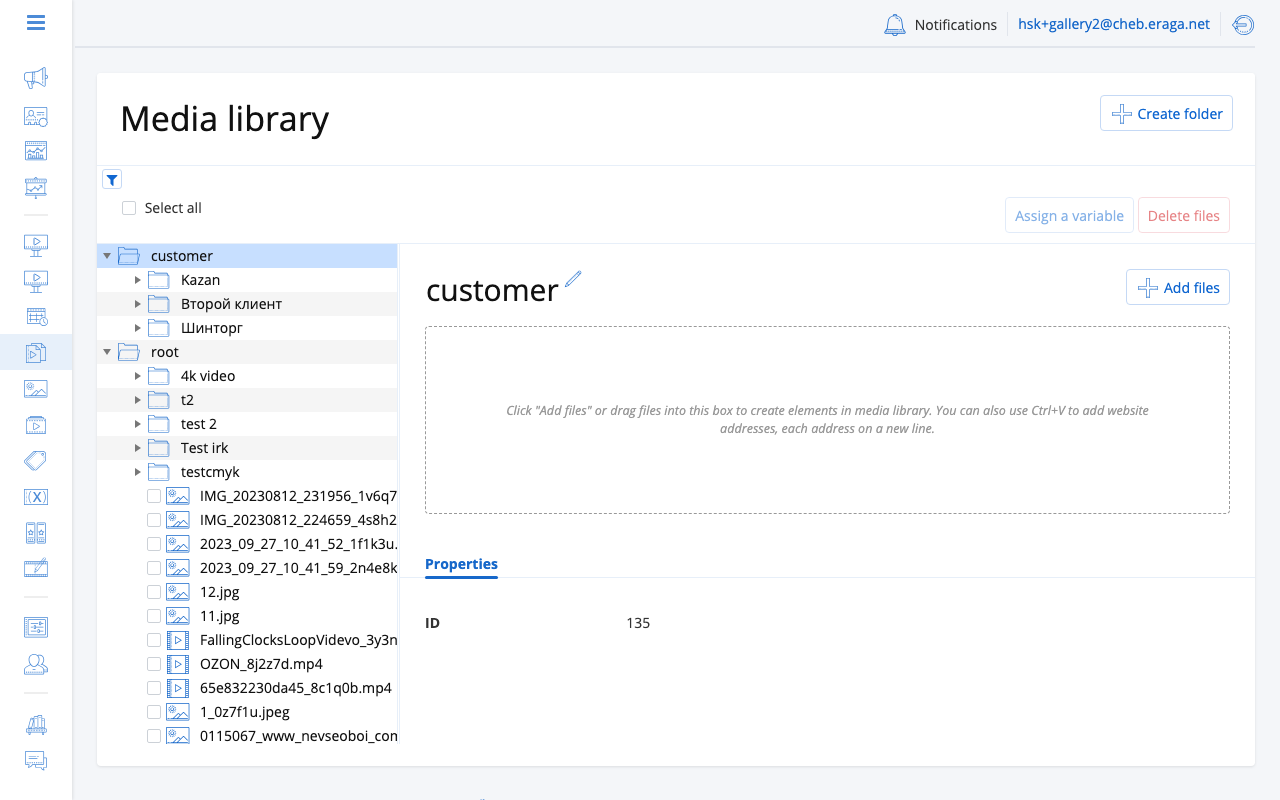
Uploading Content
There are three ways to add files to the library:
Drag and Drop
Drag files from your computer directly onto the folder tree. The files upload to the currently selected folder.
File Picker
Click the upload button in the toolbar. A standard file selection dialog opens. Select one or more files to upload.
Paste from Clipboard
Copy a web page URL and paste it into the library (Ctrl+V / Cmd+V). This creates a web site content item that references the URL.
Upload Progress
During upload, a progress indicator appears below the settings panel showing:
-
File name
-
Upload progress bar
-
Status (uploading, processing, or failed)
If an upload fails, a retry link appears. Click it to attempt the upload again.
| For very large files, the system uploads in chunks automatically. A confirmation dialog may appear before starting the upload. |
Content Types
| Type | Description |
|---|---|
Video |
Video files (MP4, MOV, AVI, etc.). Can be transcoded. Preview shows an inline video player. |
Picture |
Image files (PNG, JPG, GIF, etc.). Stored as-is without transcoding. Preview shows the image. |
Interactive |
HTML5 applications packaged as ZIP archives. Supports URL sync for distribution to players. |
Web site |
A URL reference to an external web page. Created by pasting a URL. Preview shows a server-rendered screenshot. |
Stream |
Live broadcast streams. Appears in the type filter. |
File Properties
Select a file to view its properties in the right panel:
-
Properties tab — file type, resolution (width x height), duration (for video), file size, download link, and a preview thumbnail or player.
-
Usage tab — shows which campaigns and advertisements currently use this file.
-
Variables tab — dynamic variables attached to this file (for data-driven content).
For interactive files, an additional Sync Info tab shows the distribution URLs configured for player delivery.
Filtering and Search
Click the filter icon to open the filter panel:
| Filter | Description |
|---|---|
Name |
Search files by name (partial match). |
Customers |
Filter by advertiser or client account. |
Type |
Show only a specific content type (video, picture, interactive, web site, stream). |
Upload date |
Filter by the date range when files were uploaded. |
Last used date |
Filter by when files were last assigned to an ad. |
Unused only |
Show only files not currently used in any campaign. |
Archived |
Show archived files that are pending deletion. |
Show empty folders |
Include folders with no files in the tree view. |
Creating Folders
Click Create folder in the toolbar. Give the folder a name. Folders can be nested by selecting a parent folder before creating a new one.
To rename a folder, select it and edit the name in the properties panel.
Bulk Operations
Use checkboxes to select multiple files, then perform bulk actions:
-
Delete — permanently removes selected files from the library.
Select all files in a folder using the "select all" checkbox.
| Files that are currently used in advertisements cannot be deleted. Remove them from all ads first. |
Archive and Auto-Delete
When files are no longer needed, you can archive them instead of deleting immediately. Archived files are retained for a configured number of days before automatic permanent deletion.
The retention period is set at the organization level. When viewing an archived file, the system shows how many days remain before deletion.
To view archived files, enable the Archived filter.
| Use the Unused only filter regularly to find and clean up files that are no longer part of any active campaign. |