Users & Roles
CS Play is a multi-user system. You can create user accounts within your organization and assign roles to control what each person can view and modify.
Creating users
To create a new user account:
-
Go to the Users page.
-
Click the Create user button.
-
Fill in the required fields (email, name, password).
-
Assign a role.
-
Click Save.
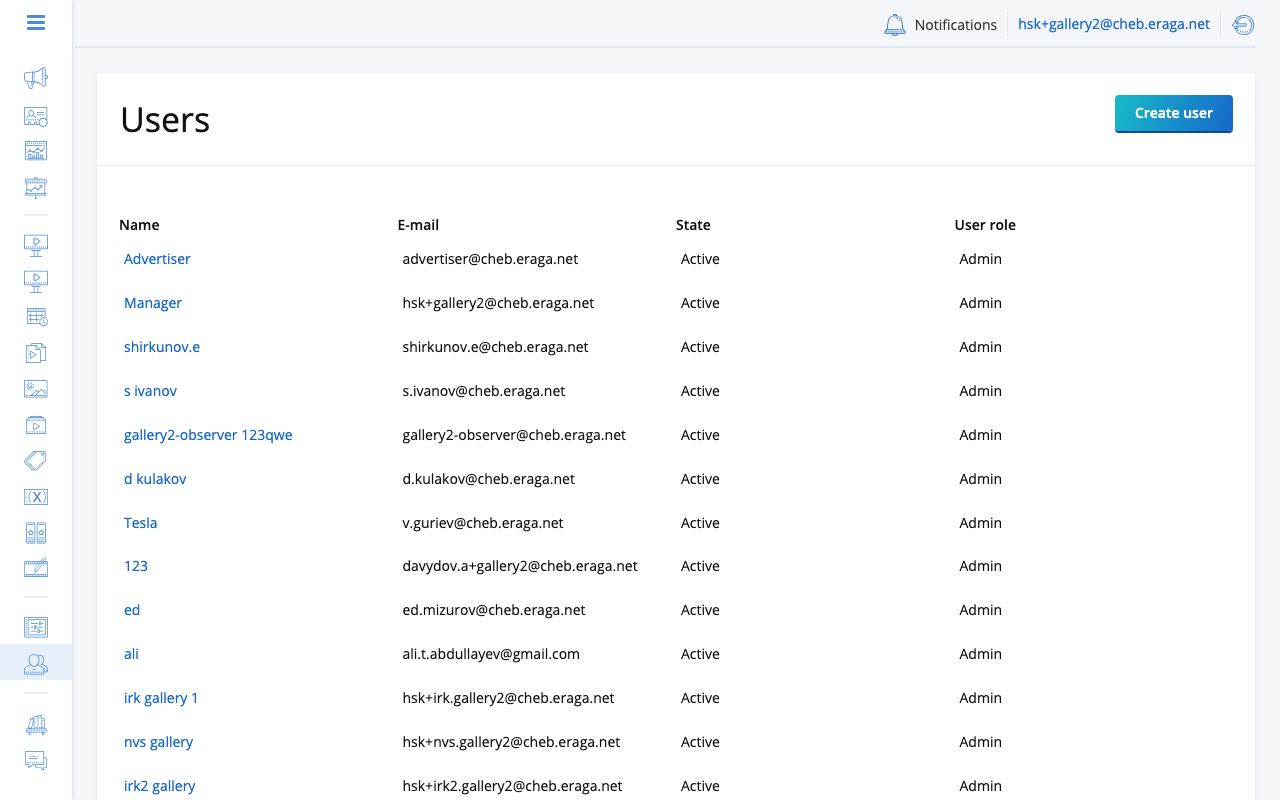
Newly created users are Active by default and can sign in immediately with the provided credentials.
Managing user accounts
You can perform the following actions on user accounts:
-
Edit — update email, name, or password.
-
Deactivate — block access without deleting the account. Useful when an employee leaves.
-
Activate — restore access for a previously deactivated user.
To edit a user, select them from the user list and click Change personal information.
Roles
A role defines what a user can see and do in the system. CS Play provides five roles:
| Role | Permissions |
|---|---|
Administrator |
Full access to all features: campaigns, screens, users, settings, integrations, and billing. |
Advertising Manager |
Creates and manages campaigns, advertisements, playlists, schedules and content. Cannot manage screens, players, screen groups or users. |
Assistant Manager |
Works with draft campaigns. Can create and edit campaigns, ads and content and send them to moderation, but cannot activate, stop or delete a campaign. Sees schedules and playlists without changing them. |
Moderator |
Has the same rights as the Advertising Manager, and also receives the notifications when a campaign is approved or declined in moderation and when a programmatic partner sends in a new campaign. |
Observer |
Read-only access. Can view campaigns, statistics, and screens but cannot make any changes. |
Group-scoped users
User accounts can be restricted to specific screen groups. A group-scoped user:
-
Only sees screens and campaigns within their assigned group.
-
Cannot access resources outside their scope.
-
Sees, in the events audit, only the entries about campaigns, ads and media library files of their group.
To assign a user to a group, select the group during user creation or edit the user’s profile afterward.
When a section is not available to you
Following a link to a page your account may not open lands on a short page titled Not available. It gives the reason and offers the one action that reason allows. There is nothing else to try on that screen — reloading it or signing in again will not change the answer.
| What the page says | Button | What to do |
|---|---|---|
Your role does not include this section. |
Open your account settings |
Ask an administrator of your organization for a role that covers it. See Finding out which role you have. |
Your account is limited to one screen group. |
Open your account settings |
The section works across all screen groups at once, so a scoped account cannot open it. Only an administrator can widen the scope. |
This section is not part of a partner account. |
Go to the start page |
Nothing to change on your side. The section does not apply to agency accounts, and no role will unlock it. |
This section is part of the Enterprise plan. |
See the available plans |
The button opens Settings > Subscription, where the plan can be changed. |
This section does not exist in this product. |
Go to the start page |
The feature is not built into this installation. |
Finding out which role you have
An administrator sees your role on the Users page, in the Role column — ask them to look your account up and read it out.
Getting your role changed
Only an administrator can change a role, and only somebody else’s: the role selector is hidden when you edit your own account, so an administrator cannot promote or demote themselves either. A second administrator has to make the change. Before changing a role, confirm who is asking.
The administrator opens Users, selects the account, opens Change personal information and picks the new role. A screen-group restriction is lifted in the same form, by clearing the assigned group.
| A role decides which pages open, not which records you may touch. Some actions are refused only when you submit them, because the answer depends on the record rather than on your role — that refusal arrives as an error on the form, not as this page. |
Sign-in security
One-time password (OTP)
When one-time passwords are enabled for the account, signing in takes two steps:
-
The user enters their email and password as usual.
-
CS Play emails a one-time code and shows the one time password field with the note "We have sent a one-time code to your email." Enter the code to finish signing in.
An expired or mistyped code produces the "Invalid one-time code." error — restart the sign-in to get a fresh code.
Failed sign-in lockout
After repeated failed sign-in attempts, sign-in from the user’s IP address is paused for a while. Wait out the pause and try again.
| Combine OTP with the IP whitelist to lock the account down to trusted networks. |
Resetting a forgotten password
The sign-in page carries a Forgot your password? link. It opens a form that asks for one thing: the address your account uses.
-
Enter the address and press Send reset link.
-
The page answers Check your email.
-
The message arrives with the subject Password recovery and contains a single button, which opens the form where you choose the new password.
What to expect of the link:
-
It is valid for a limited time from the moment you asked for it.
-
It works once. Setting a password consumes it.
-
Only one link is live per account. Every new request replaces the previous one, so always open the newest message — the older links stop working the moment you ask again.
-
If you ask again too soon, the form answers "Too many attempts. Please wait a moment and try again."
Setting the new password signs you out everywhere: every active session on every device is dropped, and you sign in again with the new password. CS Play also emails you a confirmation that the password changed — see Email delivery.
If the email does not arrive
-
Check the spam folder. The message comes from the CS Play server, not from a person, and filters treat it accordingly.
-
Read the form again. If it answered "We could not find an account with that email.", no message was sent. That one line covers three separate cases: the address is not registered, the account has been deactivated, or it is locked. A deactivated account cannot reset its own password — ask an administrator to set it back to Active first. The administrator confirms who is asking before reactivating the account.
-
Wait a moment, then request the link again.
If none of that helps, ask an administrator to change your password directly on the Users page. That path does not involve email at all. The administrator confirms who is asking before changing the password.
When the reset link has expired
Opening a reset link that is no longer good shows This link has expired, with Request a new reset link and Return to sign in below it.
The link cannot be revived, and the fix is always the same: request a new one and open the newest message.
The same screen also appears when the link has not expired but is no longer valid for another reason:
-
it has already been used — a link is spent as soon as a password has been set with it;
-
a newer reset was requested afterwards, which replaced it;
-
the address was cut short in transit. Some mail clients wrap long links across lines. Open the message in a browser, or copy the whole address including everything after
token=.
Confirming a change of email address
A change of address starts in Settings > Account > Change email: enter the new address and your current password, then save. An administrator can start the same change for a colleague from the Users page, after confirming who is asking.
Nothing changes yet. CS Play emails a confirmation to the new address only, with the subject Confirm e-mail change, and the change takes effect when somebody opens that message and presses Confirm email change on the page it leads to.
Three consequences are worth knowing before you start:
-
A mistyped new address sends the confirmation to a mailbox nobody reads, so the change does not take effect. Your old address keeps working.
-
The confirmation link is valid for a short time. If it lapses, start the change again from Settings > Account.
After confirmation the page reports Your email has been changed and signs you out. From then on:
-
The new address is your sign-in name — use it on the sign-in page.
-
The old address stops working for sign-in immediately.
-
Your password is unchanged. Only the address moved.
When confirmation fails
- This link has expired or has already been used
-
The link is spent. Pressing the button again will not help — start the change over from Settings > Account. When an administrator started the change, ask them to start it again.
- We could not reach the server
-
A network problem, not a dead link. Your link is still valid, and the page keeps its button for exactly this case: press it again.
| The new address must not already belong to another CS Play user, and must not be the pending target of somebody else’s change. Either case is refused when you save the form, before any mail is sent. |
Best practices
-
Create individual accounts for each team member rather than sharing credentials.
-
Use the Observer role for clients who need to view campaign statistics.
-
Regularly review the user list and deactivate accounts that are no longer needed.
-
Use the Events audit to monitor user activity.