Encoding settings
Videos uploaded in the CMS are automatically converted before they are sent to the player for playback. Videos are converted into a consistent format and scaled to the smallest available size while containing file proportions.
If necessary, you can use encoding settings to adjust video quality on players, as well as disable video encoding.
Encoding settings are available on the Encoding settings tab on the Settings page in your account.
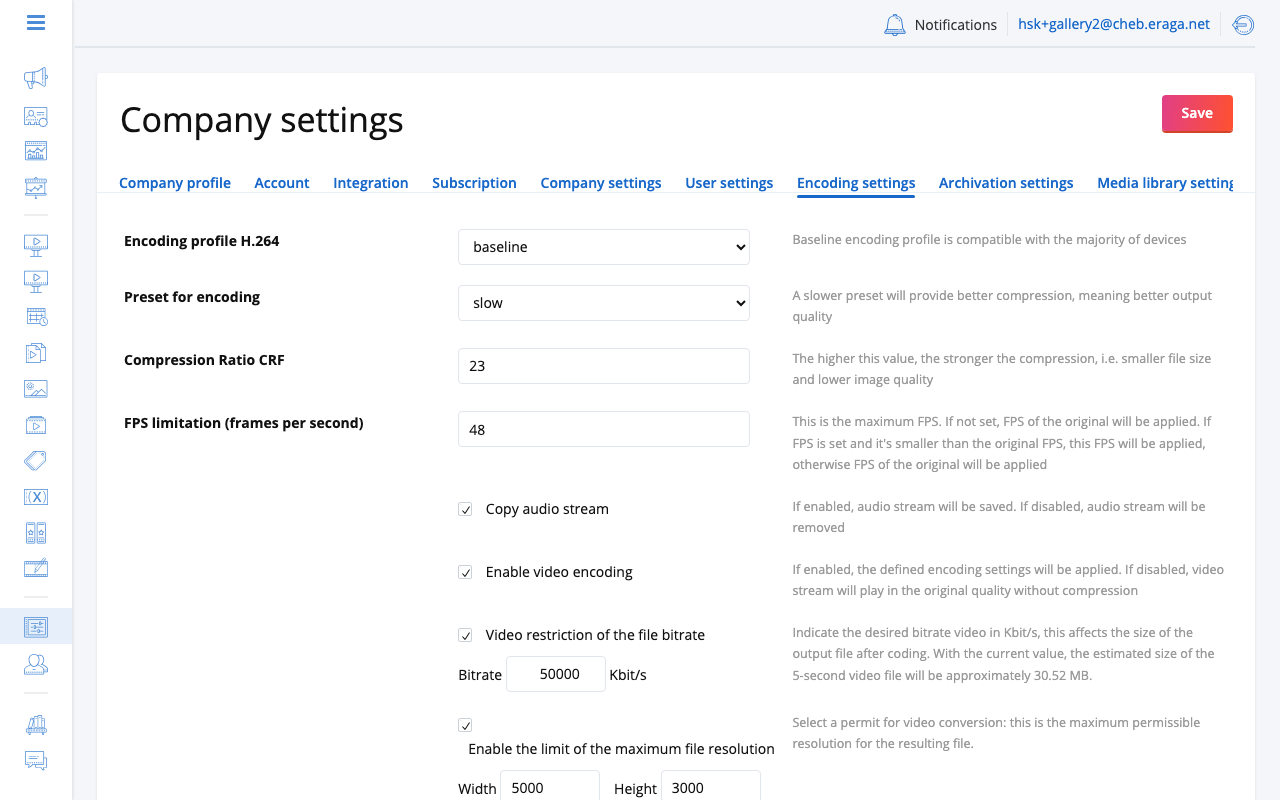
Encoding profile
An encoding profile sets which video functions the encoder may use, so that the video plays on devices with different decoding capabilities. Higher profiles may produce the same quality at a smaller file size.
Available profiles:
-
Baseline profile sets the basic level of functions of the encoder.Videos encoded with this profile can be easily played back even on devices with lower processing power.
-
Main profile suits standard definition video.
-
High profile suits HD video.
-
High10 profile has the same capabilities as the High profile and additionally supports 10-bit image encoding depth.
Baseline encoding profile is compatible with the majority of devices.
Preset for encoding
Preset is a set of parameters that provide a certain encoding speed and compression ratio. A slower preset gives better compression: better quality at the same file size, or a smaller file at the same quality.
Available preset options in decreasing order of speed:
-
ultrafast
-
superfast
-
veryfast
-
faster
-
fast
-
medium
-
slow
Use the slowest preset when possible.
Constant rate factor (CRF)
The CRF is used to adjust the bitrate to achieve the desired video quality.
The range of the CRF scale is 0-51, where 0 is lossless, 23 is the default, and 51 is the lowest quality. A lower value generally leads to higher quality. A reasonable range is 17-28. Values of 17 or 18 look the same or nearly the same as the source video, although they are not technically lossless. Increasing the value by 6 roughly halves the bitrate and file size.
Choose the highest CRF value that still provides an acceptable quality. If the output looks good, then try a higher value. If it looks bad, choose a lower value.
FPS limitation
This is the maximum FPS value of the output video file.
If the FPS of the source file is larger than the value you enter here, then the FPS of the output file will be decreased to this value. If the FPS of the source file is less than the value you enter here, then the output file will keep the FPS of the source file.
If you want to always keep the FPS of the source file, enter 0.
Copy audio stream
Select this option to copy the audio track of the source file to the output file.
Disable this option if you want to remove audio stream from the video.
Maximum bitrate
Set a bitrate ceiling (in kbps) for encoded video output. Videos exceeding this bitrate are re-encoded to fit within the limit. This helps control bandwidth usage when delivering content to screens over constrained networks.
Leave empty or set to 0 to use no bitrate cap (quality is governed by the CRF value only).
Maximum resolution
Set the maximum output resolution for encoded videos. Source videos with higher resolution are scaled down to this value while preserving aspect ratio. Lower-resolution sources are not upscaled.
Use this setting to reduce file sizes when your screens do not require 4K or high-resolution content.
Enable video encoding
Select this option if you want all your videos to be converted before sending them to the player.
Disable this option to always send the source video file to the player.
|
Disabling encoding sends original files directly to players. This reduces server load but may cause playback issues if the source format is not compatible with the player device. |