Brightness & Visual Effects
This page covers two rendering aspects of a player: brightness (how bright the panel shines, including time-of-day schedules and LED hardware controllers) and visual effects (how content transitions between ads and how media is scaled within a frame).
Brightness
Brightness is configured in the Brightness settings section of a player settings policy and applies to every player the policy is assigned to. See Settings Policies for creating and assigning policies.
| Parameter | Description |
|---|---|
Default brightness |
Brightness level in percent (0–100) used when no schedule entry is active. Default: 100. |
Update interval |
How often the player re-applies the brightness value, in seconds. Default: 60. |
Brightness mode |
software — the player dims the rendered image programmatically. NovaStar — brightness is driven through a NovaStar LED controller (see below). |
Brightness schedule
The Time settings list defines time-of-day brightness levels. Each entry consists of a time (hours, minutes, seconds) and a brightness level in percent. The player switches to the entry’s level at the specified time and keeps it until the next entry.
Click Add to append an entry, or Delete all to clear the list.
Sunrise/Sunset generator
Instead of entering schedule steps manually, generate a smooth day/night curve. Click Sunrise/Sunset and define:
-
Beginning of sunrise and Sunrise duration (1–360 minutes) — when and how long brightness ramps up.
-
Daytime brightness (0–100%) — the level after sunrise completes.
-
Beginning of sunset, Sunset duration, and Nighttime brightness — the evening ramp-down.
-
Brightness change per step (1–100%) — granularity of the generated entries.
Enable Replace current configuration to overwrite the existing schedule, then click Generate.
| Software dimming can distort color rendering on LED screens — this is a property of how LED diodes work. For LED installations prefer a hardware controller. |
NovaStar hardware control
In NovaStar brightness mode, the player drives an LED screen’s brightness through a NovaStar controller attached to the player device over a serial port. Select the Device model and enter the serial Port name; the baud rate is set automatically for the chosen model.
Supported controller models:
-
NovaStar MSD300
-
NovaStar MCTRL300
-
NovaStar MCTRL500
-
NovaStar MSD600
-
NovaStar MCTRL600
-
NovaStar MCTRL660
Visual effects
Visual effects define how content transitions between ads and how media is scaled within a frame. Effects are configured in the web UI and applied to player frames on a time-based schedule.
Navigate to Effects in the left menu to manage effect schedules.
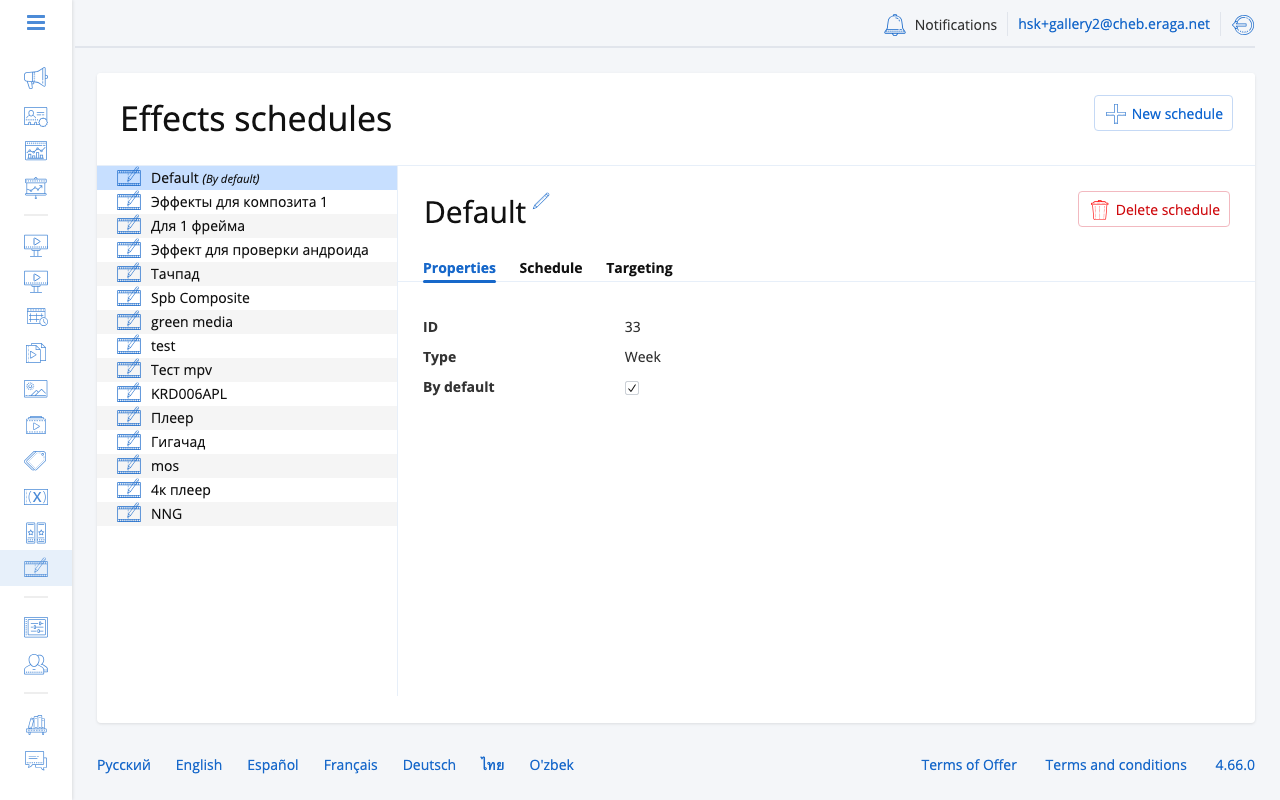
Effect schedules
An effect schedule is a named set of time-based rules that controls transitions and scaling for the frames it targets. Each organization has at least one schedule; one schedule is always marked as the default. The default schedule applies to frames that are not explicitly assigned to another schedule.
To create a new effect schedule:
-
Click New effect schedule.
-
Enter a name and click Save.
-
Edit the schedule to add time blocks and configure transitions.
Configuring transitions
An effect schedule is divided into a weekly grid (7 days x 24 hours, snapped to 15-minute intervals). Each block in the grid defines the transition and scaling settings that are active during that time window.
To add a block:
-
Click an empty cell in the weekly grid.
-
Configure the transition and fill settings (see below).
-
Click Save.
Blocks can be resized by dragging their top or bottom edge.
Transition types
| Type | Description |
|---|---|
None |
No transition — content cuts instantly. |
Fade |
Content fades out, then fades in. |
Crossfade |
Outgoing and incoming content dissolve simultaneously. |
Cross slide |
Content slides in from a direction while the previous content slides out. |
Transition timing
-
Animate in — duration of the entry animation in milliseconds.
-
Animate out — duration of the exit animation in milliseconds.
| Transition time is not added to the ad slot duration. |
Easing (curve type)
The curve type controls the acceleration profile of the animation.
Common values: linear, ease, ease_in, ease_out, ease_in_out, bounce, elastic, back.
Direction
Applies to the Cross slide type.
| Value | Description |
|---|---|
Left |
Content slides from right to left. |
Right |
Content slides from left to right. |
Top |
Content slides from bottom to top. |
Bottom |
Content slides from top to bottom. |
Content scaling (fill)
Controls how media is scaled within the frame area.
| Scale type | Description |
|---|---|
Fit |
Scale to fit inside the frame, preserving aspect ratio. Letterboxing may appear. |
Crop |
Scale to fill the frame, cropping any excess. No letterboxing. |
Stretch |
Stretch to exact frame dimensions. Aspect ratio is not preserved. |
Original |
Display at the original pixel dimensions of the media file. |
Alignment controls where the content is anchored within the frame: center, start, or end.
Targeting frames
By default a new schedule applies as the organization-wide default. To assign a schedule to specific frames:
-
Open the effect schedule.
-
Switch to the Targeting tab.
-
Select the player frames that should use this schedule.
-
Click Save.
A frame can be assigned to only one effect schedule. If a frame is not assigned to any schedule, the default schedule is used.