Targeting Screens
Targeting determines which screens display your campaign’s ads. CS Play provides two methods: manual screen selection and automatic criteria-based matching.
Targeting Methods
| Method | Description |
|---|---|
By Screens |
Manually select individual screens from a list. |
By Criteria |
Automatically match screens using tag-based rules. Screens that satisfy your criteria are included. |
You can combine both methods — start with criteria to find a broad set of screens, then refine by adding or removing individual screens.
Targeting by Screens
Manual selection gives you direct control over exactly which screens participate in the campaign.
How to select screens
-
In the campaign form, open the Screens step.
-
Browse or search the available screen list.
-
Check the screens you want to include.
-
Confirm your selection.
The screen list supports:
-
Search — filter by screen name.
-
Infinite scroll — screens load progressively as you scroll.
-
Bulk operations — select or deselect all visible screens at once.
|
After selecting screens, you can copy the screen list to clipboard for sharing with colleagues or pasting into reports. |
Targeting by Criteria
Criteria-based targeting uses screen tags to automatically match screens. This is useful for large networks where selecting screens individually would be impractical.
How it works
Screens in CS Play can be tagged with various criteria (location, format, environment, audience type, etc.). When you target by criteria, the system finds all screens whose tags match your rules.
Criteria that describe a screen
A screen is the broadcast surface a campaign buys — one frame, or several frames combined into a composite. Criteria attached to a screen say what that surface is: the venue it stands in, the city, the format, the audience in front of it.
Screen criteria are the ones campaign targeting matches on. The three columns described below are evaluated against the criteria attached to screens and against nothing else.
They are read in three more places:
-
the Screens list filters by them;
-
saturation and overbooking reports accept them as a filter;
-
they are published to programmatic buyers as the
tagsof the screen’s inventory entry, so an RTB buyer can filter on the same vocabulary you target with — see Inventory attributes.
Attach them on the Criteria tab of the screen. Only criteria typed For screens or Universal can be attached there.
Criteria that describe a player
A player is the device — the media player driving one physical installation. One player can carry several frames, and those frames can belong to different screens, so the player and the screen it shows are two different objects, and each carries its own criteria.
Criteria attached to a player describe the hardware and its site: the model, the mounting, the branch, the service region. They are read where you act on devices rather than on airtime:
-
the Players list filters by them and shows them in the Criteria column;
-
a device command — brightness, volume, language, restart, reboot, shutdown — can be addressed to "every player that has all of these criteria and none of those" instead of to a hand-picked list of players;
-
integrations resolve a player set from criteria through the API.
A campaign’s By criteria step does not read player criteria. A campaign targets screens, so a criterion that should bring a campaign to a group of installations has to sit on their screens.
Attach them on the Criteria tab of the player. Only criteria typed For players or Universal are accepted.
| Put facts that are true of both sides — "Airport", "Moscow" — into Universal criteria, and keep typed criteria for facts that belong to one side only, such as a screen format or a player model. |
Adding a criterion
The Criteria tab of a screen and the Criteria tab of a player work the same way.
-
Open the screen or the player and switch to the Criteria tab.
-
Click Add criteria. The picker opens with everything already attached ticked, so it shows the current state rather than a blank list.
-
Tick what you want to add and untick what you want to detach. Only criteria of a type the entity accepts are offered.
-
Click Apply. Nothing has been sent to the server yet: the chips on the page change and the form reports unsaved changes.
-
Click Save.
On a screen, if the criterion you need does not exist yet you can create it without leaving the picker: type a name, choose the group it belongs to, and click New criterion. It is created as a For screens criterion and ticked immediately. Renaming, retyping and deleting criteria are done on the Criteria page instead — the picker deliberately cannot do them, because one criterion is shared by the whole organisation and by every screen, player and frame already carrying it.
|
Saving replaces the whole list. On a player, CS Play warns you if somebody has changed the list since the page loaded; you then choose between taking their version and overwriting it. |
What happens to campaigns already targeting the screen: nothing, until you say so. A campaign stores the concrete list of screens it plays on together with a frequency for each; the criteria you used to build that list are not kept on the campaign. Attaching a criterion therefore does not pull the screen into a campaign that is already running, and detaching one does not remove it. To pick up new matches, open the campaign, run its By criteria step again and save.
The Three-Column Criteria Selector
The criteria selector uses three columns to build precise matching rules:
| Column | Logic |
|---|---|
ALL of (AND) |
The screen must have every tag listed in this column. Used for mandatory requirements. |
ANY of (OR) |
The screen must have at least one tag from this column. Used for flexible alternatives. |
NONE of (NOT) |
The screen must not have any tag from this column. Used for exclusions. |
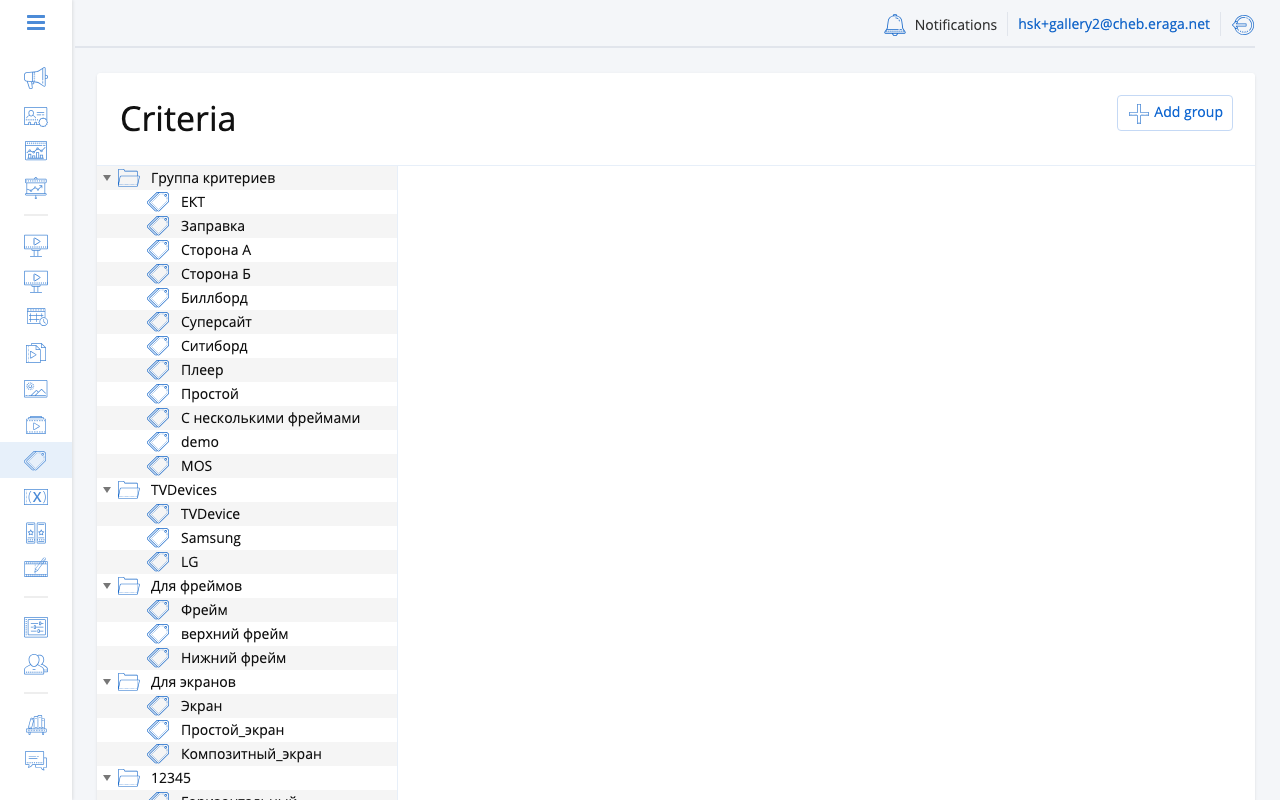
Example
Suppose you want to target shopping mall screens in either Moscow or Saint Petersburg, but exclude food court locations:
| Column | Tags Selected |
|---|---|
ALL of |
|
ANY of |
|
NONE of |
|
This matches every screen tagged shopping-mall that is also tagged moscow OR saint-petersburg, excluding any tagged food-court.
How criteria are evaluated
The system applies the following logic:
Match = (has ALL tags from "ALL of")
    AND (has at least ONE tag from "ANY of")
    AND (has NONE of the tags from "NONE of")
If the "ANY of" column is empty, it is ignored (no OR filter applied). Similarly, an empty "NONE of" column means no exclusions.
|
Criteria are a selection tool, not a standing rule. When you confirm the criteria step, CS Play resolves the rule into a concrete list of screens and stores that list on the campaign. A screen added to the network afterwards is not picked up on its own, even if it matches — reopen the campaign’s targeting, run the criteria again and save. |
Per-Ad Screen Targeting
Within a campaign that uses the Auto by Frequency strategy, you can further refine targeting at the individual ad level. This allows different ads in the same campaign to play on different subsets of the campaign’s screens.
See Ad Targeting for details on the per-ad targeting matrix.
Frequency per Screen
After selecting screens, you configure the playback frequency for each one. By default, all screens receive the same frequency settings. You can override frequency individually per screen if certain locations require more or fewer ad plays.
|
Screens with a configured block duration (loop length) automatically calculate frequency as "1 ad play per block". For all others, the organization’s default campaign frequency is applied. |