Exporting Statistics
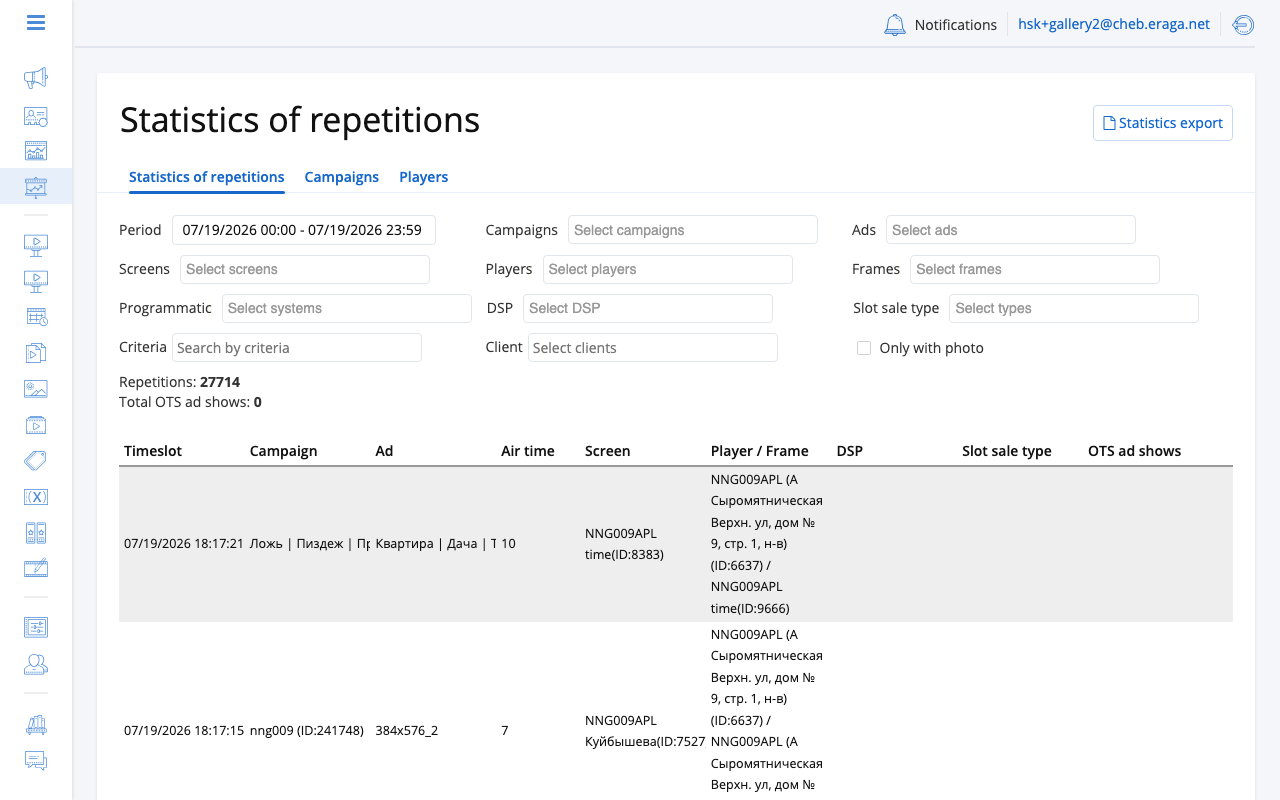
You can export ad play data to files for offline analysis, reporting, or sharing with clients. All exports use the same filters applied on the Ad Play Statistics page, so you always export exactly what you see.
How Export Works
Exports run in the background, so you can close the page after you request one. When the file is ready, you receive it via email or a download link.
Export Formats
Ad Play Statistics
From the Ad Play Statistics page, click the export button and choose a format:
| Format | Description |
|---|---|
CSV |
A flat list of all ad plays matching your filters in comma-separated format. Compatible with any spreadsheet or data tool. |
XLSX |
The same flat list in Microsoft Excel format with column headers. |
By Days (XLSX) |
A pivot table grouped by day. Each row is one day; columns show totals per campaign or ad. Useful for daily delivery reports. |
MAC Address Exports
If your screens are equipped with audience measurement sensors, you can export the unique device identifiers (Wi-Fi MAC addresses) detected during your filtered ad plays:
| Format | Description |
|---|---|
MACs (CSV) |
Plain list of unique MAC addresses seen during the filtered period. |
MACs MD5 (CSV) |
Same list with each address hashed using MD5. Use this format when sharing audience data with third parties to comply with privacy requirements. |
MACs by Frames (CSV) |
Unique MAC addresses grouped by frame. Shows which audience was detected at each location. |
MACs by Frames MD5 (CSV) |
Frame-grouped list with MD5-hashed addresses. |
Fields Included in Exports
Exported files include the following data for each ad play:
-
Date and time
-
Campaign name
-
Advertisement name
-
Duration
-
Screen name
-
Frame name
-
OTS (audience contacts)
The pivot-by-day format aggregates these into daily totals rather than listing individual records.
Sharing Statistics by Public Link
Instead of exporting files, you can give an advertiser a live report page by a secret link — no CS Play account required.
-
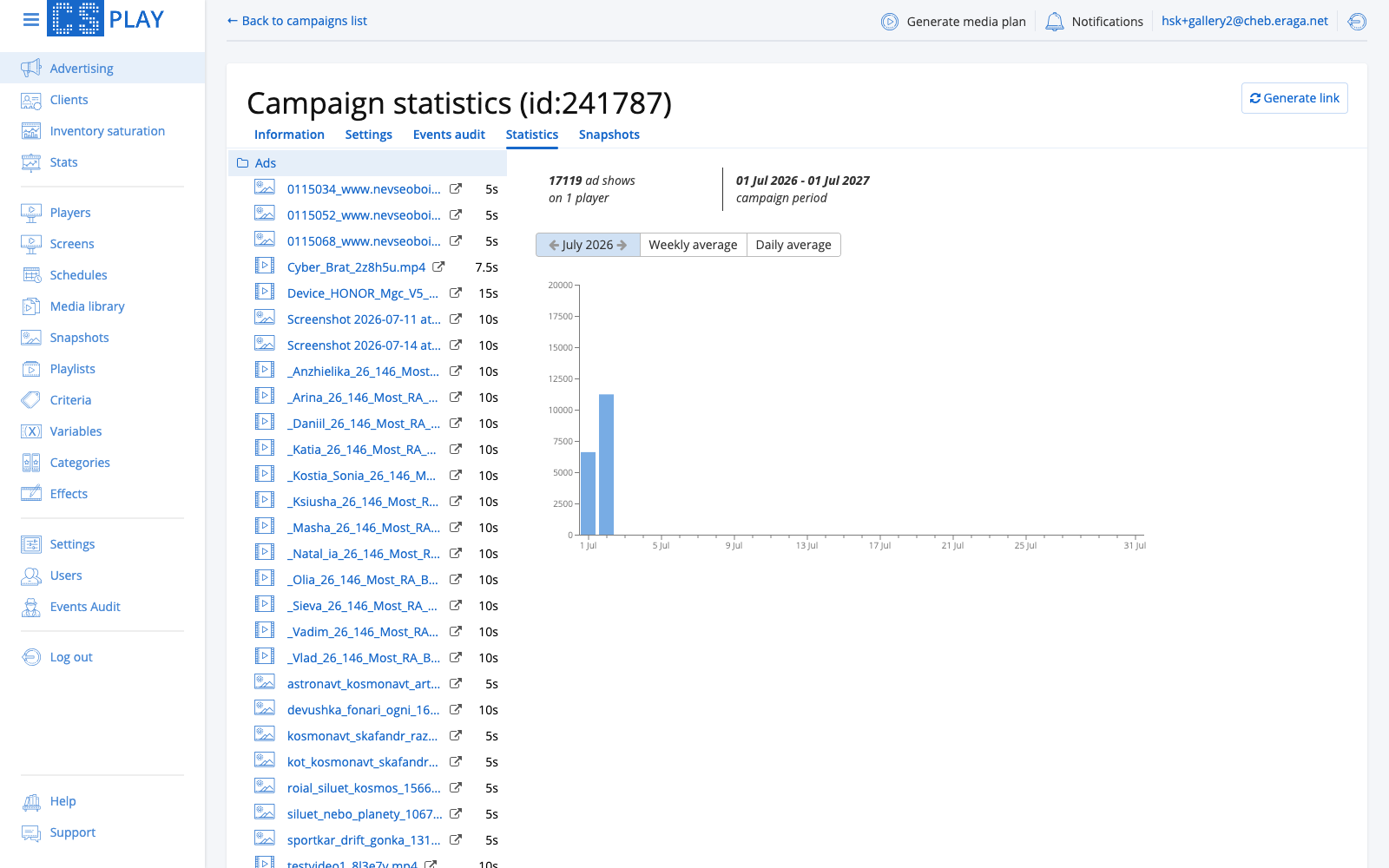
Open the campaign and switch to the Statistics tab.
-
Click Generate link. The button changes to Copy link and a Link generated notification appears.
-
Click Copy link and send the URL to the client.
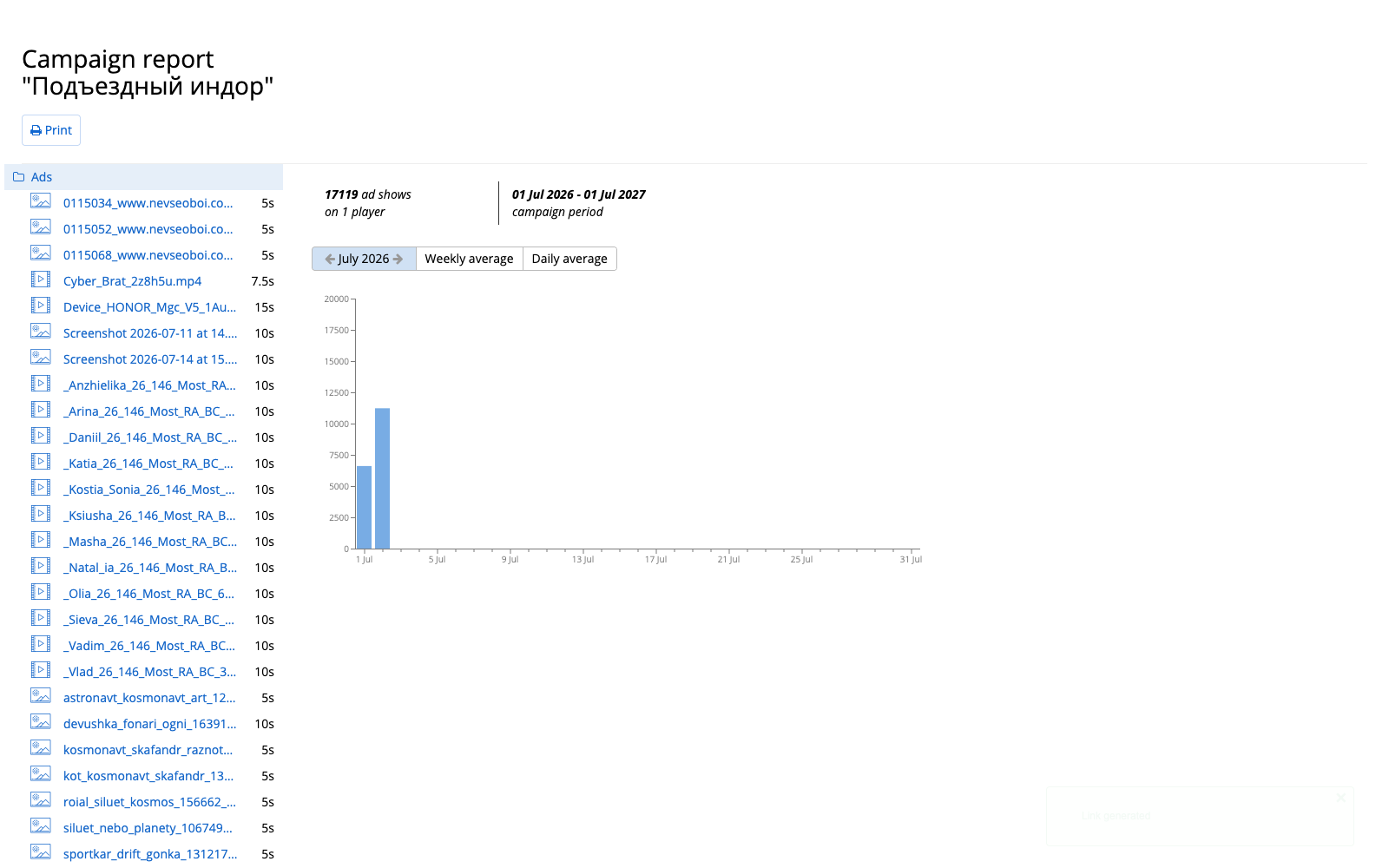
The link opens a public page. Anyone with the link sees the Campaign report:
-
total ad plays and the number of players,
-
the campaign period,
-
a per-day chart with monthly navigation and Weekly average / Daily average views,
-
the list of ads with durations,
-
a Print button for a paper copy.
|
The page is read-only and shows playback statistics only — no budgets, prices, or account data. |
Tips
-
Set your filters on the Ad Play Statistics page before clicking export. The export uses whatever filters are currently active.
-
For large date ranges or many campaigns, the export may take several minutes to generate.
-
If you do not receive the export, check your email spam folder or verify your account email address in your profile settings.
| The available date range for exports is subject to the same license-based data retention limits as the Ad Play Statistics page. |