Screen Card
A screen is the logical broadcast surface that campaigns target. It is assembled from one or more player frames (see Player Accounts for how players, frames and screens relate).
Navigate to Screens > select a screen to open its card.
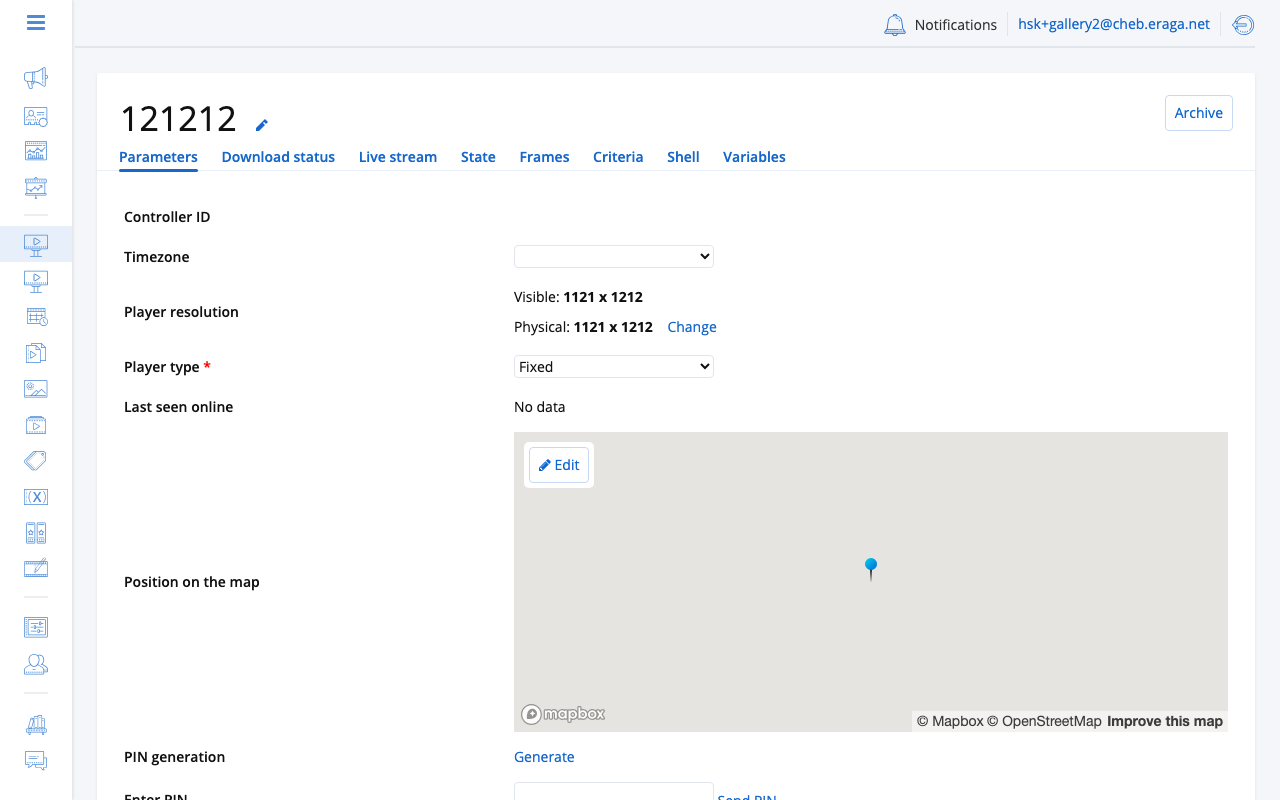
| Device-level information — online status, device state, reboot, timezone, pairing — belongs to the player, not the screen. See Parameters & Device State. |
Settings
The Settings tab is the screen composition editor:
-
Name — display name of the screen, shown in lists, targeting dialogs and reports.
-
Frames — which player frames form this screen. A simple screen is one frame; a video wall combines a grid of frames (see Video Walls).
Screens can be deleted — deleting a screen removes the logical surface but does not touch the underlying players and frames.
Saturation
The Saturation tab shows how densely the screen’s airtime is booked over a chosen period — the same saturation view as the Inventory Dashboard, scoped to one screen.
Metadata
Metadata is the screen’s passport: a description of a physical object standing in a physical place. How large the construction is, which way it faces, indoors or out, on what floor, at what address, how many people pass it, how many hours a day it is dark. It says nothing whatsoever about what the screen plays or when.
That division is worth holding on to, because the tab sits next to two others that look like it and are not. Playback is configured elsewhere entirely — composition on the Settings tab, content geometry in Frames, delivery by campaigns and schedules. Nothing on this tab starts, stops or alters a single play. What it does instead is describe the inventory to everything that has to reason about the screen without standing in front of it: audience estimates and planning, programmatic buyers, columns in lists and exports.
The metadata fields are fixed: every screen has the same ones, and the interface does not add more. If you need to record something the schema does not cover, that is a variable — see Metadata, criteria and variables.
Two rows at the top of the tab are read-only and labelled From the player: the Installation type (fixed or mobile) and the map position belong to the player behind the master frame and are changed there, on the player card. The master frame is named beside them so you know which player that is.
| Field | Description |
|---|---|
Installation (read-only) |
Fixed (stationary) or Mobile (vehicle-mounted, route-based). Inherited from the player behind the master frame. |
Position (read-only) |
Coordinates of the installation. Inherited from the same player. |
Placing ★ |
Indoor or Outdoor. More than a label — it decides which of the placement fields below are stored at all. See Placement and orientation. |
Description |
Free-form description of the installation. |
Downtime |
Daily downtime in hours — time the screen is switched off. |
OTS |
Opportunity-to-see — audience measurement metric for this location. |
GRP |
Gross Rating Point — audience measurement metric for this location. |
Azimuth |
Compass bearing (0–360°) of the screen face. Outdoor screens only. |
Altitude |
Height of the installation, in metres. Outdoor screens only. |
Floor / Floor height |
Which floor an indoor screen is on, and the vertical dimension recorded for it. Indoor screens only. Floor is free text (up to 10 characters), because real answers include things like "2 lift". |
Side |
Which side of the structure the screen faces (A or B in Latin letters). |
Rotation angle |
Rotation of the screen, in degrees. Offered only for fixed installations. |
Address |
Physical address of the installation. Recommended for programmatic sales. |
Physical size (mm) ★ |
Width and height of the visible area in millimeters. Required for programmatic sales. |
Use programmatic buying |
Enable to offer the screen’s inventory to programmatic systems. See Programmatic sales. |
Broadcast by days |
Days of the week the screen operates. |
Broadcast by hours |
Operating hours of the screen during the day. |
Images |
Photos of the screen and its surroundings, uploaded elsewhere and shown here read-only. Recommended for programmatic sales. |
★ — required fields for programmatic sales.
| The tab saves the whole screen, including its composition and criteria. Leaving the page with unsaved edits prompts you first. |
Placement and orientation
Placing — indoor or outdoor — is a fork rather than a description. It decides which of the surrounding fields exist on the form and which pair of values the screen keeps:
-
An outdoor screen stores Azimuth and Altitude.
-
An indoor screen stores Floor and Floor height.
-
Switching between them clears the pair you switched away from. The form only ever shows the pair that will be stored.
Azimuth is a compass bearing of the face of the screen, from 0 to 360 degrees; values outside that range are refused before the save is attempted. It is not the same thing as Rotation angle, which is a rotation in degrees and is offered only when the player behind the master frame is a fixed installation — a screen on a vehicle has no fixed rotation to record.
None of these fields changes the picture on the screen. They describe how the construction stands, not how content is drawn on it: content geometry belongs to Frames, and the orientation the device itself reports appears on the player’s State tab.
What does depend on them is everything downstream that has to judge the screen sight-unseen. Placing, azimuth, altitude, floor, floor height, rotation angle, side, physical size, address, OTS, GRP and downtime are all passed on to programmatic buyers in the inventory description, are read by planning, and appear in list columns and exports. A screen left with empty placement fields is a screen an external buyer cannot value.
Metadata, criteria and variables
Three tabs of this card look alike and are constantly confused with each other. They are read by different parts of the platform, and a fact recorded on the wrong one is a fact nothing reads.
- Metadata
-
A fixed schema of descriptive facts about the installation — the fields listed above and no others. It describes what the screen physically is. Planning, exports and programmatic buyers read it.
- Criteria
-
Labels the organization shares, that a screen either carries or does not. They exist so a campaign can ask for "all shopping centres in Kazan" instead of naming twenty screens by hand. Criteria are what campaigns target on; a criterion carries no value of its own, only presence or absence. See Targeting Criteria.
- Variables
-
Named values your organization defines and attaches to a screen, with no fixed list and no change to the product needed to add one. An HTML5 creative pulls a variable in at play time, so one media file can show a different price, address or telephone number on every screen it runs on. See Dynamic Variables.
The short test, when you are holding a fact and do not know where it goes:
-
something a buyer needs in order to value the screen → metadata;
-
something a campaign needs in order to find the screen → a criterion;
-
something the creative needs in order to render → a variable.
"The screen is in a shopping centre" is metadata if you are describing the location to a buyer, and a criterion if campaigns are meant to select screens by it. Recording it in both places is normal and correct; recording it in only the metadata and then wondering why targeting cannot find the screen is the mistake this section exists to prevent.
Criteria
The Criteria tab assigns targeting tags to the screen — see Targeting Criteria.
Variables
The Variables tab manages dynamic variable values scoped to this screen — see Dynamic Variables.