Placements & Mass Campaign Creation
A placement groups related advertising campaigns under one name — for example, all campaigns of a single media plan, client order, or sales period. Placements let you filter the campaign list and manage dozens of campaigns with bulk status operations.
The Multiple campaigns wizard creates whole batches of campaigns from an Excel media plan and groups them into a placement automatically.
How placements work
-
Placements are a flat, single-level grouping.
-
A campaign can belong to at most one placement. Campaigns without a placement are shown as Without placement.
-
Deleting a placement does not delete its campaigns — they only lose the grouping.
Creating a placement
-
Go to Advertising — the campaign list opens.
-
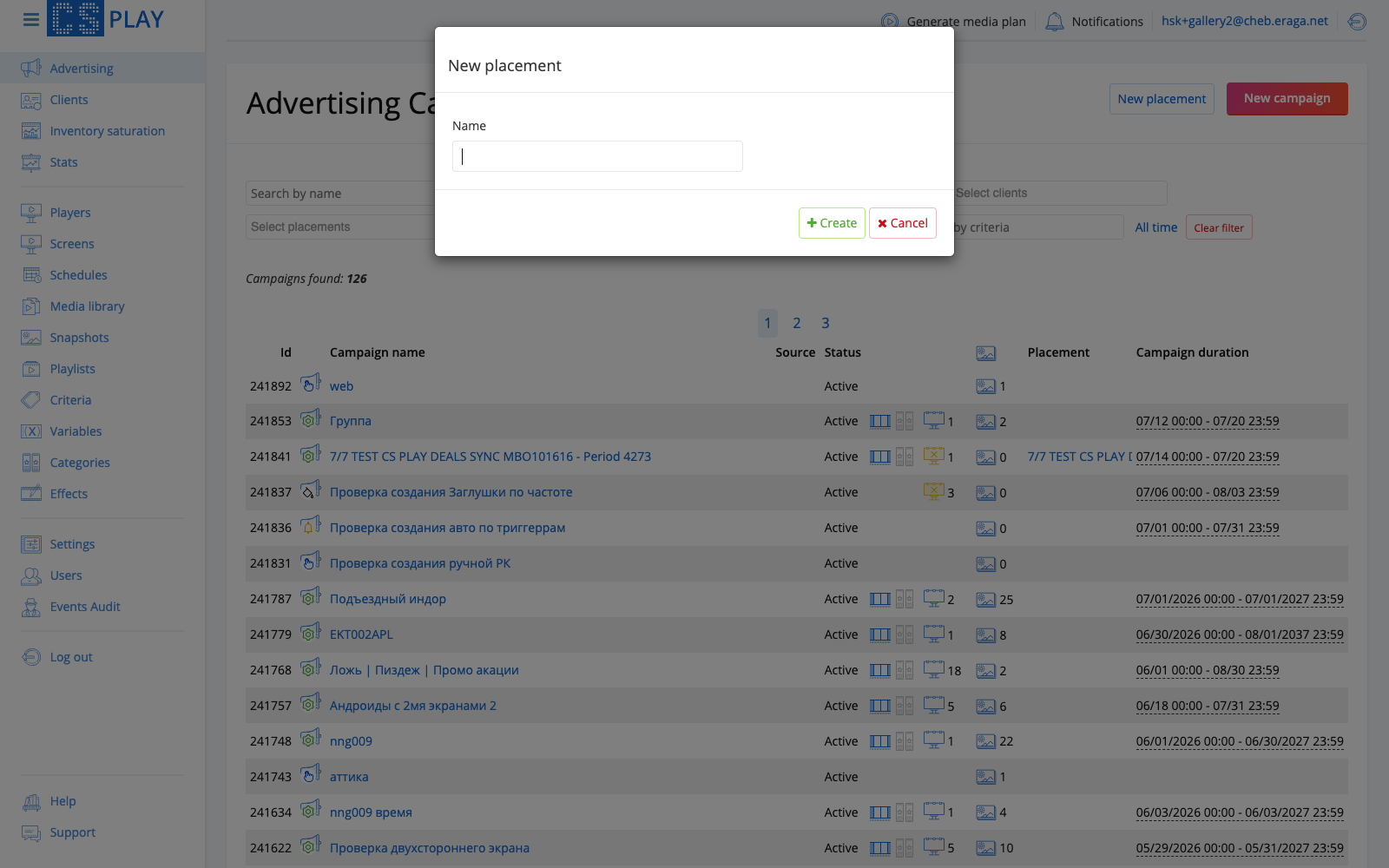
Click New placement.
-
Enter a Name and click Create.
Filtering campaigns by placement
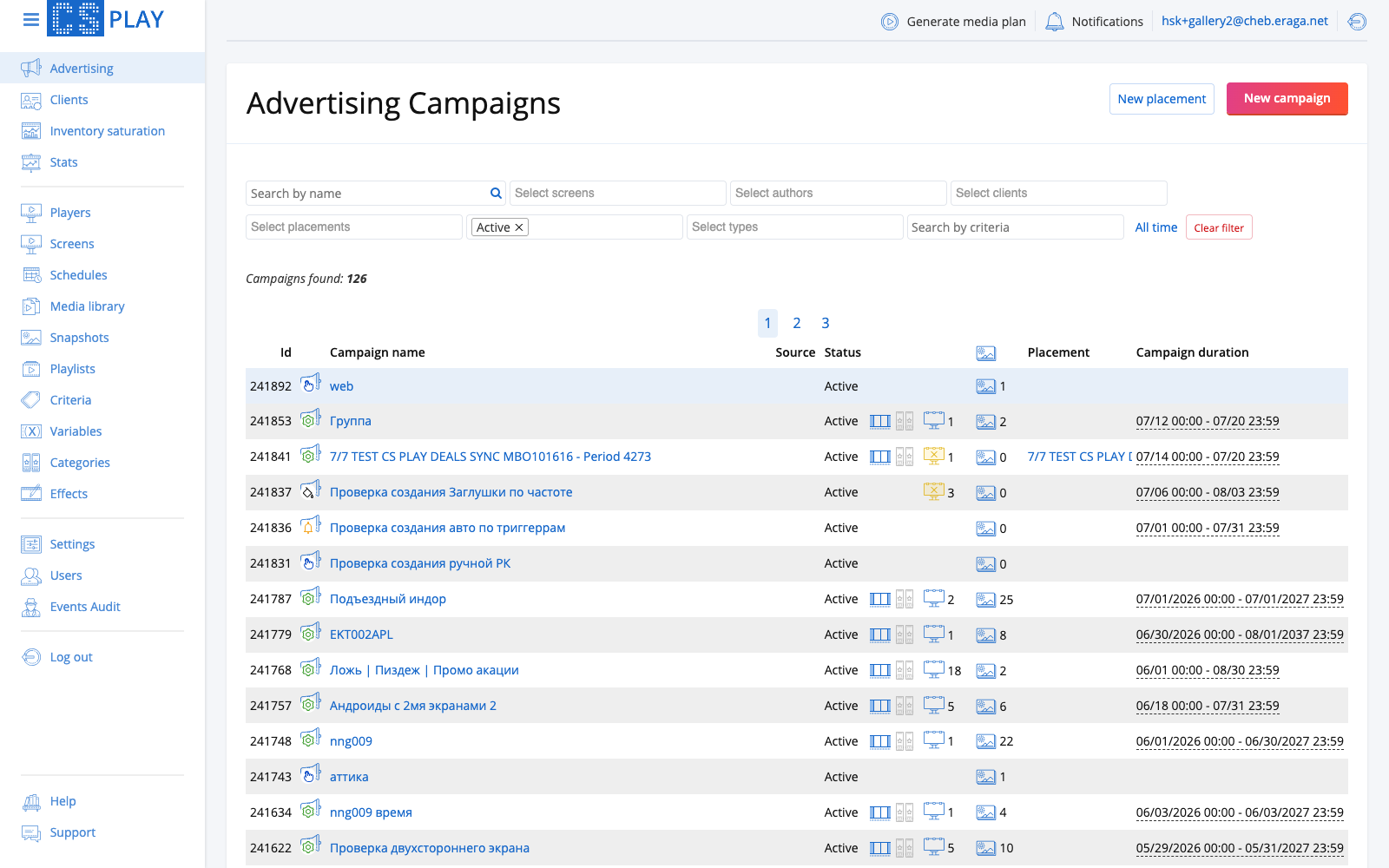
The campaign list has a Select placements filter and a Placement column. Pick one or more placements to see only their campaigns, or Without placement for ungrouped ones.
Placement page
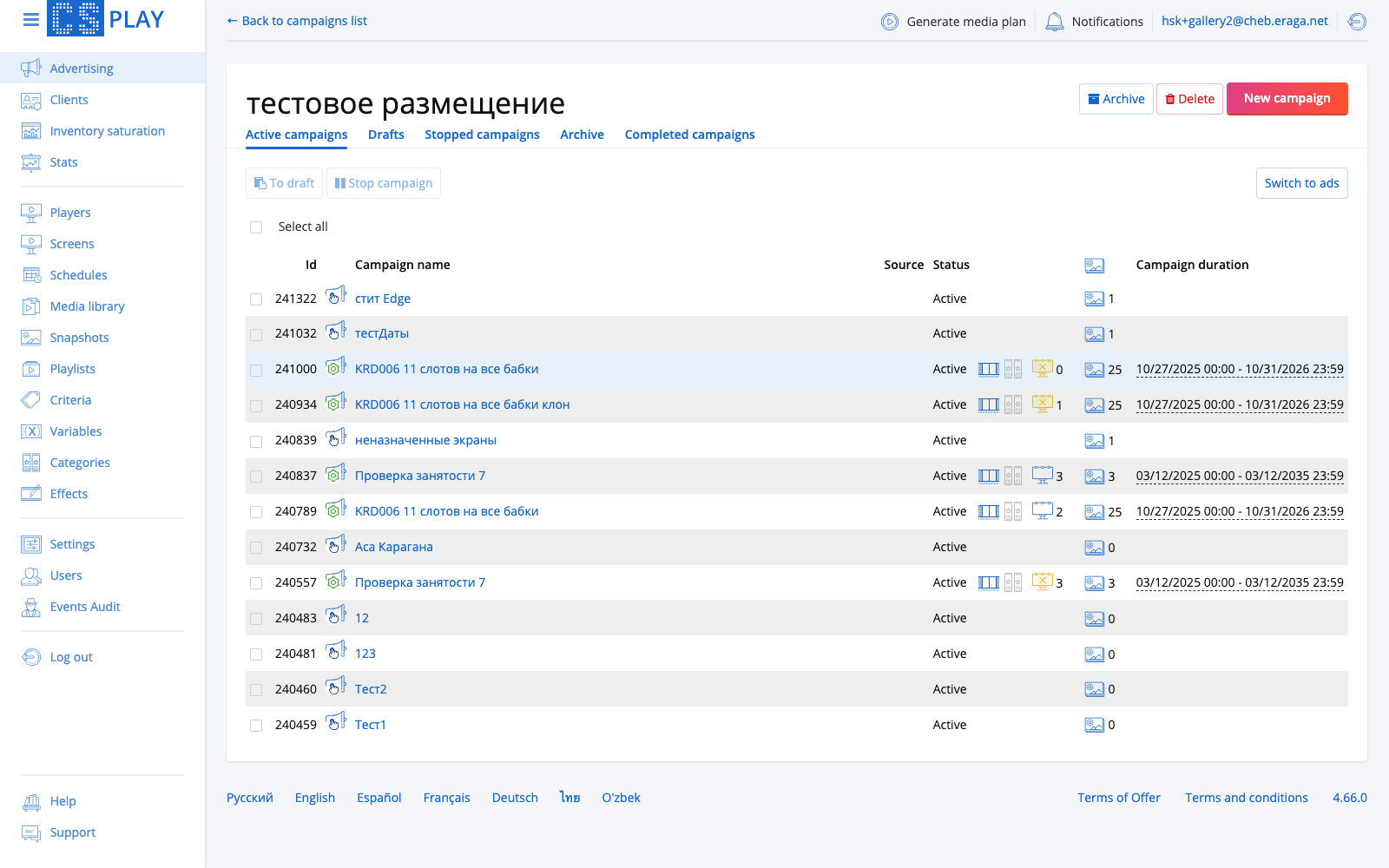
Click a placement name to open its page with the full list of campaigns grouped by state.
- Tabs
-
Active campaigns, Drafts, Stopped campaigns, Archive, Completed campaigns.
- Bulk status operations
-
Select campaigns with checkboxes and use To draft or Stop campaign to change the state of many campaigns at once.
- Toolbar actions
-
-
New campaign — create a campaign directly inside the placement.
-
Archive — archive the placement when its campaigns are finished.
-
Delete — remove the placement (campaigns are kept).
-
Switch to ads — toggle the view from campaigns to the individual ads inside them.
-
You can also link or unlink a campaign from a placement on the campaign page itself.
Mass campaign creation from Excel
The Multiple campaigns wizard creates a batch of campaigns from an Excel file with a targeting program: one row per campaign with frame GIDs, dates, frequencies, and media file names.
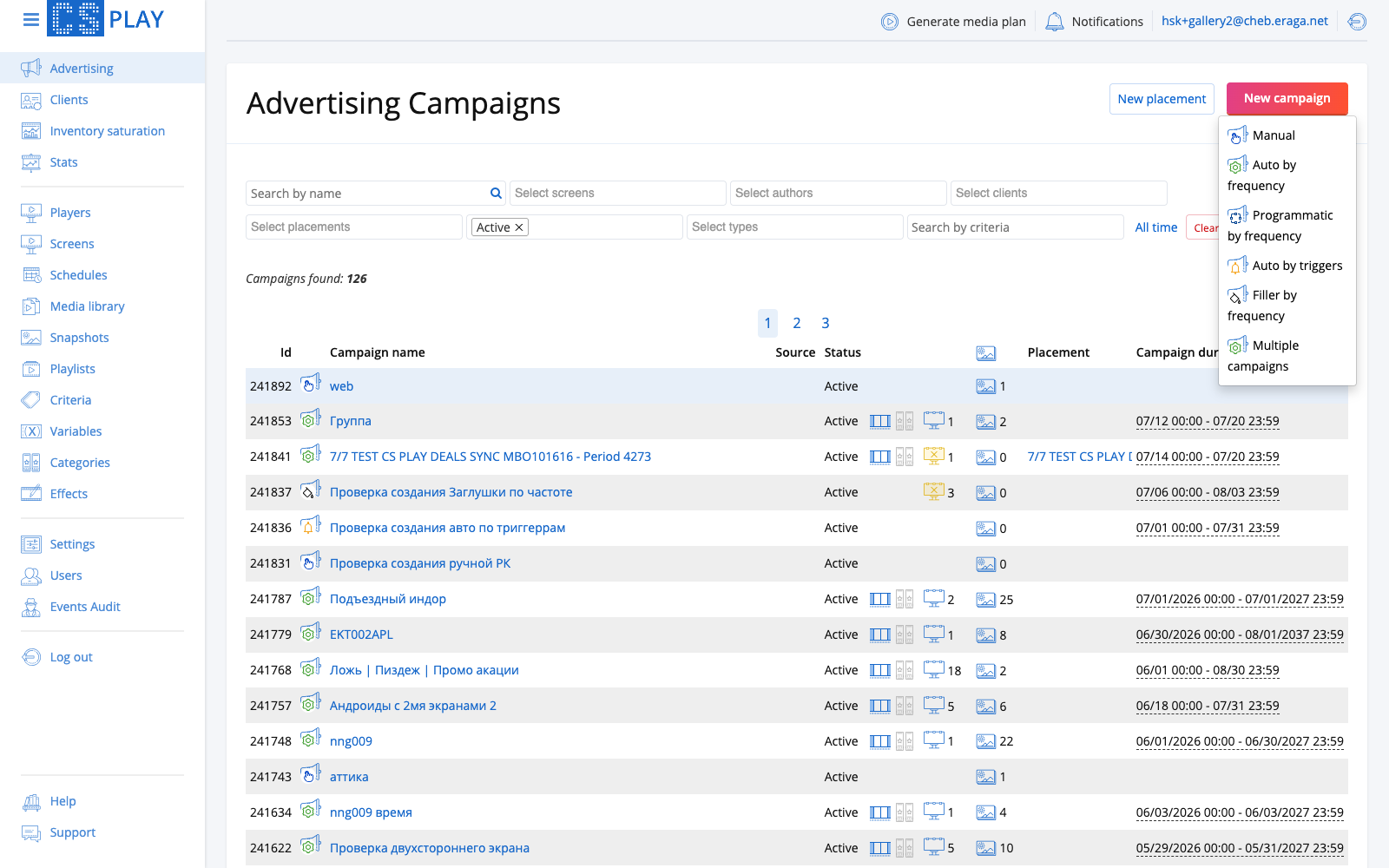
To start it, click New campaign on the campaign list and choose Multiple campaigns.
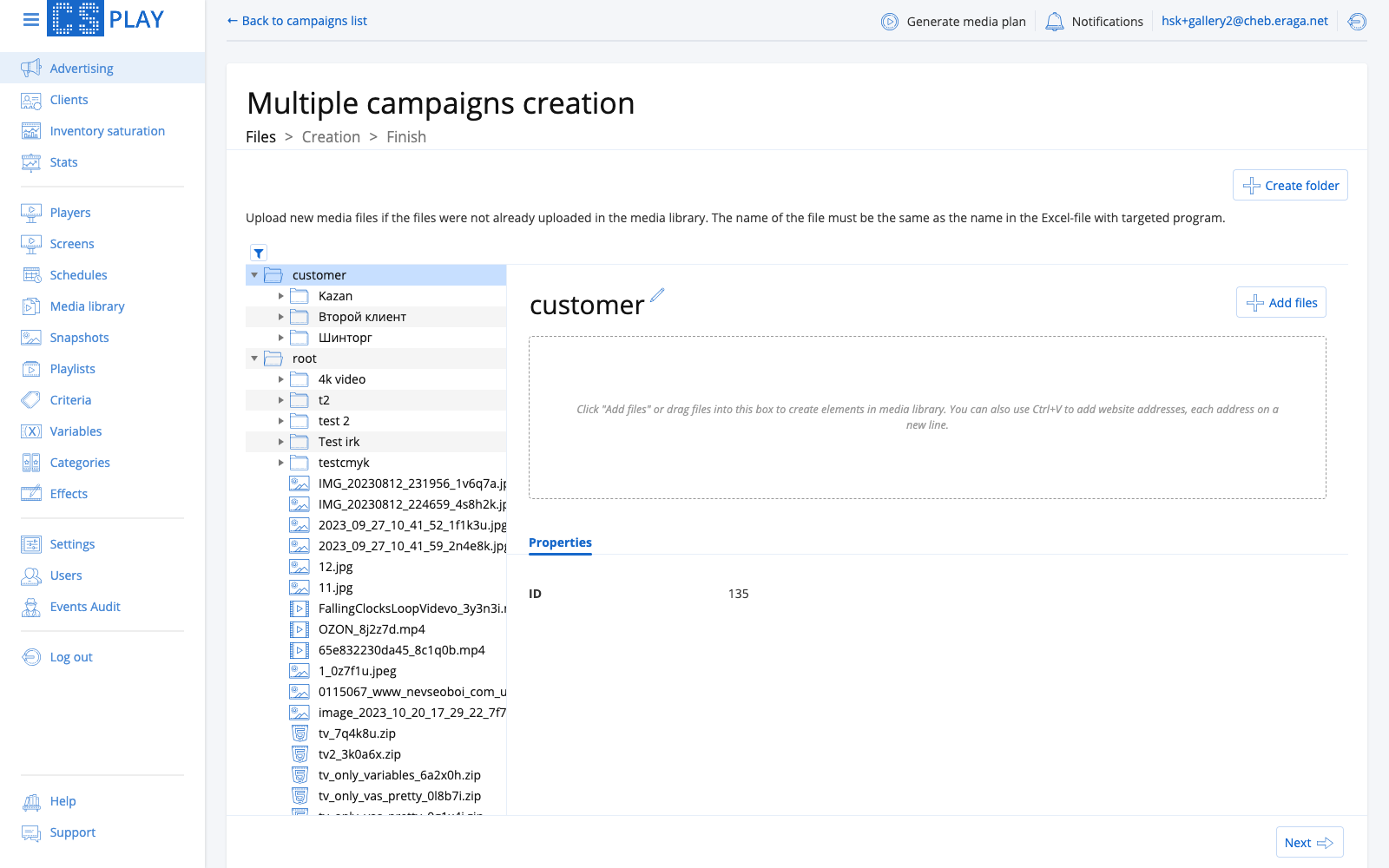
The wizard has three steps: Files > Creation > Finish.
Step 1: Files
Upload the media files referenced by your Excel plan, if they are not in the media library yet.
|
Media files are matched by file name: the name of each uploaded file must exactly match the name written in the Excel file. Files already present in the media library are matched the same way. |
Step 2: Creation
Click Upload excel file and select your media plan. The wizard parses the file and shows the campaigns it is about to create.
Options at this step:
- Check for overbooking
-
When enabled, the wizard verifies that activating the new campaigns will not exceed the available frequency on the targeted frames. Campaigns that would cause overbooking are listed under List of campaigns with exceeding frequency and are left as drafts. The option is off by default, and the wizard remembers your choice.
- Separating categories
-
Assign separating categories to all created campaigns at once, so that competing ads (for example, two car brands) never play back-to-back.
If some data cannot be resolved, the wizard reports it before anything is created:
-
List of missing frames and files — frame GIDs or media file names from the Excel file that were not found.
-
Unrecognized frames — rows whose frame GIDs could not be parsed, with their Position in the file.
Fix the Excel file or upload the missing media, then re-upload.
Step 3: Finish
The wizard reports how many campaigns were created. All of them are saved as drafts grouped into a placement (or Without placement if you chose so). Review the drafts and click Activate to launch them all.
If Check for overbooking was enabled, campaigns exceeding the frequency stay as drafts and are listed separately — resolve the conflicts and activate them manually.
Cloning campaigns with content replacement
To reuse an existing campaign structure for a new creative set:
-
Copy the campaign (see Copy & Resume).
-
On the campaign page, select the ads and click Replace content.
-
Pick the new files from the media library — the ads keep their targeting and scheduling, only the creative changes.
Combined with placements, this lets you roll out a new flight of an existing media plan in minutes.