Interactives and websites
| Website ads and HTML5 ads need the Professional license tier or higher. In Lite, an ad can only be an image, a video or a programmatic ad. |
Websites
Websites are basically HTML5 documents located in the local network or on the Internet, which are opened remotely by the player. In some cases, when a screen loses the Internet connection, or when the HTML5 resource can’t load fast enough due to a weak Internet connection, there’s a good reason to use an interactive HTML5 ad instead to solve this problem.
Interactive ads in HTML5
An HTML5 ad, unlike a website ad, is located on the player and is not affected by the Internet connection problems.
A file of an HTML5 ad is a zip archive that should contain at least the index.html file.It can also contain any other files, such as javascript files, css files, videos, images and so on.
Here’s a minimalistic example of a zip archive with an HTML5 ad:
- html5_package.zip
-- index.html| We recommend debugging an HTML5 ad in the Chrome browser. |
System variables
In HTML5 and websites you can play different content on different frames. And you don’t need to create several ads for different screens. You can create only one ad and program it to play different content depending on a frame. To do that you need to receive frame ID.
To be able to receive frame ID inside an interactive ad, you need to insert the following code into the page:
<script>
    var csPlayerData = {};
    function onAfterPlayerInit(){
        //code executed upon initialization of the data class
    }
    function onBeforePlayerShow  (){
        //code executed upon the start of the broadcast of the current page on screen
    }
    function onAfterPlayerShow  (){
        //code executed after the beginning of the broadcast of the current page on screen
    }
</script>
where:
-
csPlayerDatais a data class received from the CS Play system.In itcsPlayerData .frameIdis an ID of the currently active frame. -
onAfterPlayerInitis a function executed after the page opens and after the initialization of the csData class. -
onBeforePlayerShowis a function executed before the start of the broadcast of the currently active ad. -
onAfterPlayerShowis a function executed after the beginning of the broadcast of the currently active ad.
csPlayerData structure
-
displayAddressscreen address, obtained from metadata -
displayIdscreen id -
displayNamescreen name -
displayLatLongscreen coordinates, for screens with screen typemobilecoordinates from GPS/GLONASS sensors will be given, if available -
displayResolutionscreen resolution, contains one object like{"width": 600, "height": 300 } -
displayPlacementTypeinstallation typeindoor/outdoor, obtained from metadata -
displayInstallationTypescreen typefixed/mobile, obtained from metadata -
displayCriteriaarray of screen criteria, contains objects like{"id": 1, "name": "Name" } -
frameIdframe id -
frameNameframe name -
gidframe’s inventory number -
frameResolutionframe resolution, contains one object like{"width": 600, "height": 300 } -
frameCriteriaarray of frame criteria, contains objects like{"id": 1, "name": "Name" } -
campaignIdcampaign id -
campaignNamecampaign name -
advertisementIdad id -
advertisementNamead name -
durationexpected slot duration of a ad -
categoriesarray of campaign categories, contains objects like{"id": 1, "name": "Name" } -
variablesuser-declared variables, contains one object like{"key_1":"value_1", "key_2":"value_2",…,"key_N":"value_N"}, containing all user-declared variables, set for this ad, campaign, frame, screen, playlist, schedule, file in media library
Custom variables
Custom variables can be used to pass additional data to the html page content in an interactive ad, to reuse the same content files while automatically changing how they look or what they do.
To use a custom variable first you need to create this variable, then set it to a desired entity: content file, screen, frame, criterion, campaign, ad or playlist.
Create custom variable
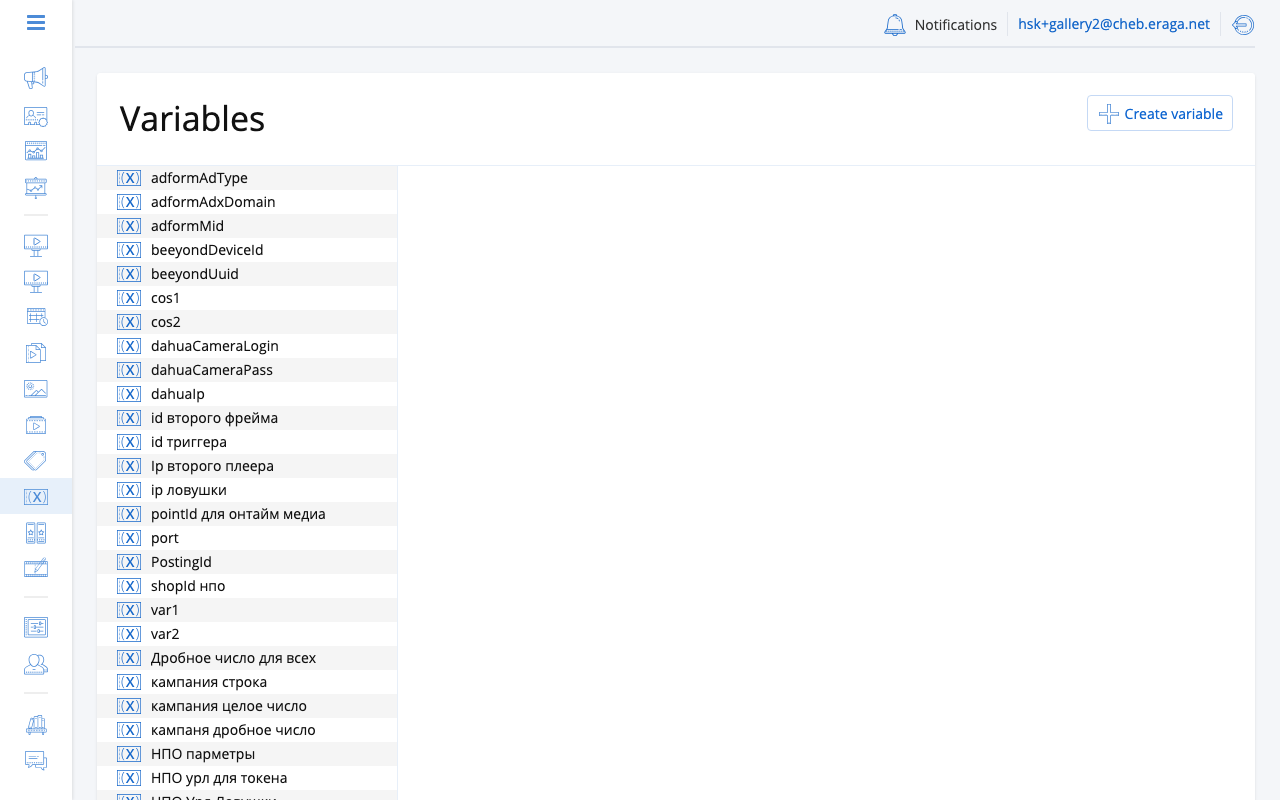
To create a custom variable go to the Variables page and click on the Create variable button. The dialogue will open.Fill the form in the dialoge.
Where:
-
Name is the name of the variable in the list, not passed to the html page content.
-
Key is the name of the variable, passed to the html page content.
-
Type of variable is the type of value, which should be stored in this variable, available types: String, Integer, Number.
-
Entities are entities to which this variable can be set.
Set custom variable to entity
To set custom variable to entity:
-
In the settings of this entity click on the Set variable button.
-
In the opened dialogue select the desired variable and click Next.
-
On the next step set a value, which should be passed to this entity in this variable, then click Save, to complete setting variable to entity.
You can set variable to entity in the settings of this entity. For example, you can set variable to a screen on the Variables tab in the settings of this screen. You can set variable to an ad in the Variables of the ad section in the settings of this ad, etc.
To edit the value of a variable, click Change in its row and edit it in place.
Variables with the same key on different entities will redefine each other in the order of precedence:
-
Content file (lowest priority)
-
Criterion
-
Screen
-
Player
-
Frame
-
Playlist
-
Campaign
-
Ad (highest priority)
Read a variable from the creative
Variables arrive in the page through the same csPlayerData object as everything else, in its variables member.
The creative reads the value by its key and applies it itself.
The creative addresses a variable by its key. The name is a label for the list in the interface and never reaches the page. The two are usually the same string, and sometimes are not — the variable table on each entity shows the key beside the name for exactly this reason.
<script>
    var csPlayerData = {};

    function onAfterPlayerInit() {
        var storeName = csPlayerData.variables['store_name'];
        document.getElementById('store').textContent = storeName || '';
    }
</script>
Read it in onAfterPlayerInit or later. csPlayerData is filled in by the player after the page opens, so a script that reads variables while the document is still loading will find an empty object.
variables holds already resolved values — one entry per key, containing the winner of the precedence order above. The creative cannot tell which entity a value came from, and does not need to.
A key with no value anywhere in the chain is simply absent from the object, so check for it rather than assuming it is there. A variable attached to an entity but never referenced by any creative changes nothing on screen.