OTS (Opportunity to See)
OTS (Opportunity to See) is an audience measurement metric that estimates how many people had the opportunity to see an ad during playback. Unlike a simple ad play count (which records screen events), OTS measures actual audience presence near the screen.
Ad Plays vs. OTS
Understanding the difference between these two metrics is essential:
| Metric | What it counts | Example |
|---|---|---|
Ad play |
Screen events |
An ad played once on a screen = 1 ad play, regardless of audience. |
OTS |
Audience contacts |
If 15 people were near the screen during that ad play, OTS = 15. |
A screen in a deserted corridor at 3 AM records an ad play but may have OTS = 0. The same screen at noon in a busy mall may have OTS = 200 for one ad play.
How OTS Is Measured
Wi-Fi Sensor
The primary audience measurement method uses Wi-Fi sensors installed near each screen. The sensor passively detects mobile devices in the vicinity by listening for Wi-Fi probe requests. Each unique device MAC address represents one person in the audience.
The system:
-
Counts unique MAC addresses detected during each ad play.
-
Filters out "junk" devices (staff phones, permanently installed devices) that appear for extended periods.
-
Records the resulting count as the OTS value for that ad play.
Configuring OTS Collection (Frame Settings)
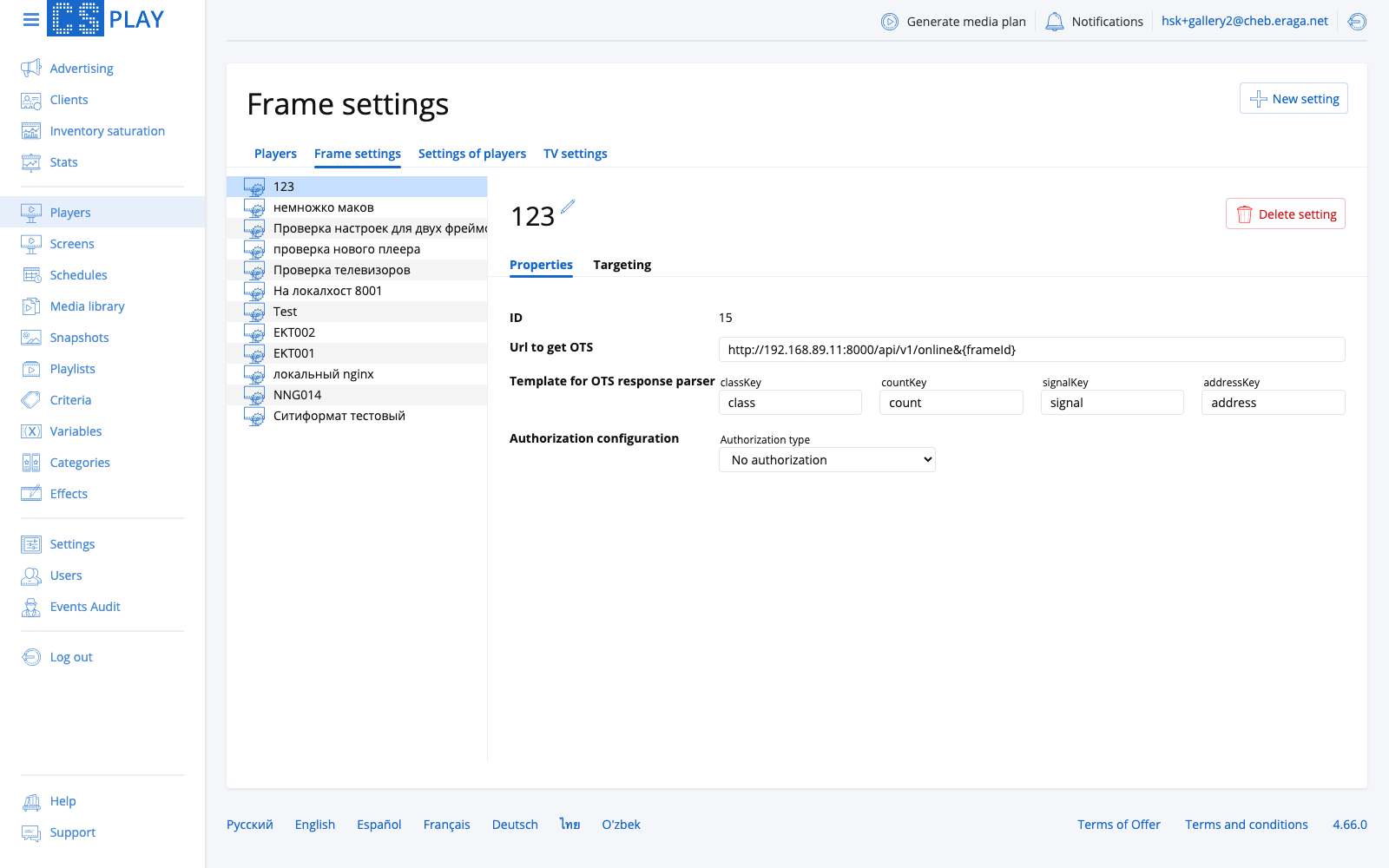
The player collects OTS values by polling an HTTP endpoint of the audience sensor (Wi-Fi trap, AIdiencer, or any compatible counter) during each ad play. Which endpoint to poll, how to parse its response, and how to authorize against it is defined by an OTS policy.
Policies are managed on the Players page, Frame settings tab.
Creating a policy
-
Open Players > Frame settings.
-
Click New setting and enter a Name.
-
Fill in the Properties tab (see below).
-
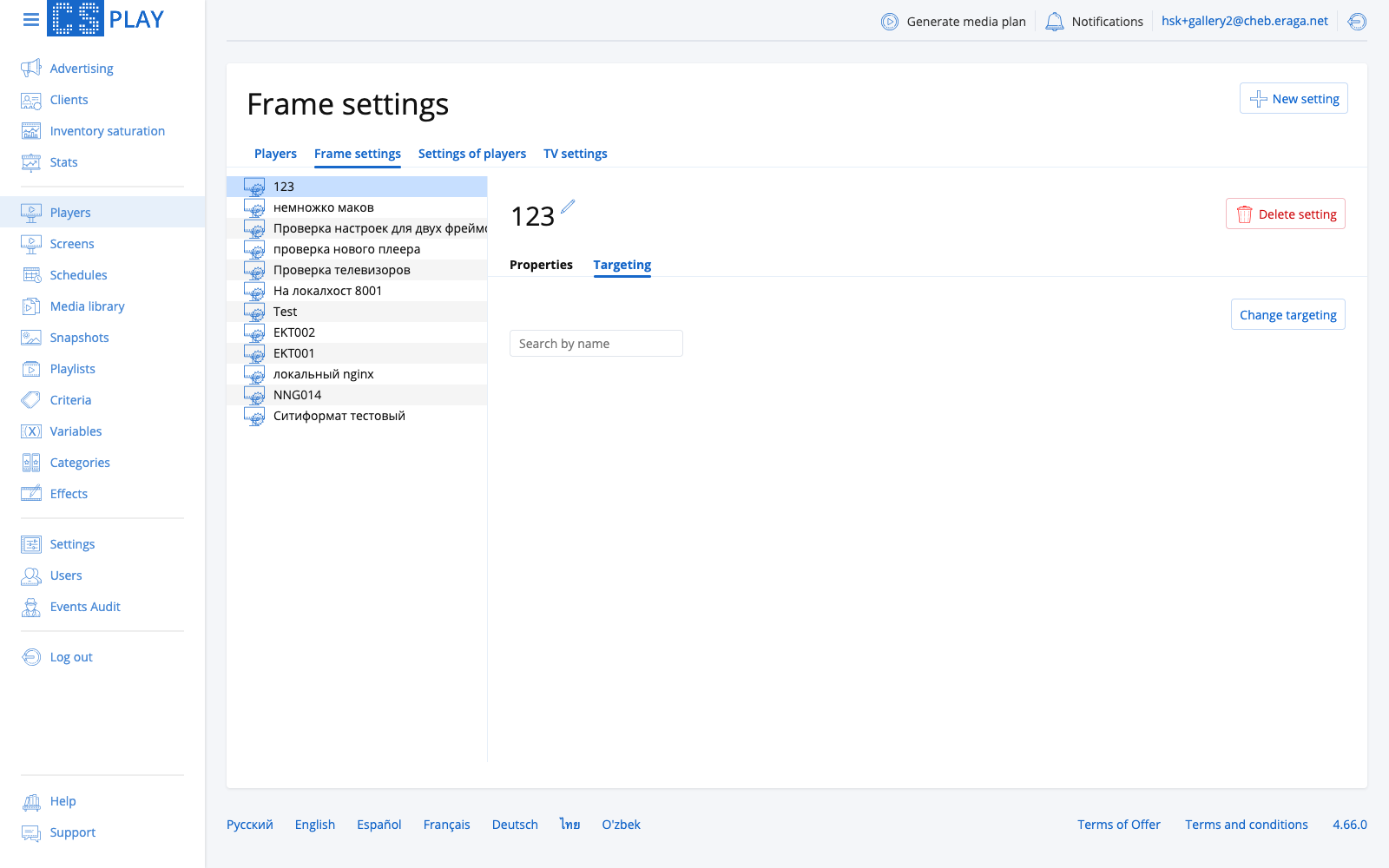
Assign frames on the Targeting tab.
-
Click Save changes.
Url to get OTS
The endpoint the player requests to obtain the audience count, for example:
http://192.168.89.11:8000/api/v1/online&{frameId}
The URL supports placeholders that the player substitutes at request time:
| Placeholder | Meaning |
|---|---|
|
Identifier of the frame the ad is playing on. |
|
Duration of the current ad, in seconds. |
|
Duration of the current ad, in milliseconds. |
Template for OTS response parser
The sensor’s JSON response is parsed using four key mappings — enter the field names used by your sensor:
| Key | Meaning | Required |
|---|---|---|
|
Field holding the MAC address class. |
No |
|
Field holding the total OTS count. |
No |
|
Field holding the signal strength. |
Yes |
|
Field holding the device MAC address. |
Yes |
Authorization configuration
If the sensor endpoint requires authentication, pick the Authorization type:
- No authorization
-
The endpoint is open; no credentials are sent.
- Basic authorization
-
HTTP Basic auth with a User and Password.
- Header token
-
A static token sent in a request header: specify the header Name and Value.
- User/Password
-
Token-based flow for sensors with a login endpoint. The player first requests a token, then uses it for OTS polls. Fields:
-
Url — the authentication endpoint.
-
POST request format —
TEXT_JSONorFORM_URL_ENCODED. -
JSON object body — credential fields as Key/Value pairs.
-
Token key — the response field that contains the issued token.
-
Header key — the request header to carry the token in.
-
'Bearer' at the beginning of the token — prepend the
Bearerprefix if the sensor expects it.
-
Viewing OTS Data
On the Ad Play Statistics Page
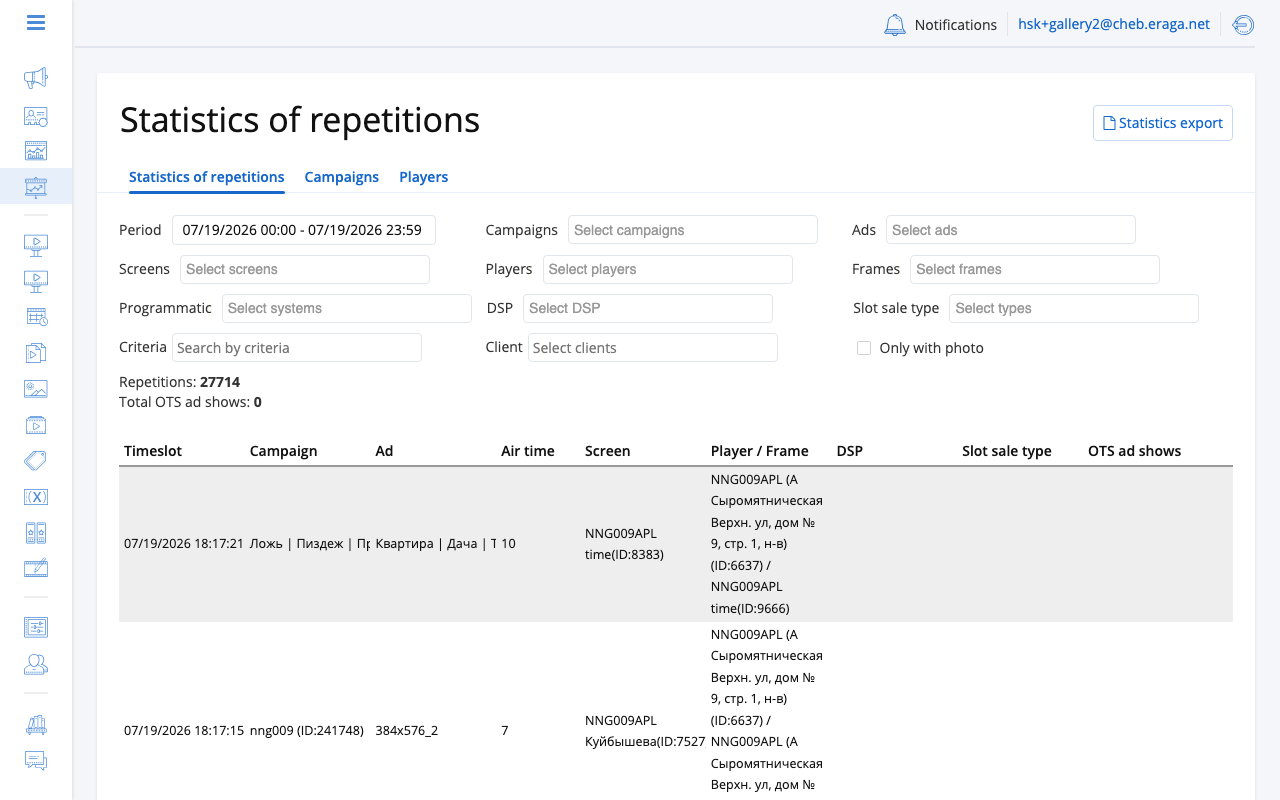
Each ad play row on the Ad Play Statistics page includes an OTS column showing the audience count for that specific playback event.
The summary bar at the top displays the Total OTS — the sum of all audience contacts across filtered ad plays.
In Exported Reports
All export formats include the OTS value per ad play. The pivot-by-day format sums OTS values into daily totals.
MAC Address Data
For deeper audience analysis, you can export the raw device identifiers:
-
Unique MACs — the distinct devices detected across your filtered period.
-
MACs by Frame — unique devices grouped by physical location (frame).
-
MD5-hashed MACs — anonymized identifiers for privacy-compliant sharing with third parties.
See Exporting Statistics for available export formats.
Junk Device Filtering
To ensure accuracy, the system automatically excludes devices that appear near a screen for extended periods. These are likely staff devices or fixed equipment.
This filtering happens automatically. No manual configuration is needed.
Screen Metadata and OTS
A screen’s Metadata tab carries an Audience block holding OTS, GRP, Downtime and Description. They look like the figures this page is about. They are not, and mistaking one for the other costs an afternoon.
Measured OTS never reads screen metadata
Everything on this page — the OTS column, Total OTS, the OTS column in every export, the MAC data — comes from what the player reported for that one ad play, obtained from the sensor named by the frame’s OTS policy. None of it consults the screen’s metadata.
Typing a number into the metadata OTS field therefore changes no statistic anywhere: not one row, not one total, not one exported cell. The corollary is the half worth remembering: when the OTS column is empty or implausible, look at the sensor and at the OTS policy. Never at the screen’s metadata.
What the Audience block is actually for
These are declared figures — what the operator states the screen delivers, not what anything measured. CS Play stores them and passes them on:
- OTS (a whole number) and GRP (a decimal)
-
Published verbatim to consumers outside CS Play: the programmatic inventory feed an external buyer inspects before bidding, the partner and deals catalogues, and the screens export.
- Downtime
-
Travels in the same feeds and is used the same way. It is what you typed.
- Description
-
Free text, and it travels with them: whatever is written here is visible to those same external buyers.
The rest of the placement metadata rides alongside in the same feed — address and coordinates, physical and pixel size, indoor/outdoor placing, installation type, angle, azimuth and altitude, floor level and floor height, side. That is the practical reason to keep the Metadata tab honest even on screens you never sell programmatically: it is the screen’s public description.
| The Downtime field is labelled as a percentage, and the platform passes the number through without interpreting it. Agree the unit with whoever consumes your inventory feed, and keep it consistent across your fleet. |
What a wrong or missing value costs
- Metadata OTS, GRP and Downtime
-
Nothing at all in statistics. Everything in what a buyer sees: a screen with no OTS is offered with no audience figure attached, and a screen with an inflated one is bought on the strength of it.
- A missing sensor reading
-
This is the one that moves the numbers. When the sensor does not answer for a play, the whole audience record for that play is dropped — the OTS is absent and so is its device list. The play itself is still recorded in full, with a blank OTS.
In the Excel export, a play with no OTS carries unknown in the OTS-kind column beside the OTS value. Filter on the OTS-kind column before totalling the OTS column.
|
When OTS Is Unavailable
If a screen does not have an audience measurement sensor installed, the OTS column shows no value for ad plays on that screen. Ad plays are still recorded normally — only the audience metric is absent.
To enable OTS measurement, install a Wi-Fi sensor or AIdiencer camera at the screen location, create an OTS policy that points at the sensor’s URL, and assign the screen’s frames to it under Players > Frame settings.
| Compare OTS values across different times of day and locations to identify your highest-performing screens and optimal scheduling windows. |