Programmatic advertising
Programmatic advertising allows external demand sources to purchase ad inventory on your screens through automated real-time bidding (RTB). In CS Play, programmatic demand flows through CS Context — the CityScreen supply-side platform (SSP).
How it works
-
When an ad slot becomes available on your screen, CS Context runs a real-time auction among connected demand sources.
-
CS Play sends your floor price with the request, and only a bid above it can win.
-
If the bid wins, the creative is delivered and played on the screen.
-
Proof-of-play confirmation is sent back to the demand source.
Creatives approved in CS Context arrive in CS Play already confirmed, with no screen list of their own. CS Play prepares them for every resolution among your screens that have a GID and plays one wherever CS Context returns it for a slot, so which screens a creative may appear on is decided in CS Context.
| To configure the CS Context connection, see Integrations. |
Preparing screens for programmatic sales
Before a screen can be sold programmatically, external systems must be able to identify it and know its physical characteristics. Two screen tabs need attention: Settings and Metadata.
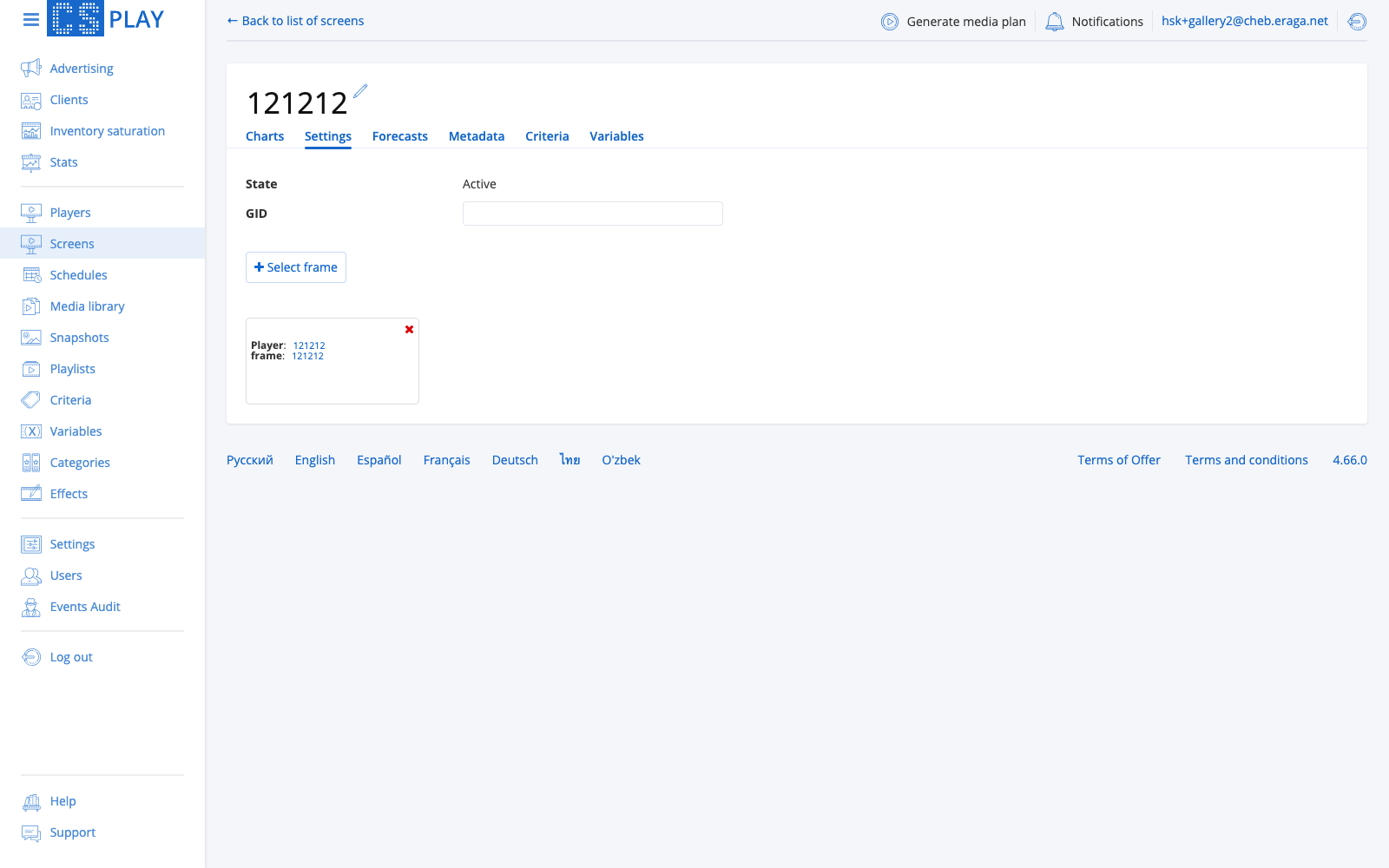
Step 1: Assign a GID
Open Screens, select the screen, and switch to the Settings tab. Fill in the GID field — the global identifier that external programmatic systems use to reference this screen’s frame. The same GID is used in Excel media plans for mass campaign creation.
Step 2: Fill in the metadata
Switch to the Metadata tab (full field reference — on the Screen parameters page) and, under Availability, turn on Available for programmatic ★. Then fill in as much of the rest as you can:
-
Placing — indoor or outdoor.
-
Physical size — width and height of the visible area of the structure.
-
Bookable by day / Bookable by hour — the granularity at which this inventory may be booked.
It is also recommended to provide the Address, Side (A/B in Latin letters), and upload Images of the screen — inventory buyers see these when choosing placements.
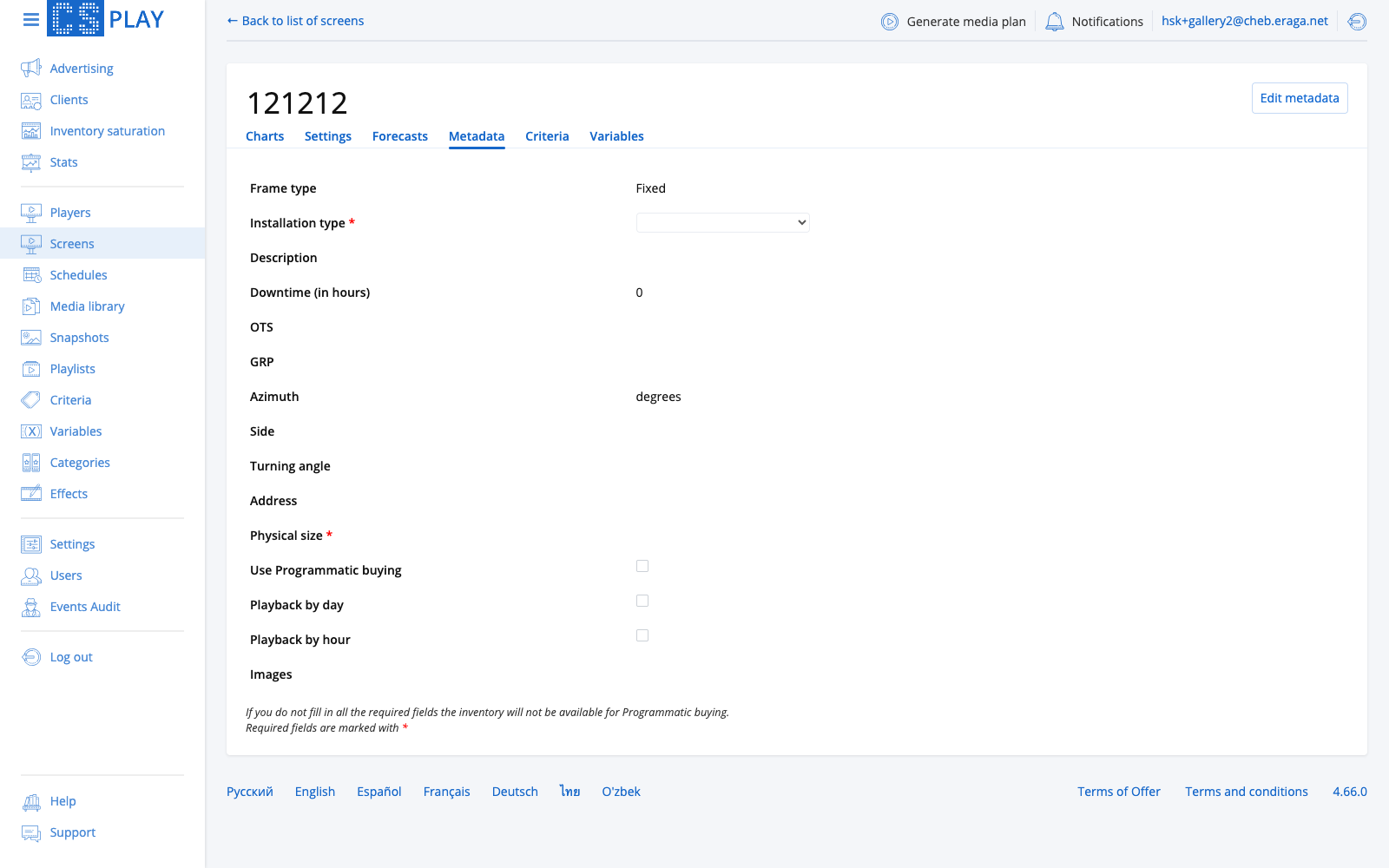
★ — together with the GID from step 1, this is all CS Play itself checks. Everything else is optional to the system and decisive to the buyer: an entry with no size, no address and no photographs is published, and passed over.
Inventory attributes
The Metadata tab is where an operator fills in facts about a physical structure; the same facts leave the system as the attributes an RTB buyer filters and bids on. This section says which fields actually travel, so that time spent on the tab goes where it changes something.
What decides whether a screen is offered at all
CS Play publishes a screen to CS Context when all of the following hold:
-
the player behind it is active and in the Active state;
-
the screen is active and not archived;
-
the screen has a GID;
-
Available for programmatic is on for that screen.
That is the whole gate. Nothing else is enforced — a screen with no size, no address and no photos is published exactly like a complete one, and is simply never chosen. Turning Available for programmatic off drops the screen from the next inventory update.
The switch gates publication in every license tier, Lite included: a Lite screen with the switch off is not offered either.
Attributes published for each screen
| Attribute | Where it comes from |
|---|---|
GID |
The Settings tab. This is the identifier the buyer references the placement by. |
Resolution |
The frame — pixel width and height, plus the screen’s position inside the player’s canvas. Not editable as metadata. |
Criteria |
The screen’s Criteria tab, published by name. This is how a buyer filters your inventory with your own vocabulary — see Criteria that describe a screen. |
Working schedule |
Derived from the screen’s schedule: the days and time ranges during which it broadcasts at all. |
Bookable by day, Bookable by hour |
The Availability block. They tell the buyer at what granularity the slot may be booked. |
Physical size |
Physical width and Physical height — the size of the structure, as opposed to its resolution. |
Placing |
Indoor or outdoor. |
Address, Side, Description |
Free-text placement details. Side is A or B in Latin letters. |
OTS, GRP |
The audience figures from the Metadata tab. Published as filled in — CS Play does not compute or verify them. |
Tilt |
The angle of the surface. The field is offered only for a fixed installation. |
Floor, Ceiling height |
Indoor screens only. |
Azimuth, Height above ground |
Outdoor screens only. |
Downtime |
The share of time the structure is expected to be out of service. |
Photos |
The images uploaded on the Metadata tab. Buyers look at these when choosing placements. |
Two attributes come from the player behind the master frame rather than from the screen, and are shown read-only on the screen’s Metadata tab:
-
Installation — fixed or mobile;
-
Coordinates — latitude and longitude.
Change them on the player, not on the screen.
| Attributes are published per screen, inside that screen’s entry in the player’s inventory record. A player carrying two screens publishes two entries with their own criteria, sizes and schedules. If an integration reports a missing address or OTS, check that it is reading the screen’s entry rather than the player’s. |
Allocating a programmatic slot
A programmatic slot is the airtime that CS Play hands over to a recommendation system when no direct advertising occupies it. There are three ways to allocate it:
- Programmatic ad in a filler or programmatic campaign
-
In a campaign with the Filler by frequency or Programmatic by frequency strategy, create an ad of the Programmatic type and set its Request order to the CS Context recommendations source. When the slot comes up, the player requests a creative from the recommendation system.
- Regular filler ad offered to programmatic
-
Alternatively, enable the Use in Programmatic buying option on a regular ad inside a filler campaign. The filler content plays as usual, but its slot is offered for programmatic replacement. In the Lite tier this option is always on and cannot be turned off, so every filler ad’s slot is offered.
- Custom HTML5 creative
-
A media owner can sell an entire slot directly to an advertiser who provides a custom HTML5 creative. The creative runs locally on the player and can use the
csPlayerDatabridge to adapt to screen context. See Interactive & HTML5 for details.
| See Campaign Strategies for how filler and programmatic strategies fit into the ad block. |
Deal types
CS Context supports two deal models:
- RTB (Real-Time Bidding)
-
Open auction where multiple demand sources compete for each impression through CS Context. The highest bid above your floor price wins the slot.
- Private deal
-
A pre-negotiated agreement with a specific buyer with fixed pricing and priority access to your inventory.
See also
-
Integrations — configuring CS Context and Sedooh
-
Interactive & HTML5 — custom HTML5 creatives for direct slot sales
-
Campaign Strategies — filler and programmatic strategies