Organization settings
Organization settings define default values for campaigns and advertisements across your account. These defaults are applied automatically when creating new campaigns or ads, but can be overridden individually.
To access organization settings, go to Settings > Organization.
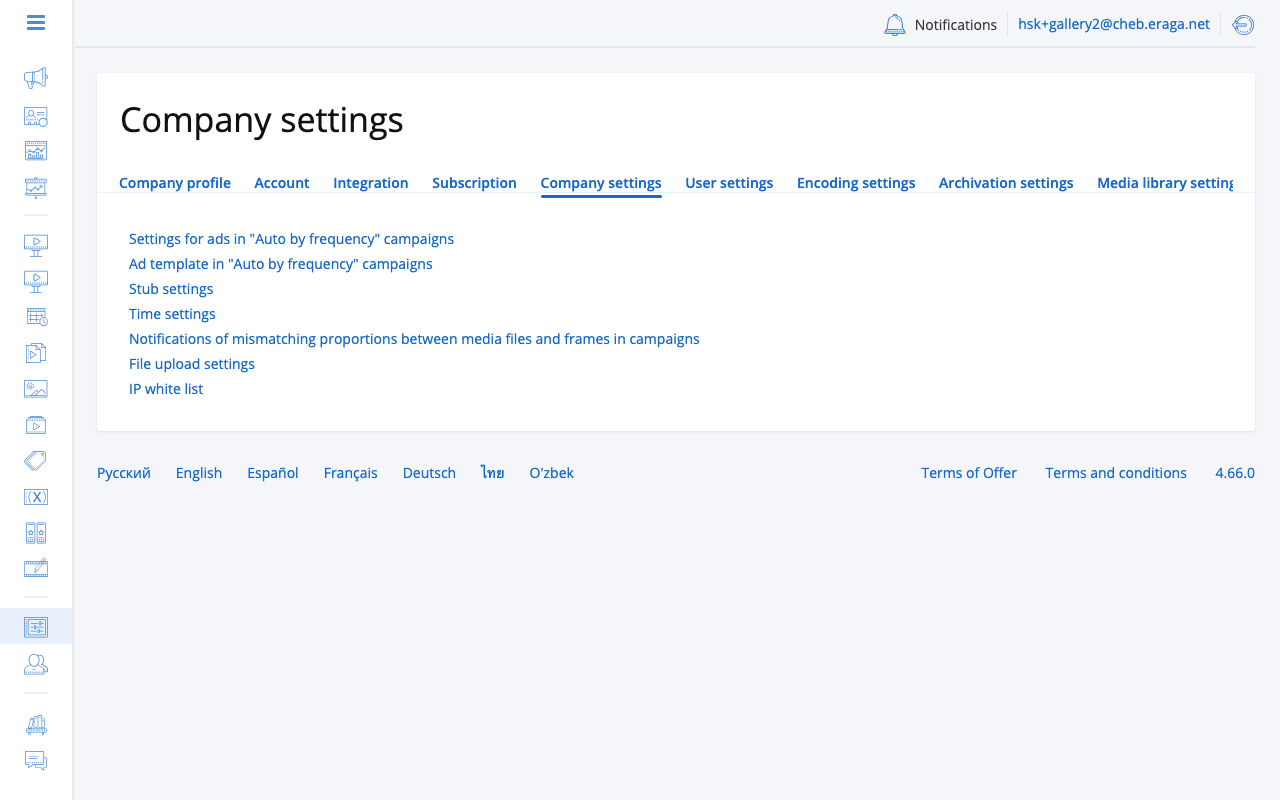
Campaign defaults
These settings define the starting values for every new campaign:
- Frequency
-
Default number of ad plays per loop cycle. Determines how often an ad repeats in the playlist rotation.
- Start time
-
Default campaign start time of day.
- Gluing
-
When enabled, consecutive ads from the same campaign play back-to-back without interruption from other campaigns.
- Targeting step
-
Default targeting precision level for geographic or criteria-based targeting.
- Screen paste
-
Default behavior for assigning screens to new campaigns.
Advertisement defaults
Default values applied to each new advertisement:
- Duration
-
Default playback duration (in seconds) for a single ad play.
- Cost
-
Default cost per ad play used for reporting purposes.
- Time settings
-
Default day-of-week and time-of-day schedule applied to new ads.
- Polygon
-
Default geographic area for location-based targeting.
Filler content
- Always participate in programmatic sales
-
When enabled, your screens always respond to programmatic bid requests even when no paid campaigns are scheduled. Filler content plays between paid spots.
Time settings
- Default time
-
Organization-wide default ad playback duration.
- Default start time
-
Earliest time of day ads can play.
- Default end time
-
Latest time of day ads can play.
- Include end time
-
When enabled, the end time boundary is inclusive (ads can play at exactly the end time).
Upload settings
- Upload by chunks
-
Enable chunked upload for large media files. Recommended for unstable network connections.
- Max chunk size
-
Maximum size (in MB) of each upload chunk when chunked upload is enabled.
IP whitelist
Restrict access to your account by specifying allowed IP addresses. Only users connecting from listed IPs will be able to sign in.
The setting lives in Settings > Company settings, field IP list.
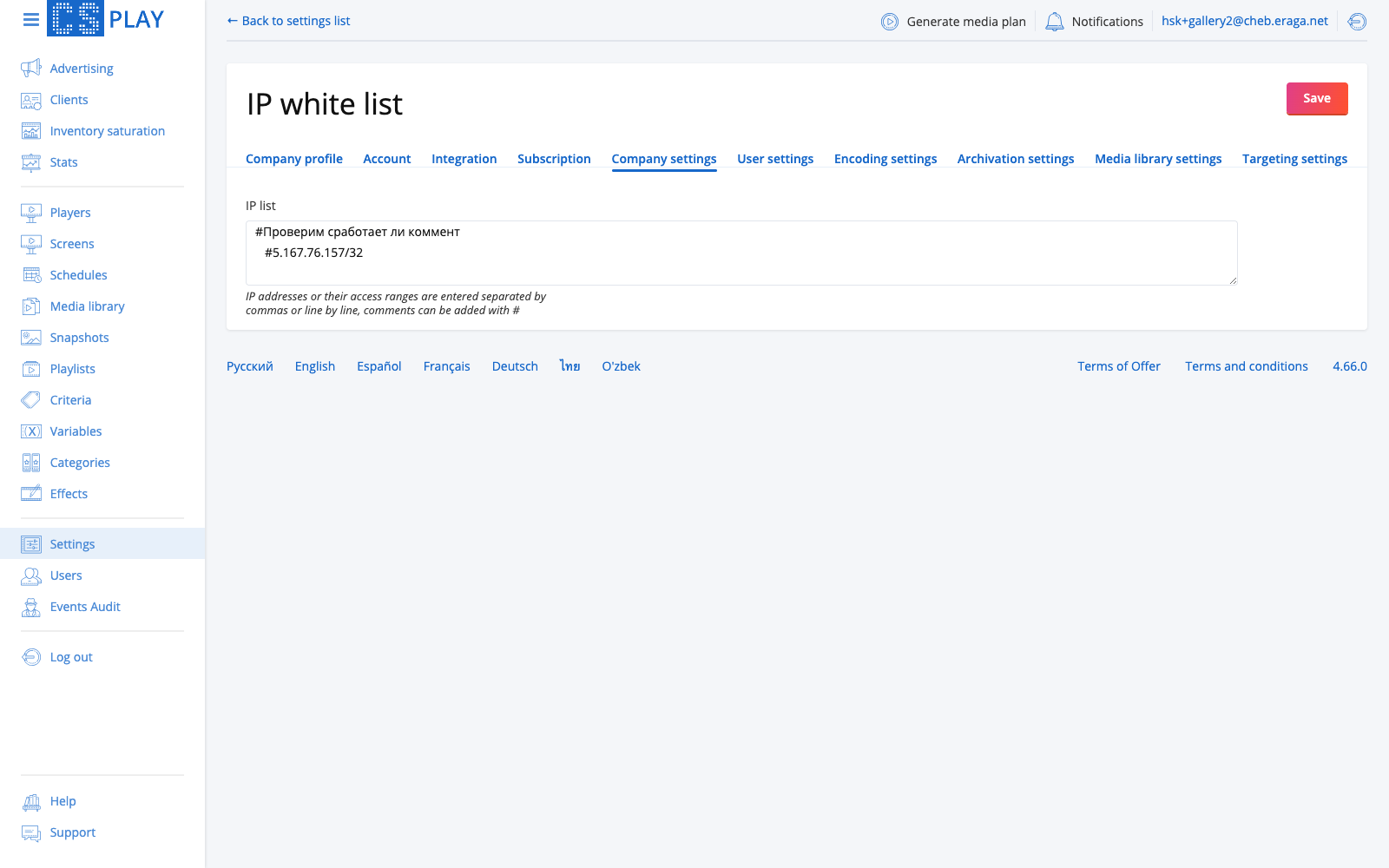
Enter addresses or ranges separated by commas or one per line. Lines starting with # are treated as comments. Both IPv4 and IPv6 are supported, ranges use CIDR notation:
# office
192.168.88.5
192.168.88.5/32
192.168.88.0/24
# ipv6
2001:0db8:85a3:0000:0000:8a2e:0370:7334
2001:0db8:85a3:0000:0000:8a2e:0370:7334/128
2001:db8::/32
|
Leave the IP whitelist empty to allow access from any IP address. If you accidentally lock yourself out, contact support at support@cityscreen.cloud. Enabling the list never breaks CS Deals, CS Context, or other platform integrations. |
Related settings
The Settings area includes additional configuration pages beyond Organization settings:
- Archivation
-
Auto-cleanup rules for old media files. Configure retention periods to automatically remove outdated content and free up storage.
- Media library
-
Upload limits and accepted file formats for the Media Library. Control maximum file sizes, allowed video codecs, and image formats.
- Targeting
-
Organization-wide targeting rules: strict filler targeting, the overbooking check at campaign activation, and whether assistant managers may return a campaign to draft. The targeting criteria themselves are managed on the Criteria page.
- Event notifications
-
One setting, Send notification (Always or When frame ratio changes), for the warning that a media file’s proportions do not match the frame it is scheduled into. Player online/offline emails are set per user, see Notifications.
- Applications
-
API keys for third-party integrations. Generate and manage access tokens that external systems use to interact with your CS Play account.
- Subscription
-
Your current license tier and subscription details. View your plan level, feature availability, and data retention limits.