Ad Play Statistics
The Ad Play Statistics page shows a detailed log of every ad play that occurred on your screens. Each row represents one playback event — a single ad displayed on a single frame at a specific point in time.
Use this page to verify that campaigns are delivering as expected, inspect individual playback events, and review audience metrics.
Ad Plays vs. Impressions
CS Play distinguishes between two concepts:
- Ad play
-
A screen event — the physical act of displaying an ad on a frame. Every ad play is recorded regardless of whether anyone was present to see it.
- Impression
-
An audience contact — one person (or device) that had the opportunity to see the ad. A single ad play can generate zero or many impressions depending on the audience present.
The Ad Play Statistics page lists ad plays. The OTS column on each row shows how many audience contacts (impressions) were registered during that particular ad play.
Viewing Ad Play Statistics
-
Go to Statistics > Ad Play Statistics.
-
The page displays the most recent ad plays within the selected date range.
-
Scroll down to load more records automatically.
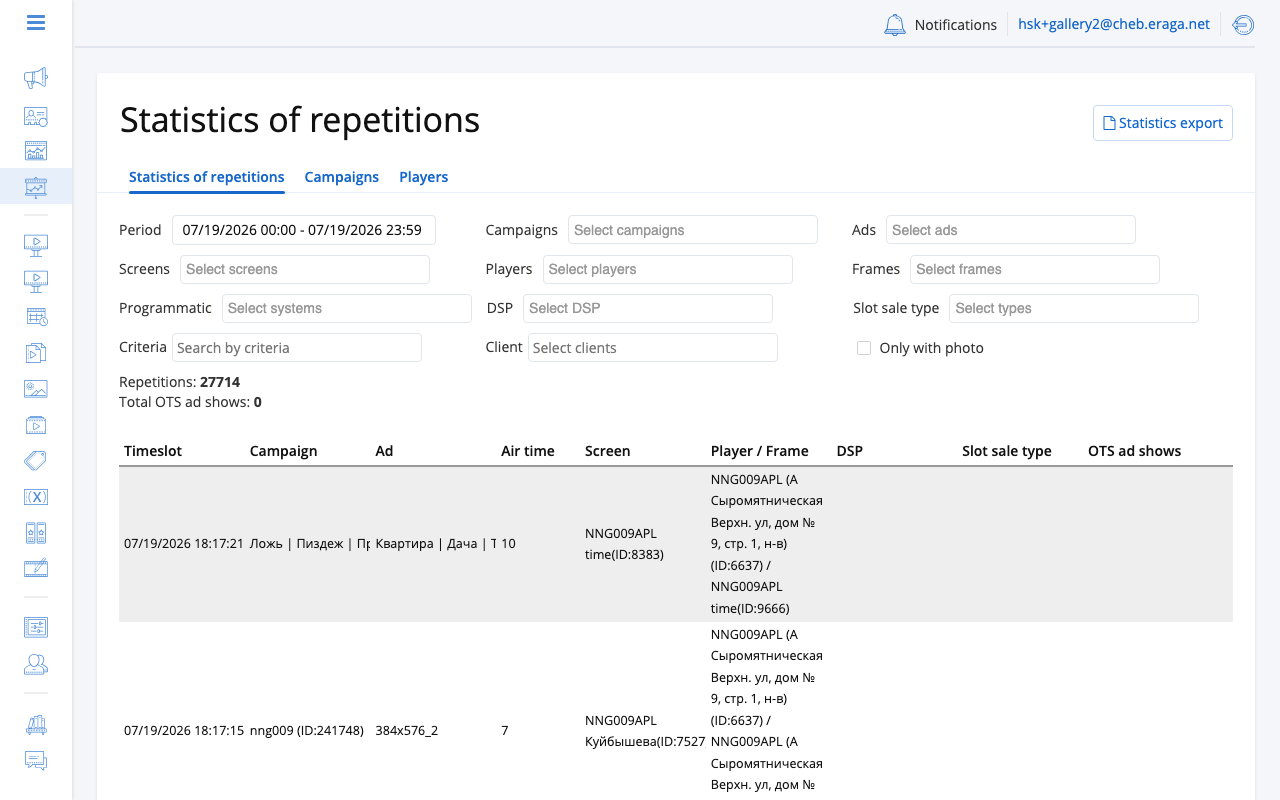
Each row shows:
-
Time — when the ad played.
-
Campaign — the campaign that owns the ad.
-
Ad — the advertisement name.
-
Duration — playback duration.
-
Screen — the physical screen group.
-
Frame — the frame where the ad appeared.
-
OTS — the number of audience contacts measured during this ad play (if audience measurement is enabled).
Filtering
Click the filter icon to open the filter panel. You can narrow results by:
| Filter | Description |
|---|---|
Date range |
Start and end date for the period you want to inspect. The available date range depends on your license tier. |
Campaigns |
Show only ad plays belonging to selected campaigns. |
Ads |
Show only ad plays of specific advertisements. |
Screens |
Filter by physical screen group. |
Frames |
Filter by specific frames. |
Customers |
Filter by advertiser or customer account. |
Only with photo |
When enabled, shows only ad plays that have a proof-of-play screenshot attached. |
Criteria |
Filter by screen criteria. |
After adjusting filters, click Apply. The page reloads with matching results.
Viewing Screenshots
If an ad play has a screenshot captured during playback, a camera icon appears on that row. Click the icon to open the screenshot viewer.
Use the arrow buttons to navigate between multiple captures for the same ad play.
See Proof of Play for more details on screenshot captures.
Summary Totals
At the top of the page, the system displays:
-
Total ad plays — the number of records matching your current filters.
-
Total OTS — the sum of all audience contacts across the filtered ad plays.
These totals update whenever you change the filters.
The Shareable Report
A campaign’s results can be shown to someone who has no account in CS Play at all. Open the campaign, go to its Statistics tab and click Create a public link. The button then becomes Copy link, because a link either exists or it does not.
Who can open it
Anyone holding the link. There is no sign-in, no account, no invitation and no organisation membership: the identifier in the link is the credential, so treat the link exactly as you would treat the report itself.
Two consequences are worth knowing before you send one:
-
One link per campaign. Generating a link a second time hands back the one that already exists rather than minting a fresh one. You cannot issue a second link to a different recipient and tell them apart later.
-
Once a link has left your hands, assume the holder can keep opening the report.
Creating the link needs edit rights on the campaign. Opening it needs nothing.
What the recipient sees
The report is generated fresh on every visit — it is a live view of the campaign, not a snapshot taken when the link was made. It shows:
-
The campaign name, its total impressions, and the number of screens involved.
-
Campaign period — the campaign’s own start and end dates.
-
A list of the campaign’s advertisements. Selecting one narrows everything below to that advertisement; All advertisements shows the campaign as a whole.
-
The selected advertisement’s creative, playable or viewable in place, with arrows when the ad has several files.
-
Impressions by hour of day — a histogram of the average across the campaign.
-
Per-screen breakdown — impressions per screen, by screen name. This appears when a single advertisement is selected.
There is a language switcher, so the recipient reads it in their own language, and a Print button that lays the page out without the switcher, the sidebar or the creative.
The report shows aggregates and screen names for this one campaign.
| A campaign that has not started yet shows zeros until the first plays arrive. If the recipient reports that the link is invalid, check that the whole link was copied. |
Aggregate Statistics: Campaigns and Players
Alongside the play log above, CS Play offers two aggregate reports under Statistics. They answer a different question: not "what played, and when", but "how much did this cost, and how evenly was it spread".
- Campaigns
-
Aggregates by campaign. Use it to compare what the organisation’s campaigns delivered against what they cost.
- Players
-
Aggregates by player. Use it to find the screens carrying more or less than their share of the load.
Both are the same page with the same controls; only the entity being grouped by differs. Each shows Impressions and Cost per impression as a maximum, an average and a minimum, and again per show and per day/hour, so an outlier is visible without opening anything.
| These reports are organisation-wide. To narrow the question, use the play log. |
Choosing the period
Four presets sit above the report, and the first three mean exactly what they say:
| Preset | What it covers |
|---|---|
Today |
Midnight this morning until now. |
This week |
From Monday of the current week — on a Tuesday it covers two days. |
This month |
From the first of the current month. |
Custom range |
Two date-and-time fields you set yourself, to the minute. |
The distinction matters more than it looks. A report covering "this week" on a Tuesday morning is comparing two days of delivery against a target set for seven, and reading it as a rolling week makes a healthy campaign look like a failing one.
A link to a report opens on the same period for whoever receives it.
The upper bound is the last minute included. A custom range ending
23:59 covers the whole of that day; one ending 12:00 covers the morning up
to and including the minute that starts at noon.
|
Data Retention
The number of days of historical data available depends on your license tier. If you attempt to select a date range beyond your retention window, the system adjusts the start date automatically.
| Use the Export function to save a permanent copy of your statistics before they expire from the retention window. |