Dynamic variables
Dynamic variables allow you to inject data values into HTML5 creatives at playback time. Instead of creating separate creatives for each variation, you define variables that are resolved dynamically based on the screen, campaign, or advertisement context.
How variables work
A variable is a named, typed value that the player resolves for the context an advertisement is playing in and hands to the creative, which reads it by key and decides what to do with it.
For example, a variable store_name can display different text on different screens, allowing one creative to serve multiple locations.
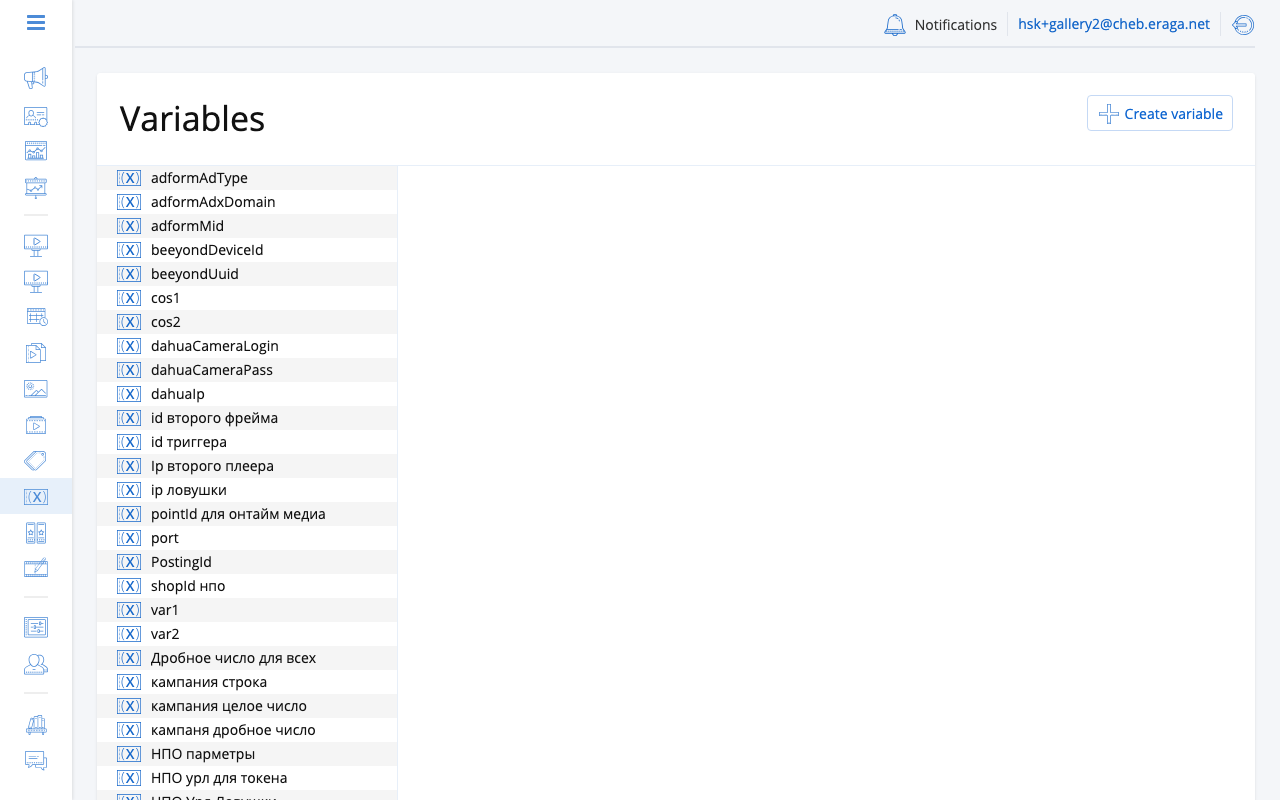
Variable properties
Each variable has the following properties:
- Key
-
A unique identifier used in HTML5 creative code to reference the variable (e.g.,
store_name,price). - Name
-
A human-readable label displayed in the interface.
- Type
-
The data type of the variable value:
-
String — text values
-
Integer — whole numbers
-
Number — decimal numbers
-
Defining a variable and attaching it
Two separate actions are involved, and confusing them is the usual reason a variable appears not to work.
Defining creates the variable in your organisation’s library: its key, its name, its type, and the kinds of entity it is allowed to attach to. It happens once, on the Variables page. A definition holds no value — it is a slot, not a setting.
Attaching takes a definition from that library and gives it a value on one particular entity: this campaign, this screen, this player. The button beside an entity’s variable table does this; it offers the definitions the library already holds, and asks for a value.
Everything that surprises people about variables follows from that split:
-
A value belongs to one entity. Editing the value of
store_nameon one screen changes that screen and nothing else, even though every screen draws on the same definition. -
One definition can be attached to many entities at once, each with its own value. That is the point of it.
-
Removing a variable from an entity detaches it. The value on that entity disappears, the definition stays in the library, and every other entity keeps its own value.
-
If the button beside the table is disabled, either the library holds no definition that may attach to this kind of entity, or your role does not allow you to edit this entity. In the first case, define the variable before you look for it here.
Attaching the same definition to the same entity a second time replaces the value rather than adding a second row. The page says so before you save.
Creating a variable
-
Go to Settings > Variables.
-
Click Create variable.
-
Enter the key, name, and select the type.
-
Choose which entity types this variable can be attached to.
-
Click Save.
Entity types
Variables can be scoped to different entity types:
-
Media content — value is tied to the creative file itself
-
Criteria — value is matched via targeting criteria
-
Screen — value is specific to a particular screen
-
Player — value is tied to the device the frames belong to
-
Frame — value applies to a frame within a player
-
Playlist — value applies within a playlist context
-
Campaign — value applies to all ads in the campaign
-
Advertisement — value applies to a specific ad
When the same variable has values at multiple levels, the player resolves them by priority. The priority from lowest to highest is:
-
Media content (file)
-
Criteria
-
Screen
-
Player
-
Frame
-
Playlist
-
Campaign
-
Advertisement
A value set at a higher-priority level always overrides a lower-priority one. For example, an advertisement-level value takes precedence over a campaign-level value, which in turn overrides a screen-level value.
| Player is a scope in its own right, not another name for Screen. It sits between the screen and the frame, so a variable given a value on both the screen and the player resolves to the player’s. Use it when the variable describes the device rather than the display surface. |
Attaching values to entities
Once a variable is defined, you can give it a value on specific entities:
-
Open the entity (e.g., a screen or campaign).
-
Go to its Variables tab or section.
-
Click the button beside the table — Set a variable on a screen or a player, Add a variable on a campaign — choose a definition, and enter the value.
-
To change a value later, click Change in its row and edit it in place.
-
To remove one, click Delete in its row and confirm.
Attaching, changing and removing all take effect the moment you confirm them. The variable table has no separate save step, and the only way to undo a change is to make the opposite one.
The value is checked against the definition’s type, so an Integer variable will not accept 12abc.
Each entity’s variable table shows the definition’s key beside its name. The key is what a creative addresses, and it is not always the same string as the name.
On a campaign
The campaign editor has a Variables section between the playback options and the screen list. It appears once the campaign has been saved for the first time; a campaign that does not exist yet has nothing to attach values to.
| Attaching a variable, changing a value and removing one each take effect immediately, independently of the campaign form’s Save button. Leaving the form without saving, or cancelling it, leaves them in place. |
A campaign-level value applies to every advertisement in the campaign. An advertisement that has its own value for the same variable overrides it.
On a screen
Open the screen and go to its Variables tab.
Variables are not the screen’s metadata, and the difference is what this tab is for. Metadata is a fixed schema shared by every screen: the same fields exist on all of them whether or not they are filled in. Variables are defined by your organisation, and adding a new one requires no change to the product. Anything the metadata schema does not cover belongs here.
Observers can read the table but cannot change it, and an archived screen is read-only like every other part of one.
On a player
Open the player and go to its Variables tab.
Attach a variable here when the value describes the device rather than the broadcast surface: the address of a camera wired to it, a site code, an identifier a creative needs in order to reach something local.
A player-level value overrides a screen-level one for the same variable, and is itself overridden by a frame-level one. The Entity types section above gives the full order.
A value set here changes nothing on screen by itself. It only has an effect once a creative asks for that key — see Read a variable from the creative.
Using variables in HTML5 creatives
The player passes every variable that applies to the current advertisement into the page, keyed by the definition’s key, and the creative reads the one it wants. See Read a variable from the creative for the code and for what the creative can rely on.