Event Triggers
Trigger campaigns enable event-driven advertising — ads play in response to external signals rather than on a fixed schedule. This allows real-time reactions to weather changes, sports events, sensor data, or any other external system.
|
Trigger campaigns require the Enterprise tier — see License Tiers. |
What Are Triggers?
A trigger is a named event that, when fired, causes a specific ad to play on designated screens. Each trigger is linked to one ad in the campaign and targets a specific set of screens.
The workflow:
-
You create a trigger campaign with one or more ads.
-
Each ad gets a unique trigger name — an identifier that external systems will reference.
-
You define trigger events that specify when and on which screens each trigger should fire.
-
When the event fires (via API or scheduled time), the ad plays immediately.
Creating a Trigger Campaign
Step 1: Choose the Trigger strategy
When creating a new campaign, select Auto by Triggers as the campaign strategy.
Step 2: Add ads with trigger names
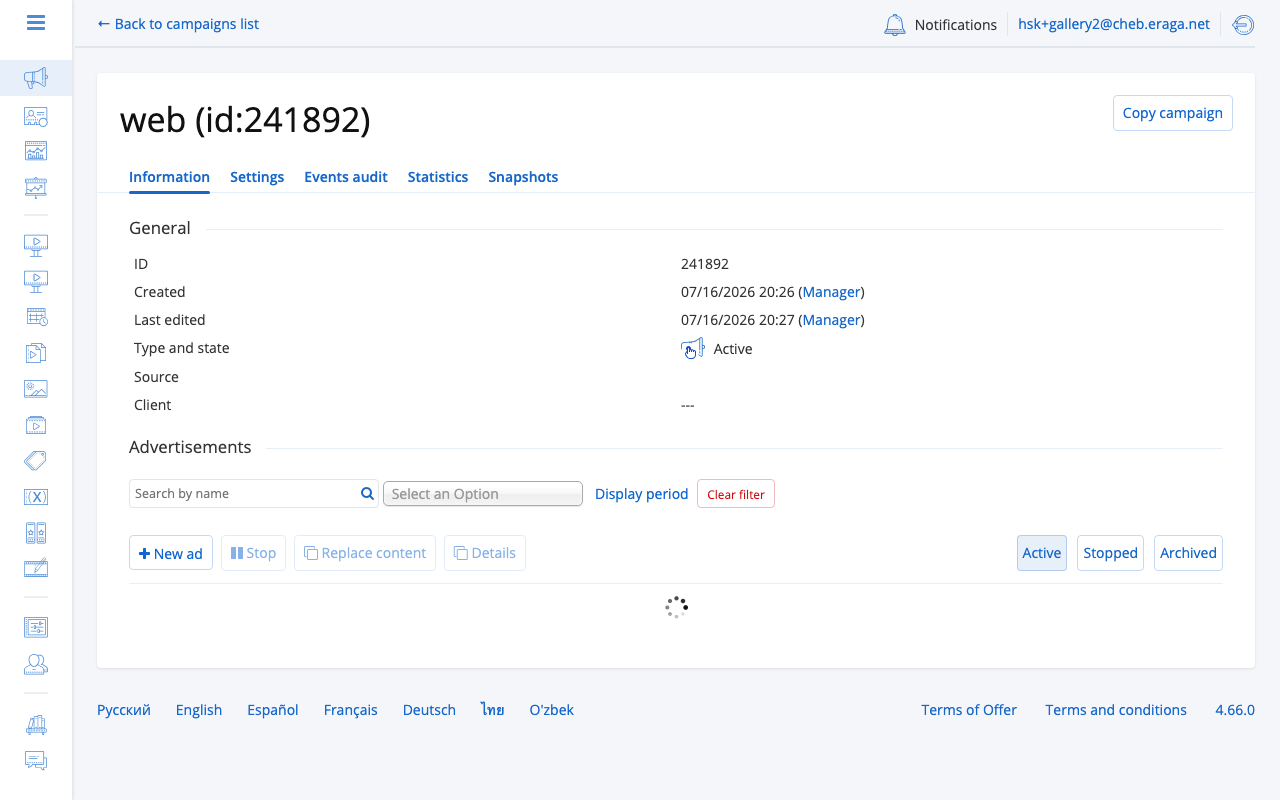
For each ad in the campaign, assign a unique trigger name. This name serves as the event identifier.
|
Trigger names must be unique across all active trigger campaigns. If you try to use a name that is already active in another campaign, you will be asked to deactivate the conflicting ad first. |
Step 3: Configure trigger events
After creating the campaign, go to the Triggers tab to manage trigger events:
Each trigger event has:
| Field | Description |
|---|---|
Name |
A descriptive label for the event. |
Advertisement |
Which ad to play when this event fires. |
Trigger time |
When the event should fire (for scheduled triggers). |
Screens |
Which screens should play the ad. |
Active |
Whether this trigger event is enabled. |
Trigger Types
How External Systems Fire Triggers
External applications send trigger events to the CS Play API using the trigger name as the identifier. When the platform receives the event, it plays the associated ad immediately on the screens set in the trigger event.
|
You can enable or disable individual trigger events without modifying external integrations. This lets you pause specific triggers during maintenance or testing. |
Managing Trigger Events
From the Triggers tab you can:
-
Create new trigger events linked to ads in the campaign.
-
Enable/disable events individually or in bulk.
-
Edit the trigger time or screen targeting.
-
Remove screens from specific trigger events.
Best Practices
-
Use descriptive trigger names that reflect the event (e.g.,
weather-rain-moscow,goal-team-a). -
Test trigger events on a small screen set before expanding to the full network.
-
Set campaign date ranges to cover the entire expected trigger period.
-
Monitor the campaign audit log to verify triggers are firing as expected.