Settings Policies
Settings policies are configuration templates that you can apply to multiple players at once. Instead of configuring each player individually, define a policy once and assign it to any number of players.
CS Play supports three types of settings policies:
-
Player settings policies — rendering and playback behavior
-
TV settings policies — monitor power schedules
-
Frame settings policies — frame-level playback rules
Player settings policies
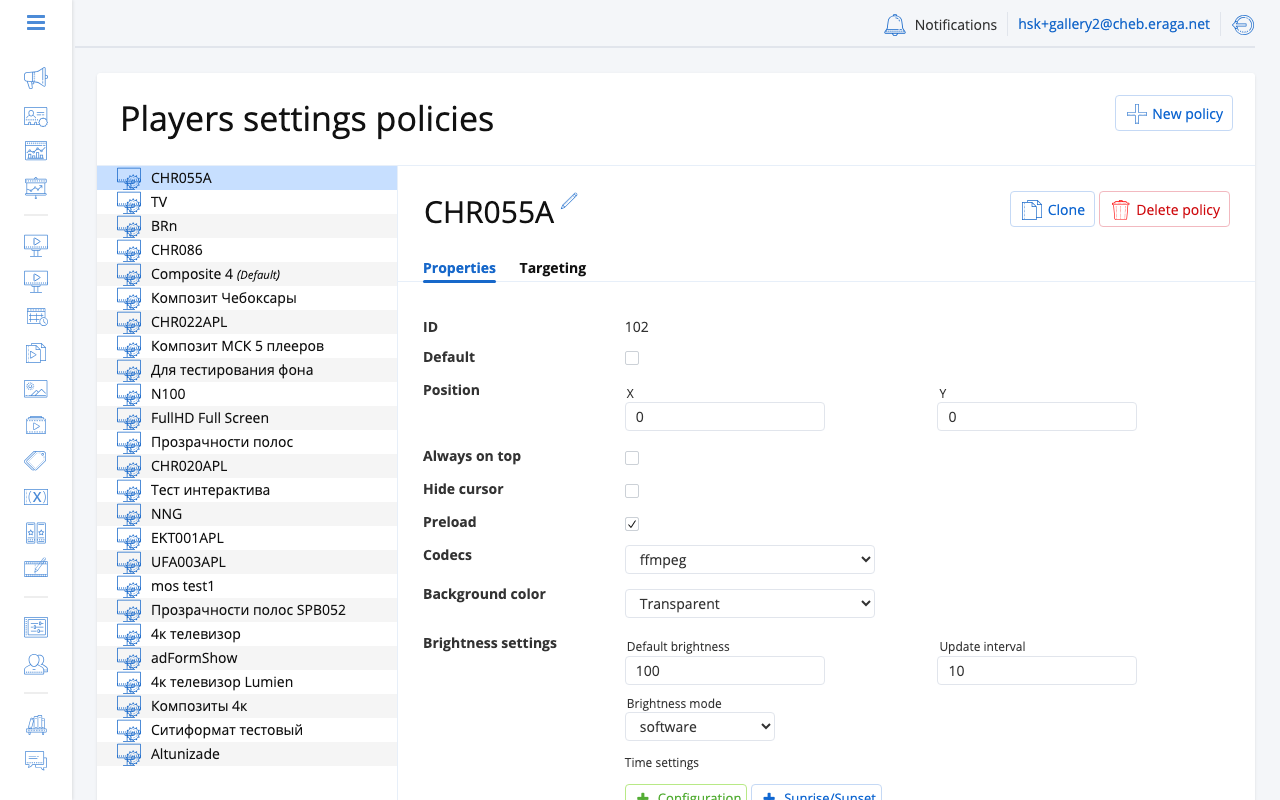
Player settings policies control how the player renders and plays content. These include brightness schedules, animation transitions, and other rendering parameters.
Navigate to Players > Settings tab to manage player policies.
Creating a player settings policy
-
Click Add policy.
-
Enter a name for the policy.
-
Configure the settings:
Setting Description Brightness schedule
Time-based brightness levels throughout the day (e.g., 100% during daytime, 50% at night).
Animation settings
Transition effects between ads (fade, cut) and their duration in milliseconds.
Rendering options
Player-specific rendering parameters for content output.
-
Click Save.
TV settings policies
TV settings policies control when the physical monitor hardware powers on and off. These operate independently of content playback — the player continues running while the monitor is off.
Navigate to Players > TV Settings tab to manage TV power policies.
Creating a TV settings policy
-
Click Add policy.
-
Enter a policy name.
-
Define the power schedule:
Setting Description Power-on time
Time when the monitor turns on (daily).
Power-off time
Time when the monitor turns off (daily).
Days of week
Which days the power schedule is active.
-
Click Save.
| Use TV settings policies to save energy and extend monitor hardware lifespan by powering off monitors during closed hours (e.g., overnight for mall installations). |
Frame settings policies
Frame settings policies define default behavior rules for frames across your organization. These settings apply to frame-level playback parameters.
Navigate to Players > Frame Settings tab to manage frame policies.
Managing policies
All three policy types support the same management operations:
Editing a policy
-
Select the policy from the list.
-
Modify the settings.
-
Click Save.
Changes apply immediately to all players using that policy.
Best practices
-
Name policies descriptively — e.g., "Mall Screens - Extended Hours" rather than "Policy 1".
-
Use fewer, broader policies — easier to maintain than many similar policies.
-
Test on one player first — apply a new policy to a single player, verify it works, then roll out to the group.
-
Document power schedules — coordinate TV settings policies with building operating hours.
| Settings policies are not available for reseller accounts. Contact your administrator if you need policy access. |