CS Player on Smart TV (Tizen / webOS)
On Samsung Tizen SSSP and LG webOS Signage displays CS Player runs as a web application directly on the TV — no external controlling device is required.
Because the player is a web application, its capabilities differ from the PC and Android players: check the platform comparison before planning content for Smart TV screens. Website and Interactive advertisements have limited support (see below), and a single frame per screen is recommended.
Installation
The Smart TV player is distributed from the public CS Play package repository as a signage application for the corresponding platform. After the application is installed and started, connect the player to your account with a PIN the same way as on other platforms: see connecting the player to your account.
Samsung Tizen SSSP
On Tizen SSSP displays the player is installed through the built-in URL Launcher: the display downloads the application from the CS Play repository by URL and updates it from the same address.
The application URL is:
https://packages.cityscreen.cloud/repository/web-player/tizen/1.1.0| Newer versions may be published over time — check the list in the repository browser. |
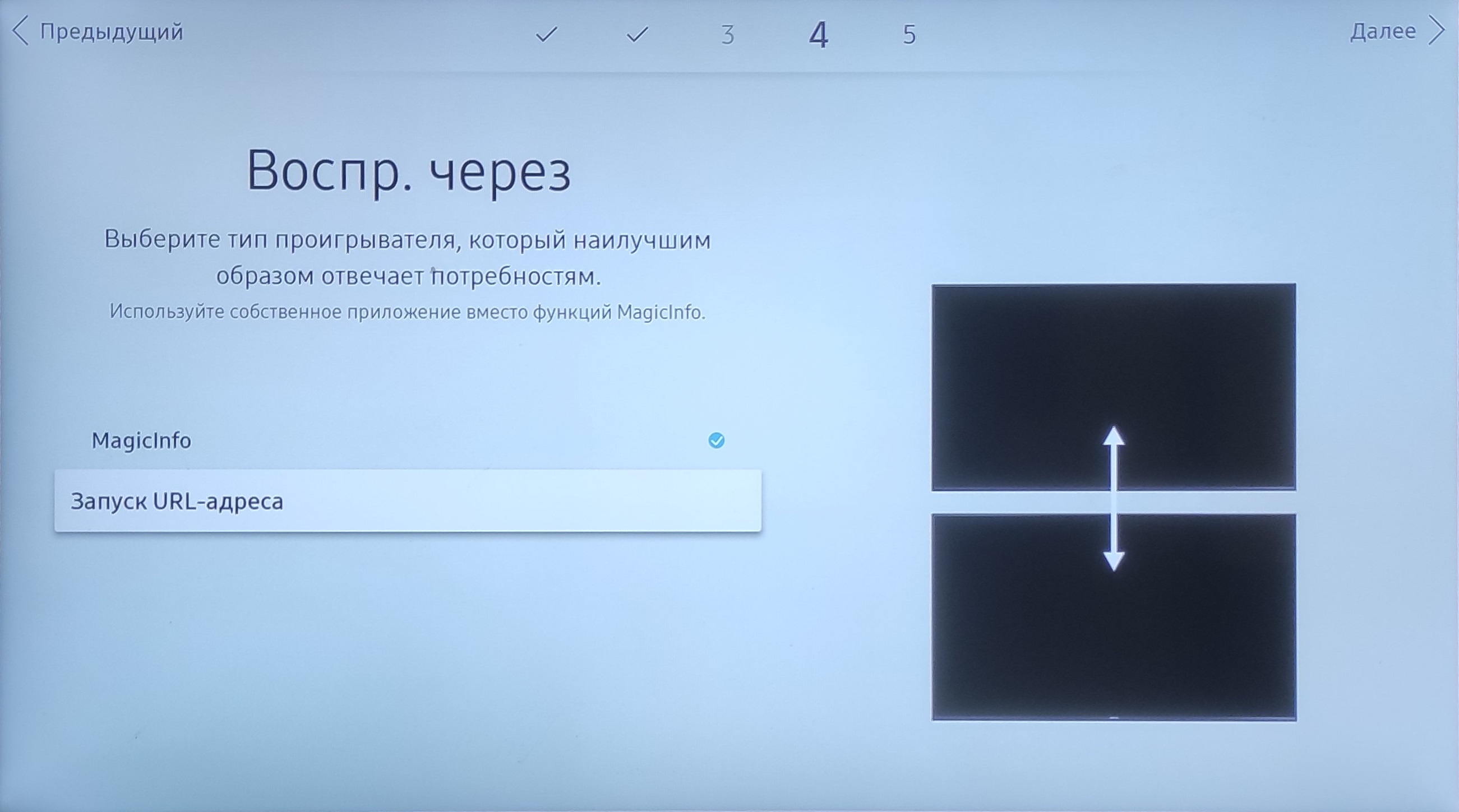
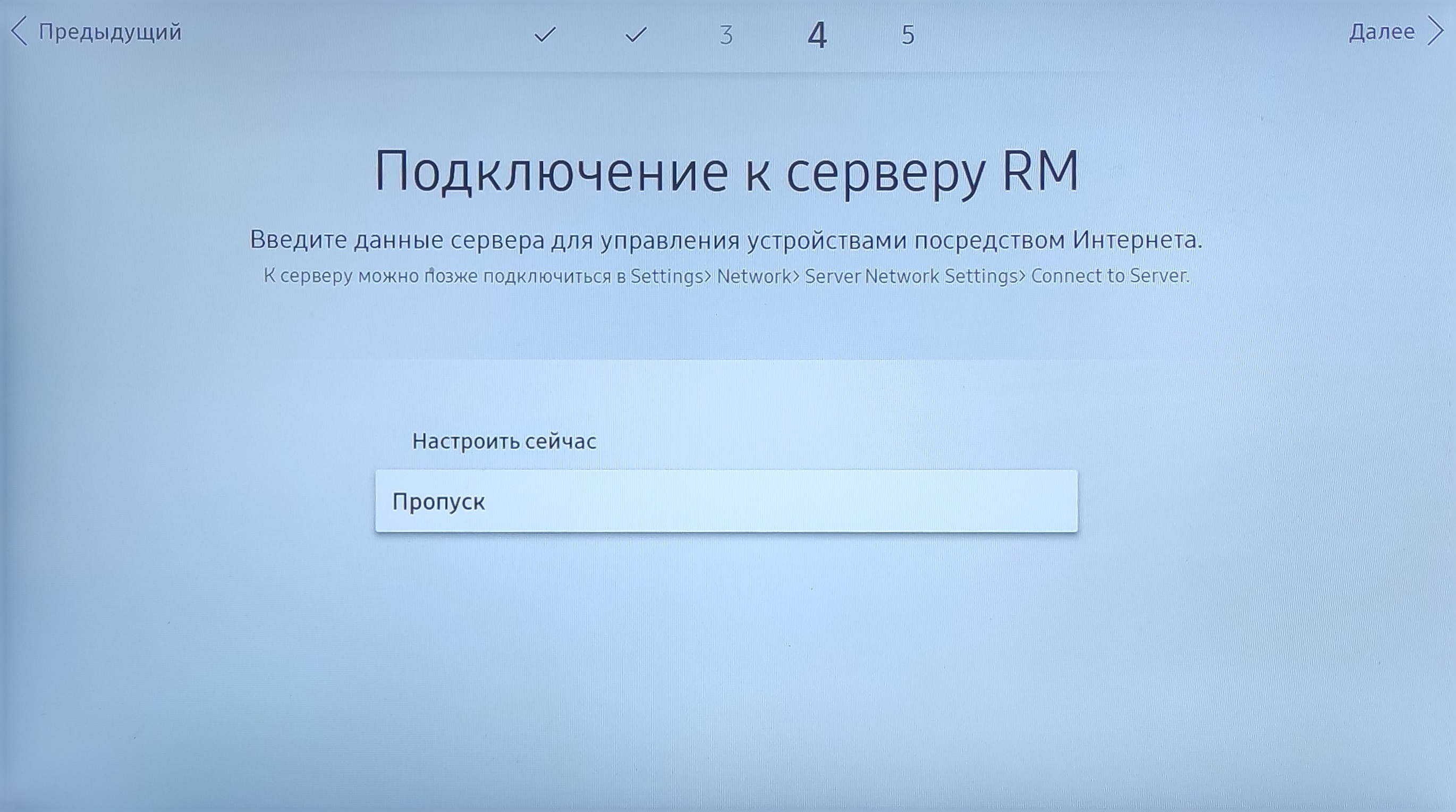
On the first boot the display shows a setup wizard (the screens may differ slightly between models; below is a Samsung QM32R-B):
-
Select the system language.
-
Select the Basic setup installation type.
-
Select the screen orientation.
-
Set Auto Power Off to Off.
-
Connect the display to the network (Wi-Fi or Ethernet).
-
Select URL Launcher as the playback mode and enter the application URL.
-
Skip the RM Server connection step.
-
Set the current date and time.
If the display has been set up before:
-
Press Menu on the remote control, open System and set Play via to URL Launcher.
-
Press Home, select Change URL → Install Web App and enter the application URL.
To start the player, press Home and select URL Launcher:
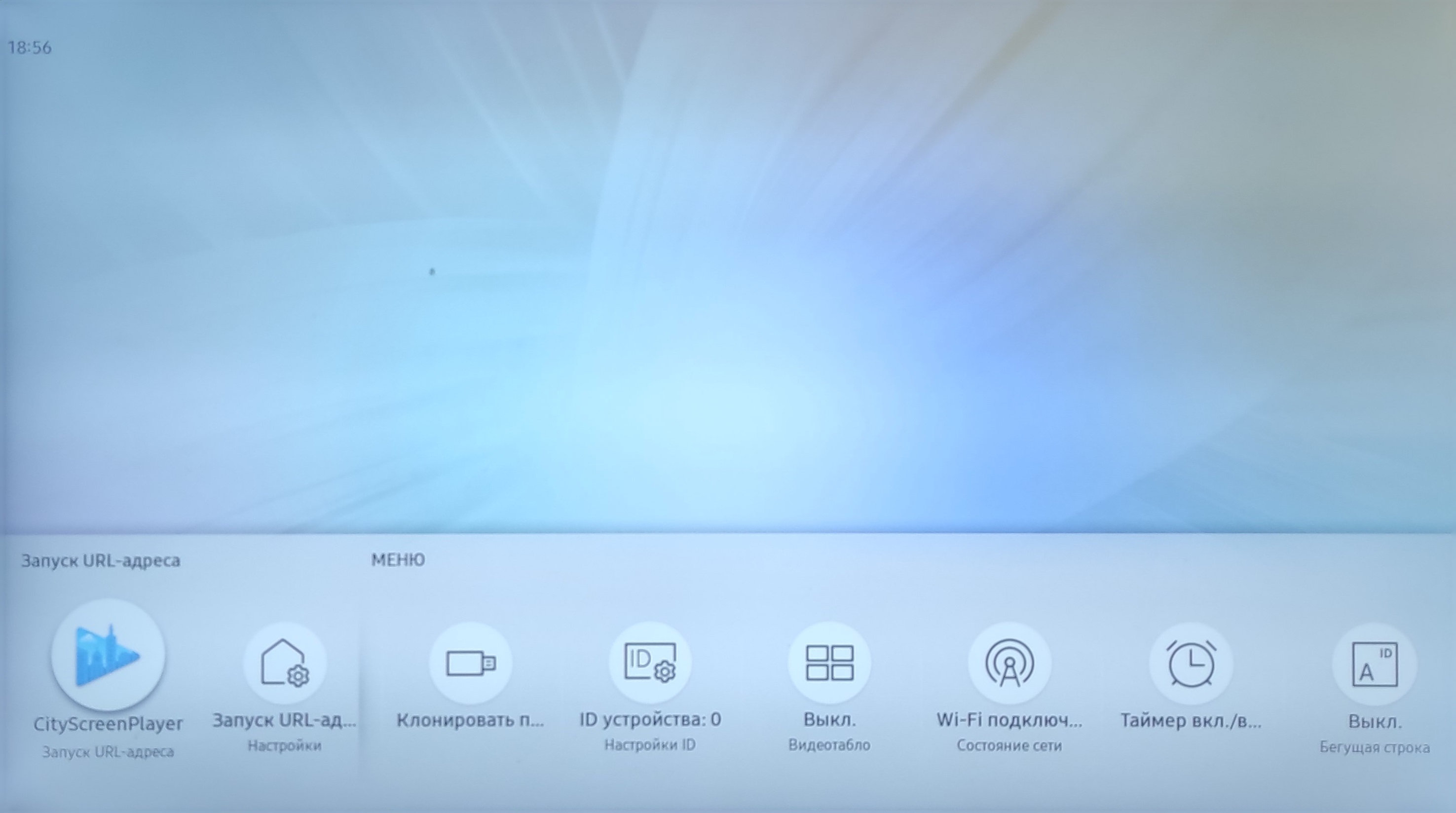
The display downloads and installs the player. When it starts, proceed to connecting the player to your account.
LG webOS Signage
On webOS Signage panels the player is installed through SI Server Settings.
The application package URL is:
https://packages.cityscreen.cloud/repository/web-player/webos/1.1.0/player.ipk| Newer versions may be published over time — check the list in the repository browser. |
Before installing:
-
On webOS 2.0 disable the automatic power-off: hold the Settings button until a notification appears in the top-right corner of the screen, enter 0000 and press OK, then open Signage Setup and set Auto Power Off to OFF.
-
Make sure the panel runs the latest recommended firmware and the date and time are correct (Settings → General → Time & Date → Set Automatically).
To check the firmware version:
-
webOS 3.2 and newer — press Home and select the S/W Version tile.
-
webOS 2.0 / 3.0 — press Home, open System Information.
-
To install the player:
-
On the remote control quickly enter 8080 and press OK. On webOS 2.0 and 3.0: hold the Settings button until a notification appears in the top-right corner, then enter 8080 and press OK.
-
Open EZ SETTINGS → SI Server Settings.
-
Set the application address to the CS Player package URL.
The AutoSet parameter must be set to OFF, otherwise the application will not be able to receive updates. This is critical on webOS 4.0 and newer. 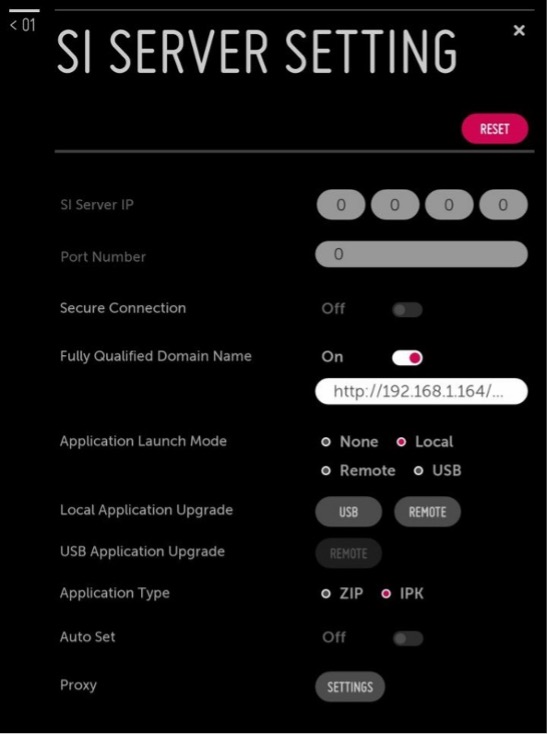
-
Select Local Application Upgrade → Remote and wait for the application update to finish.
-
Restart the panel.
HTML content limitations
Because the player on Tizen SSSP and webOS is a web application, HTML content works as follows:
-
Video elements inside HTML content are not played.
-
HTML content is rendered inside an
<iframe>, so iframe restrictions apply. -
Pages that send the X-Frame-Options header are also displayed, but dynamic resource loading on them may be limited.
-
CSS support may be limited.
Subscribing to player events
Interactive HTML content on Smart TV receives player lifecycle events via postMessage:
window.addEventListener('message', function (e) {
    const operation = e.data.operation;
    if (operation === "init") {
        // Background loading of interactive content
        initAction();
    } else if (operation === "play") {
        // Start of on-screen display
        playAction();
    } else if (operation === "stop") {
        // End of on-screen display
        stopAction();
    }
}, false);
The csBackend JavaScript bridge is available on PC and Android. See Creating interactive advertisements for the
platform-by-platform overview.
|
Remote commands
Smart TV players accept the following remote commands from the CS Play account:
-
Change the application language
-
Change brightness
-
Change volume
-
Restart the application
-
Close the application
-
Restart the device
-
Power off the device
App updates, working hours and volume control are otherwise handled by the TV system settings.