Create a campaign
To create a campaign:
-
Go to the Advertising page.
-
Click New campaign.
-
Select the desired strategy from a drop-down menu.
-
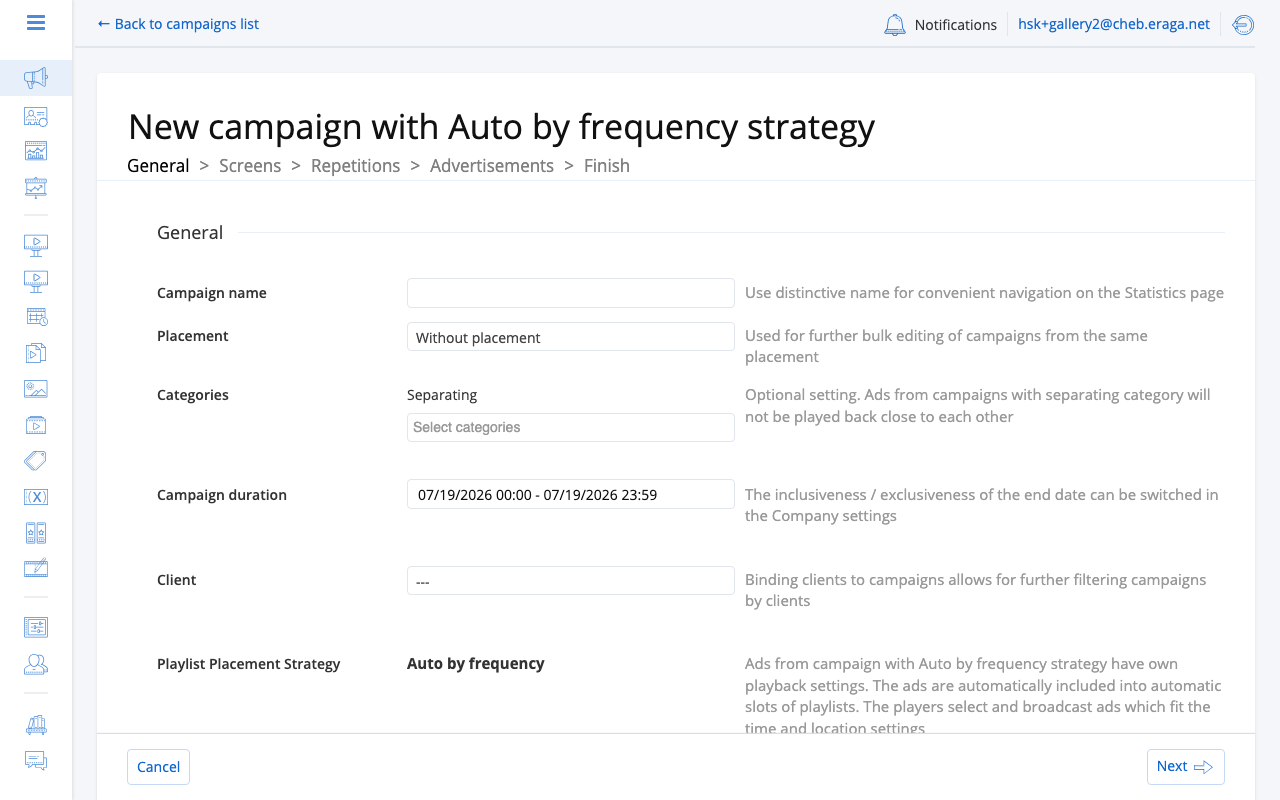
In the opened 'create campaign' wizard define campaign settings (can be different for each campaign).
-
Upload ads or save campaign to draft to upload ads later.
Please note, that draft-campaigns can not be played back on screens. You need to activate them once they are ready to be sent to screens.
| To create dozens of campaigns at once from an Excel media plan, use the Multiple campaigns wizard — see Placements & Mass Campaign Creation. |
Campaign strategies
Strategy defines how media content is going to be managed and updated through playlists. Types of campaign strategies:
-
Manual
-
Auto by frequency
-
Programmatic by frequency
-
Auto by triggers
-
Filler by frequency
Manual strategy is for conventional scheduling: you create a playlist with ads and send it to play in loops on screens.
Auto by frequency strategy is for scalable scheduling, and you don’t need to update the playlist. All you need to do is create ads and define when you want them to be played back. A playlist is created and updated automatically: CS Play heuristic planner picks ads to display, according to their time, date, frequency settings. For example, you can broadcast bank commercials only in places near banks, or reassuring lunch commercials every Monday morning.
Auto by triggers strategy is for certain ads when you want to trigger their display by certain events.
Programmatic by frequency strategy works like Auto by frequency but opens screen inventory to real-time bidding from external demand sources via CS Context (SSP).
Filler by frequency strategy creates a filler campaign with its own frequency — it fills unsold airtime with house promos or self-promo content.
Manual strategy
A manual campaign has no playback settings. A manual campaign is simply a folder which contains ads. You can use separate campaigns or upload all ads into one campaign — for example, one campaign per client.
To play ads from a manual campaign, add them to a playlist as manual slots.
Auto by frequency strategy
If you are tired of creating multiple playlists for different screens, and then keeping them updated, then Auto by frequency campaigns are just for you.
A campaign with Auto by frequency strategy contains ads which use campaign’s settings. All ads in a campaign are under the same period of time during which they will be played back on screens. But each ad can have individual playback settings.
When you create an Auto by frequency campaign, you need to define campaign settings (see more below) which will apply for all ads in this campaign.
It’s also important to Generate media plan on the upper toolbar, when you are ready to send the campaigns to the related screens. If you don’t generate media plan, auto by frequency campaigns will not be played back on screens.
An automatic campaign has the following general settings:
-
Categories: you can separate ads of one campaign from ads of other campaigns in the same category, so they do not play back to back. See Campaign Categories.
-
Campaign duration: limited period of time during which the campaign will be played back.
| When selecting date range in the calendar, the selected end date of the period can be either included in the date range or excluded from it.You can select this mode on the following page: Settings / Company settings / Time settings. |
-
Client: you can connect this campaign to a certain client.
-
Stick ads together (optional): if enabled, ads of this campaign will be played back uninterrupted by ads of other campaigns, once in every n minutes, defined in the campaign frequency.Make sure they are not overbooked.
Besides general settings there are also these settings:
-
Targeting screens and frames: which screens will broadcast this campaign (see more below).
-
Repetitions: how often the ads of the campaign will be repeated in the playback (see more below).
If you often use the same settings in Auto by frequency campaigns, you can set up the Campaign template.
Targeting screens and frames
There are two ways to target a campaign to screens or frames: selecting screens one by one or selecting multiple screens at once by criteria.
If you want to target screens manually, select By screens. Then simply select screens or groups of screens ticking them in the list.
Skip the Frame criteria step.
If you want to target campaign to multiple screens automatically, select By criteria. The targeting criteria dialogue will appear.Then:
-
Add screen criteria into corresponding sections.
-
Click Next.
-
Add frame criteria into corresponding section (see more below).
-
Click Next.
The matching screens and frames will be selected.
How targeting by criteria works
Targeting by criteria is intended to quickly select all matching screens or frames with corresponding Criteria.
The selector consists of three columns.
The selection returns screens which:
-
simultaneously have all of the criteria from the first column;
-
and have any of the criteria from the second column;
-
and have none of the criteria from the third column.
To select criteria:
-
Click on the plus icon next to the corresponding column.
-
Select criteria ticking them in the list.
-
Click Add to proceed to defining the next setting.
Frequency of repetitions
You can define how often you want the ads from this campaign to be played back on selected screens or frames. It’s called the frequency of repetitions.
Define the frequency of repetitions, setting the number of repetitions in a minute or a number of minutes. You can quickly set up this frequency for all selected screens, clicking on Set up. You can set individual frequency of repetitions for each screens, changing it for the corresponding screen in the list.
Auto by triggers strategy
Campaigns with Auto by triggers strategy contain ads, which can be triggered to display. Such campaigns are not targeted onto certain screens. However, they can be adjusted to display on certain days or at certain time within campaign duration period.
- To create an auto by triggers campaign
-
-
Go to the Advertising page.
-
Click New campaign.
-
Select Auto by triggers strategy from a drop-down menu.
-
Define campaign name and duration.
When selecting date range in the calendar, the selected end date of the period can be either included in the date range or excluded from it.You can select this mode on the following page: Settings / Company settings / Time settings. -
Upload ads or save campaign to draft to upload ads later.
-
Once the ad is created you can retrieve its trigger name, by which you can trigger the display of this ad, on this ads page in the General settings section.
You don’t need to generate a media plan for these campaigns because trigger campaigns are not included in cyclograms.
Trigger events are sent by external tools through the API.
Simulation basis: what the plan is computed from
Generating a media plan and generating a cyclogram run the same computation. The media plan is what the screens actually receive; a cyclogram is that computation run for one screen and one chosen future moment, so you can look at the result before it goes on air. Cyclograms are generated on the screen’s Forecasts tab, and reading one is only safe if you know what went into it.
Which campaigns are included
For the screen and the moment you chose, the planner takes:
-
Auto by frequency campaigns targeted at this screen whose period covers that moment — the campaign must have started and must not yet have ended at the simulated instant;
-
their ads, as long as the ad itself is active and its own end date has not passed;
-
the screen’s schedule and the playlists in it, which supply the fixed slots;
-
the organisation’s filler content, which fills whatever the campaigns do not;
-
programmatic campaigns targeted at the screen, but only if the organisation has a recommendation system connected — see Programmatic advertising.
And it leaves out:
-
draft campaigns — a draft is invisible to the simulation exactly as it is invisible to the screens;
-
stopped, completed and archived campaigns;
-
Auto by triggers campaigns, which are not part of a cyclogram at all because their playback is not scheduled;
-
campaigns that are not targeted at this screen, however active they are elsewhere;
-
creatives whose resolution does not match this screen — the frame’s resolution for a simple screen, the composite layout for a composite one. These are not silently dropped: they are listed under Creatives that do not fit.
Which assumptions it makes
The moment you pick is read on the screen’s own clock. Choosing 09:00 means 09:00 where the screen stands, whatever timezone you happen to be in — so a colleague in another city who generates a cyclogram for the same screen and the same wall clock gets the same answer.
The moment must be in the future; the form defaults to the next whole hour, because a simulation of "now" starts in the middle of a block that is already half spent.
The result is one loop at one instant on one screen. It is not a booking, not a guarantee and not an impressions forecast: it is the sequence the planner would assemble with today’s settings. Two things follow. A campaign can be perfectly correct and still not appear, because the moment you chose falls outside its period. And the answer ages — see When a generated artefact goes stale.
What the result tells you
Alongside the slot sequence, a generated cyclogram reports the block duration, how much of the block went to fillers, the number of slots, and two problems worth acting on:
-
Overbooked campaigns — their combined frequency does not fit in the block, so some spots will be dropped. Reduce a frequency, shorten a creative or move a campaign to other screens.
-
Creatives that do not fit — the file’s resolution does not match this screen’s frame, so it cannot play here. Upload a matching file for the ad.
Search for campaigns, targeted on a screen
You might want to find out which campaigns are targeted on a screen. To do so, go to the Advertising page and select a screen or multiple screens. The campaigns which are targeted to the selected screens will be displayed.
If you select more than one screen, campaigns targeted to each screen will be displayed.
See also
-
Frequency — how repetition frequency drives the generated media plan.
-
Activity Windows — how dates, weekdays and hours shape playback.