Synchronization
CityScreen Context does not hold a catalog of its own. It repeatedly copies one out of the operator’s content management system and reconciles the result against what it already has.
This page is for the owner and admin employees who connect a content management system and read the outcome. Managers and viewers see the results but cannot change the settings or start a run.
The shape of a run
A sync run is one complete pass over the source catalog. At the end of a run, whatever the pass did not find is what the source has stopped reporting.
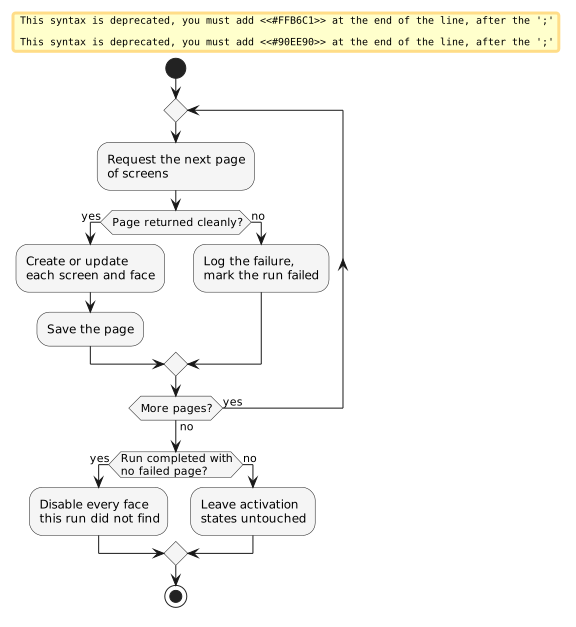
A run does three things, in order.
-
Ask the source for a page of screens, each carrying its faces.
-
Create, update or leave alone every screen and face on that page, and repeat until the source reports no further pages.
-
If every page came back cleanly and the run was not cancelled, disable every face in the organization that the run did not find.
A run that fails halfway has still saved everything it read up to that point.
When it runs
The scheduled pull runs hourly. It covers every organization whose synchronization settings are saved and enabled, skipping organizations whose integration delivers inventory as a file.
An owner or admin can also start a run at any moment from the organization’s inventory synchronization settings, and cancel one in progress. A cancelled run keeps the pages it already committed and skips the disable pass, exactly as a failed run does.
What is requested
For a content-management integration speaking the CityScreen protocol, the platform requests the catalog using the operator’s identifier and credentials. The response lists screens, each with its faces nested inside it.
How records are matched
Incoming records are matched to existing screens and faces by the identifiers the source system uses, and a face is also matched by its GID. That keeps a face’s history intact when a source system changes its own identifiers but keeps the GID stable. A face whose GID is already used by a different face of the same organization is skipped for that run, and the log names the GID and the face holding it.
What a run overwrites
Practically everything. A face’s name, resolution, position on the screen, operating schedule, photographs, slot configuration and most of its metadata are replaced from the source on every run in which they differ. A screen’s title, address, coordinates, resolutions, physical size, placement, installation kind, description and photographs are likewise replaced.
Four face-level settings are the operator’s and survive. What you can edit is the page to read before planning any work around edited values.
Inventory the source stops reporting
Nothing is deleted. A face the source has stopped reporting is set to disabled at the end of the next run that completes without a failed page, and stays in the catalog with its identifiers, its history and its reports intact.
The reverse is also automatic. A face present in a run is enabled. For most integrations that makes activation a property of the source — see Activation and archiving.
Partial failures
A page whose request returns a non-success status, or returns an empty body, is dropped. The failure is written to the run’s log with the source’s answer, and the run is marked as failed.
Two things follow from a failed page.
-
Every page that already succeeded stays committed. The catalog is left partly refreshed.
-
The disable pass is skipped for the entire run.
That second point is the important one: a source that goes briefly unreachable in the middle of a run cannot cause faces to be deactivated, because the pass that would deactivate them never executes.
Records that fail validation are a softer case. A screen whose incoming record is malformed is skipped individually, the problems are written to the log naming the screen, and the rest of the page proceeds. If the screen stays malformed across a clean run, its faces are deactivated by the ordinary rule for inventory the source stops reporting.
Licence limit
Where the deployment is licensed for a maximum number of displays and the source reports more than that, the batch is skipped, a notification is raised for the organization, and the run continues without being marked failed. The log records that the number of licensed displays is lower than the number received.
File-based import
Some content management integrations do not publish a live catalog. For those, the operator uploads a spreadsheet instead, and the same reconciliation runs against its rows: create, update, and disable whatever the file did not contain.
-
The import button and the spreadsheet template are available on the inventory list, to owner, admin and manager employees, and only for organizations whose integration is file-based.
-
Malformed rows are skipped and reported in the log, exactly as malformed records are during a pull.
-
One import runs at a time per organization; a second upload started while one is in progress is refused.
For file-based organizations the scheduled hourly pull does not apply, and starting a pull by hand is refused.
Settings
Inventory synchronization settings live per organization and are editable by owner and admin employees only.
- Base URL
-
The address of the content management system’s programmatic interface.
- Access token
-
The credential sent with every synchronization request.
- Operator identifier
-
The identifier that scopes every call to this operator’s inventory inside the source system.
- Additional fields
-
Some integrations need extra parameters. The set of extra fields is a property of the integration, so the form shows the fields that integration requires.
Deleting the settings stops the organization from being synchronized. It does not remove the inventory already imported.
Reading the outcome
Two surfaces report on synchronization.
- Status
-
While a run is in progress, the platform reports the run identifier and the running totals of records requested, created and updated.
- Log
-
After a run finishes — successfully or not — a human-readable log is stored for the organization and can be read from the synchronization settings page.
The log holds one run: each new run replaces the previous log. A completed run ends with its counts:
Inventory synchronisation started at 2026-08-11T09:03:00. Id: 8f2c1b04-...

Synchronization completed
Number of created frames: 4
Number of updated frames: 112
Number frames without changes: 1380
Number of disabled frames: 2
A run that hit a problem carries the problem instead, above the counts:
Synchronization failed.
Invalid server response code 502
Response text: Bad Gateway| If a run reports zero disabled faces on an organization where faces have plainly been removed at the source, check the log for a failed page first. No face is disabled in a run when any page fails, so the deactivation has not happened yet and the next clean run will perform it. |
Other integration paths
The pull described above is the CityScreen-protocol path, used by organizations whose screens are run by CS Play and by generic sources implementing the same interface. Other integrations reach the same catalog by their own routes.
-
SpinetiX — a content management integration which keeps the same rule for inventory the source stops reporting.
-
CubicVision — a content management integration with its own inventory path, and the one integration in which activation stays under the operator’s control across runs.
-
KIS — a content management integration whose catalog arrives as a file import.
-
Exchange SSP integrations — inventory drawn from another exchange rather than from a content management system, on its own hourly schedule.
Supported partners classifies each of these by what kind of integration it is and which direction it talks.