Campaigns
A campaign is what CityScreen Context keeps once a demand partner’s creative has been approved. It is a standing permission to sell: the record the auction consults every time one of your faces is about to fill a slot.
This page is for the owner, admin, manager and moderator employees who work the campaign list in the client cabinet, and for the viewer who reads it. It is also the object model an integrator needs before reading the auction.
Automated guaranteed campaigns are a different object with a different lifecycle — see Automated guaranteed campaigns. Programmatic guaranteed campaigns are built on top of the campaigns described here — see Programmatic guaranteed campaigns.
Where a campaign comes from
A campaign is created when a demand partner’s creative is approved.
A demand partner submits a creative, which becomes a moderation request. When every employee position the organization has defined has confirmed that request, the platform creates the campaign, holding one advertisement for each media file the creative carries.
The campaign then becomes sellable in one of two ways, and which one applies is a property of the content management system your organization runs. Under most integrations the campaign is confirmed as soon as review completes. Under one, the creative is pushed to the content management system first and the campaign is confirmed only when that system acknowledges it. Either way, a content management system can later report a rejection, and a campaign that is already running will be rejected on that report.
The states this produces, and everything that happens to a campaign afterwards, are on Campaign states.
The containment model
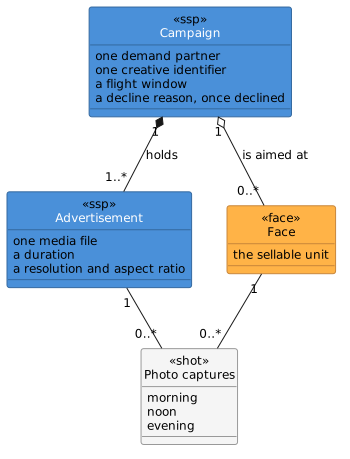
Campaign. One campaign belongs to one demand partner and carries one creative identifier — the value that partner uses to refer to this creative when it bids. The campaign holds the commercial scope: the flight window, the list of faces, the state, and the reason if someone declined it.
Advertisement. An advertisement is one playable file. The platform creates one advertisement per media file on the approved creative, all sharing the campaign’s name and duration and differing only in resolution and aspect ratio. That is why a creative supplied in several sizes produces several advertisements: when the campaign wins a slot, the platform picks the advertisement whose resolution and aspect ratio suit that particular face.
An advertisement is never created or edited from the client cabinet. It arrives with the creative and changes only when the creative is resubmitted.
The flight window
A campaign may carry a start time and an end time, both supplied by the demand partner with the creative.
A campaign with a start time set is offered to the auction only between the two times. A campaign with no start time is offered without any date restriction, and runs until something else stops it. The window is shown on the campaign page only when both times are present.
A campaign that carries a start time needs an end time as well. If a demand partner reports a campaign that has never delivered, check that both times arrived.
The flight window is the only limit an ordinary campaign carries. How spend and volume are controlled is described in Controlling delivery.
Aiming a campaign at faces
Every campaign carries a face list and a mode. The mode decides how that list is read, and it is the one thing about a campaign an employee can change after the fact.
| Mode | With an empty list | With faces listed |
|---|---|---|
Whitelist |
The campaign runs on every face in the organization |
The campaign runs only on the listed faces |
Blacklist |
The campaign runs on every face in the organization |
The campaign runs on every face except the listed ones |
The check runs on every opportunity, before the bid is considered. A campaign that fails it is dropped from that auction with an inventory-restriction reason, which is reported back to the demand partner.
-
Open Campaigns in the client cabinet and pick a state tab.
-
Open the campaign and stay on its info tab.
-
In the inventory block, choose Change.
-
Pick all faces, a whitelist, or a blacklist, and select the faces.
-
Save.
Owner, admin, manager and moderator can do this. A viewer cannot, and the control is not offered on a rejected campaign.
Saving sends the new scope to the demand partner, so it can stop bidding on faces it will no longer win. What the partner receives is the resolved list of faces the campaign may now run on; a blacklist is sent as the equivalent allow list. The change is written to the audit log.
What the campaign page shows
Opening a campaign gives two tabs.
Info carries the identifiers, the created and updated times, the flight window, the demand partner, the state, and — where the campaign was declined or rejected — who did it and why, position by position. Below that sit the face list, the advertisements as previews with their durations, any documents the partner attached to the creative, and a statistics block. The statistics count confirmed ad plays only and summarize what those plays were charged: how many there were, the total amount, the platform’s commission on it, and the smallest and largest single amounts. Opportunities the campaign won but whose play was never confirmed are not in these figures.
Shots carries the photo captures.
Photo captures
The tab labeled shots holds photo captures: photographs of the physical screen taken while this campaign’s advertisement was on it.
The interface’s word shot means the photograph.
A photo capture shows that the advertisement appeared on a real installation in the street, in a form a buyer can look at. Photo captures play no part in counting, pricing or billing, so a campaign with no photo captures is counted and billed like one with a full set.
They attach to the pairing of one advertisement with one face, and each pairing holds at most three — one for the morning, one for midday, one for the evening, in the local time of the screen. Three for the life of that pairing. A pairing has photo captures after its first confirmed ad play on the face.
Every employee role can view them. Owner, admin, manager and moderator can replace one; the replacement is marked as person-supplied, and that marker reaches the demand partner along with the image.
Photo captures covers where the images come from, how long each layer is kept, and what replacing one entails.
Declining a campaign
Declining is the operator’s veto, and the only campaign state an employee can set.
-
Open the campaign from the confirmed tab.
-
Choose Decline at the foot of the page.
-
Give a reason. It is required, and limited to 255 characters.
Owner, admin, manager and moderator can decline. A viewer cannot, and the control appears only on a confirmed campaign.
Three things follow. The campaign moves to rejected and stops being offered to the auction. The reason is sent to the demand partner as a moderation rejection, so the reason text is read by the buyer. The employee who declined is recorded against the campaign and shown on its info tab alongside the moderation reviews.
A decline is not reversible from the interface. The demand partner would have to submit the creative again, which produces a new moderation request.
Prices, delivery figures and money
-
Prices. What a winning bid is charged comes from the covering price list, and the winner pays the second-price amount.
-
Delivery figures. The statistics block on the campaign page is a summary. The full record of what played is in Reporting.
-
Money. Financial transactions are written per confirmed ad play and are listed in Billing.