Inventory
Inventory is what a screen operator has to sell. In CityScreen Context that means a catalog of physical screens, each carrying one or more sellable faces, mirrored from the operator’s content management system.
This page establishes the vocabulary the rest of the documentation uses. It is written for every employee role in an operator’s organization.
Screen, face, display
Three words are easy to confuse, so they are fixed here.
- Screen
-
The physical advertising installation at one location. A screen has one address and one pair of coordinates, one logical resolution and one physical resolution, one physical size, an indoor or outdoor placement, a static or mobile installation kind, its own photographs, and one time zone. A screen is not sold; it is where selling happens.
- Face
-
One sellable advertising surface on a screen, and the unit CityScreen Context actually trades. A face has its own GID, its own resolution, its own operating schedule, its own activation state, its own commercial format, and its own attachment to the price lists that decide who may buy it. A screen carries one or more faces. A single-sided screen has one face; a double-sided structure has two, each sold on its own.
- Display
-
The platform’s own name for a screen — it shows up as display in exported data and in places outside this documentation. Where this documentation says screen, the platform elsewhere says display. The two are the same thing.
The word inventory is collective. An organization has inventory; a single row in the list is a face, never "an inventory".
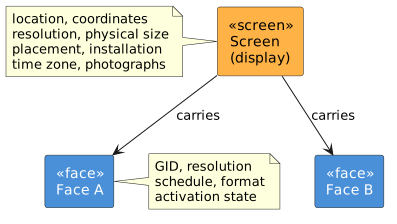
The industry glossary defines face the same way the industry does: the surface on a structure where advertising copy is displayed, of which a structure may have one or several. CityScreen Deals reaches the same word from the other direction — what its interface labels a side is documented as a face there too.
Screen ID
A face carries an optional field called the screen ID. It is an identifier from a demand partner’s own catalog, stored on the face so that partner can be answered in its own terms when it asks about that face. It identifies a face for that partner and is separate from the screens above. What you can edit covers when to set it.
How a face is identified
- GID
-
The identifier a face is known by outside CityScreen Context — in bid requests, in playout reports, in exported catalogs and in every report column that names inventory. A GID is unique within an organization.
- Side
-
A short label distinguishing faces on the same screen, supplied by the source. It appears as a column in the inventory list.
When a screen carries more than one face, the platform appends the face’s GID to the shared screen title so that the two faces are distinguishable in lists and reports. A screen with a single face keeps the plain title.
Where the catalog comes from
Every screen and every face is created by a synchronization run or a file import from the operator’s content management system.
That has two consequences worth stating early.
-
The source system is the place to fix a wrong name, a wrong resolution or a wrong location. Only four face settings can be changed in CityScreen Context.
-
A face removed from the source is deactivated here, and its history stays.
Synchronization covers the pull and the import. What you can edit covers the exception.
Reading the inventory list
The inventory list shows faces, joined with the screen each one sits on. A row is a face; the address, placement and installation shown on it belong to that face’s screen.
The list can be filtered by name, GID, description or address as free text, and by format, placement, installation kind, legal entity, activation state and archived state. It can be sorted by identifier, name, GID, creation time, update time and activation state.
Every employee of an organization can read it, and sees only their own organization’s faces. A viewer restricted to a single legal entity sees only the faces attached to that legal entity.
Opening a row gives the face’s detail page: its identifiers, its screen’s geometry and location, its operating schedule, its time zone, its photographs, its custom fields, and the four editable settings.
What a face is attached to
A face is the anchor for most of what the rest of this documentation describes.
| Attachment | Where it is covered |
|---|---|
RTB price lists — who may buy this face and at what floor price |
|
Legal entity — which of the organization’s billing identities owns it |
|
Technical requirements — free text about the creatives accepted on it |
|
Saturation — how full its airtime is over a coming window |
|
Ad plays — what actually played on it |
When a synchronization run creates a new face, the platform attaches it to the organization’s default price list, so that a newly appearing face is sellable without further setup.
Section contents
| Page | What it covers |
|---|---|
The hourly pull, file import, partial failures, and what happens to inventory the source stops reporting |
|
The four fields an operator owns, and everything the next run overwrites |
|
What enabling and disabling a face changes commercially, and what archiving does |
|
The occupancy signal pulled from the source, and who reads it |
|
Carrying source-specific attributes on a face |
|
Local time per screen, operating hours per face, and where each one matters |