Connect your CMS
The connection between an organization’s content management system and CityScreen Context is the second step of bringing an operator live, and everything after it depends on the connection working.
This page is for the owner and admin employees who fill the settings in — no other role can save them — and for the engineers on the content management system’s side. The organization’s server type, which decides which of the paths below applies, is fixed by the platform administrator when the organization is created.
What the connection carries
Four things cross it, in two directions.
| Flow | Direction |
|---|---|
The catalog of screens and faces |
Platform pulls |
Approved creatives |
Platform pushes |
"What should this face play now?" |
System asks |
Confirmed ad plays |
Platform pulls |
The first, second and fourth are outbound: CityScreen Context calls the content management system. The third is inbound: the content management system calls CityScreen Context.
That split is why there are two credentials.
Two credentials, pointing opposite ways
Both are called a token, and they are configured on adjacent screens under the same word. Establishing which is which before you start is worth more than any other minute you spend on this connection.
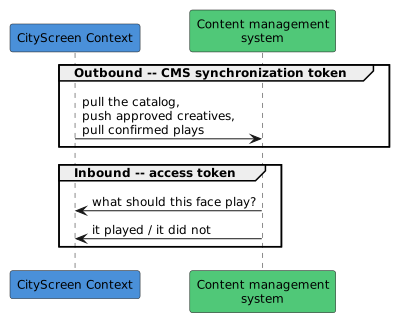
- CMS synchronization token
-
Entered by the operator on Settings → Inventory sync, where the field is labelled as the token. It belongs to the content management system and is issued by it. CityScreen Context presents it on every outbound call.
- Access token
-
Issued by CityScreen Context, one per organization, and shown on Settings → Agencies. It belongs to the organization and is handed to the content management system, which presents it on every inbound call. Access tokens owns this credential — what it covers, who may regenerate it, and what regenerating costs.
They are stored in different places, issued by different parties and checked separately. Putting one where the other belongs produces an authentication failure at the far end.
The operator identifier does double duty
One field on the synchronization settings appears in both directions: the operator identifier.
Outbound, it scopes every call to this operator’s inventory inside the content management system. Inbound, it identifies the organization in the request the content management system sends, and the platform checks it against the value saved in these settings. A request whose token authenticates correctly but whose identifier does not match is refused with an authentication error.
So the operator identifier has to be the same string in three places: in these settings, in whatever the content management system calls this operator, and in the request the content management system builds.
Wiring it by hand
The ordinary path, and the one to use unless the installation offers the handshake below.
-
Sign in as the organization’s owner or admin.
-
Open Settings → Inventory sync (
/settings/inventory-sync). -
Enter the base URL of the content management system’s programmatic interface.
-
Enter the token the content management system issued for this operator. This is the CMS synchronization token.
-
Enter the operator identifier the content management system knows this operator by.
-
Fill in any additional fields the form shows. Which fields appear is a property of the integration, not a choice — the form asks for exactly what that integration needs.
-
Save.
-
Open Settings → Agencies (
/settings/agencies), copy the organization’s access token, and give it, together with the operator identifier and the platform’s own address, to whoever administers the content management system.
Deleting these settings later stops the organization being synchronized without removing what has already been imported — see Synchronization.
| Some integrations do not expose a catalog interface at all and take a spreadsheet upload instead. For those, only the inbound half of this page applies; see Synchronization for the import. |
The automated handshake
Where the installation offers it, the content management system can introduce a new operator instead, in which case both tokens are exchanged in a single call and neither is typed in.
-
The content management system calls CityScreen Context, presenting the installation’s shared secret and naming the organization, its own identifier for it, and the intended owner.
-
CityScreen Context returns a short-lived reference token and the address of its sign-up form.
-
The prospective owner completes that form, which creates the organization.
-
CityScreen Context calls back into the content management system, sending the new organization’s access token, the organization’s identifier and the platform’s own address.
-
The content management system answers with its own token and its own identifier for the operator. Those two values are saved as the synchronization settings, and the connection is complete.
-
If that answer does not arrive, the organization is not created.
Organization setup covers the organization-creation half of the same flow.
Confirming it works
Take the two directions in turn.
-
On Settings → Inventory sync, start a synchronization run by hand to avoid waiting for the hourly one.
-
Read the log on the same page. A completed run ends with counts of created, updated, unchanged and disabled faces. A failed one carries the error the content management system returned.
-
Open Inventory → Screens (
/inventory/screens). The faces are there, with their names, addresses and resolutions as the content management system holds them.
Synchronization explains the log, the paging, and what a partial failure does.
-
Have the content management system send one ad request for one of those faces.
-
An authentication error means the credential or the identifier is wrong: check the token against the value shown on Settings → Agencies (see Access tokens), and the identifier the content management system sent against the operator identifier saved in the synchronization settings.
-
Any other error means the request reached the platform and was refused for a commercial reason, which is expected at this point. An organization whose price list admits no active demand partner, or whose commission resolves to zero, refuses every request; the table at the foot of Auction names every cause and distinguishes the ones that produce an error from the ones that produce an empty answer.
Steps 3 and 4 of Getting started are what turn that refusal into an answer.
Where this connection ends
-
Demand partners reach you through a separate path. They are registered and enabled separately — see Connect a demand partner.
-
The catalog belongs to the content management system, and a synchronization run overwrites nearly everything on a face. The exceptions are listed in What you can edit.
-
The answer to an ad request names an advertisement the content management system already holds, because approved creatives were delivered to it earlier.