Administration
Everything in CityScreen Context sits inside an organization. An organization is one screen operator’s whole presence on the installation: its inventory, its prices, its price lists, its campaigns, its creatives, its money and its people.
This section is for the owner and the admin of an organization — the two roles that can change the organization itself. Managers, moderators and viewers work inside the result and cannot alter it.
For the map of who may do what, read Roles and access first. This section is the working detail behind it.
The organization is the boundary
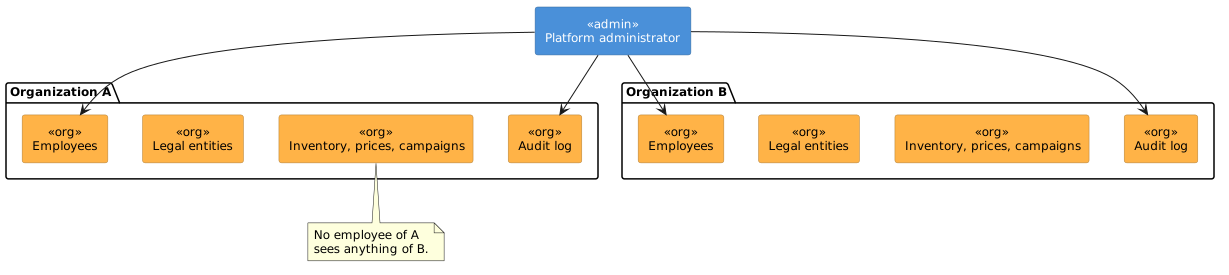
Nothing in the product is shared between organizations.
Two organizations on the same installation see none of each other’s inventory, none of each other’s campaigns, none of each other’s financial transactions and none of each other’s audit trail. The only account that reads across the boundary is the platform administrator.
One login, one organization, permanently
An employee record is the same record as the login it belongs to, so a login belongs to one organization.
When you plan a team, that has consequences:
-
A person who needs to work in two organizations needs two accounts, with two different email addresses.
-
Nobody can be moved between organizations. Reassigning a person means creating an account for them in the new organization and disabling the old one. Their history stays with the organization it was made in.
-
An agency or holding company running several organizations on one installation staffs each one separately.
-
Their positions, notification subscriptions and audit entries stay behind.
The corollary is that an organization’s employee list is complete. If a name is not on it, that person has no access to the organization at all.
What the organization holds
| Object | What it is for |
|---|---|
Employees |
The people with access, each carrying exactly one of five roles. See Employees and roles. |
Positions |
Review responsibilities that decide who is asked to pass judgement on a creative. See Positions. |
Legal entities |
The organization’s billing identities, each with its own tax details and its own attached faces. See Organization setup. |
Organization profile |
The single billing identity used by an organization that does not need several. |
Organization settings |
Tax rate, creative housekeeping periods, HTML creatives, and the demand partners whose creatives skip review. |
Audit log |
The record of what changed and who changed it. See Audit. |
Notifications |
The in-app list and the email subscriptions. See Notifications. |
What the platform operator sets
Some things about an organization are set by the platform operator. An owner asking why a control is missing will usually be looking at one of these.
- Organization creation and its name
-
An organization is brought into being either by a platform administrator or through a handshake started by the operator’s own content management system.
- The number of legal entities allowed
-
Each organization has an allowance, set when the organization is created and changeable only by a platform administrator. An organization that has used its allowance cannot add another billing identity for itself.
- The commission the platform takes
-
Set per organization by the platform administrator. See Fees and commission.
- Which content management system runs the screens
-
Recorded on the organization as its server type and changed only by a platform administrator. It decides several behaviours the organization then lives with, including whether faces can be switched on and off by hand.
- Whether the organization is switched on at all
-
A platform administrator can disable an organization. While it is disabled, none of its employees can sign in.
- Promoting a different employee to owner
-
Requested from the platform operator. See Employees and roles.
If you need any of these changed, ask the operator of the installation.
Setting up a new organization
The objects depend on each other, so there is an order that avoids rework.
-
Organization profile or legal entities — decide whether the organization bills under one identity or several, and record the tax details. Faces are attached to legal entities, so this comes before inventory work.
-
Organization settings — the tax rate, the creative housekeeping periods, and which demand partners' creatives skip review.
-
Positions — the review responsibilities, if the organization wants creative review split between people. Create these before the employees who will hold them, so that they can be assigned at creation time.
-
Employees — the people, with their roles and their positions.
-
The connection to the content management system — so that inventory arrives.
-
Price lists — so that the inventory can be sold.
The owner account exists from the moment the organization does; step 4 is about everyone else.
Every employee’s own account
Regardless of role, every employee manages their own account from Account. It shows their email address, their name and their role, and lets them set their second authentication factor — none, a code by email, or a time-based code from an authenticator app — and change their password. It also holds their email subscriptions.
Changing your own password signs you out of your other sessions. When an owner or an admin resets somebody else’s password, that person is signed out of all of theirs.
Read next
-
Roles and access — the two role axes, and the capability table.
-
Employees and roles — deciding who to hire into which role.
-
Organization setup — legal entities, profile and settings.
-
Audit — what is recorded and what is not.